
How CMSHands works
A free plugin adds a chat to your WP dashboard. You ask for a change in your own words. You see the change first, and nothing happens until you say yes.
- Nothing changes without your OK
- Undo in one click, or a warning first
- No account, no password to share
Needs WP 6.3 to 7.1, PHP 8.0 or newer, and an administrator login. One site per install.
The download is a plugin. Turning it on connects your site to cmshands.com and adds 3 small rescue files. Deleting the plugin removes them and everything it stored. What we send
On the About page, change “since 2019” to “since 2018”.

Setting it up: 3 steps, no account
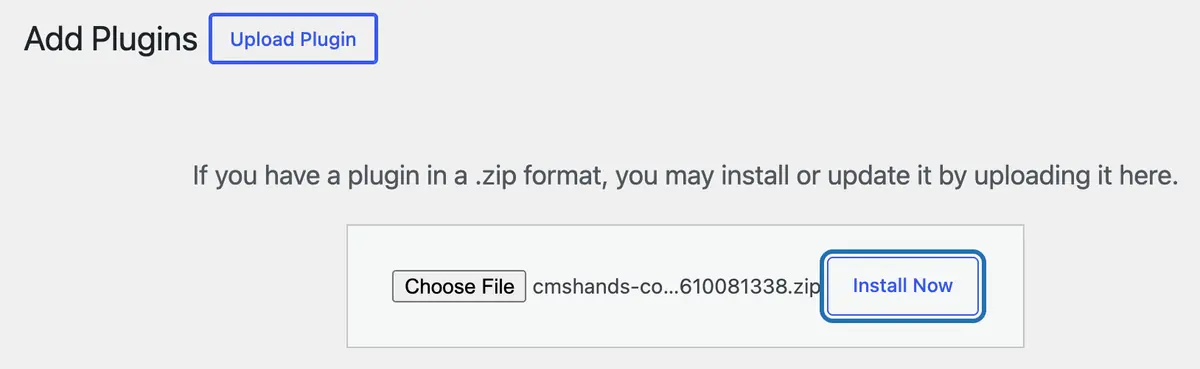
1. Upload it.
In your WP dashboard (the screens you log in to at yoursite.com/wp-admin), go to Plugins › Add Plugin and press Upload Plugin. Choose the zip, then press Install Now.
2. Activate it.
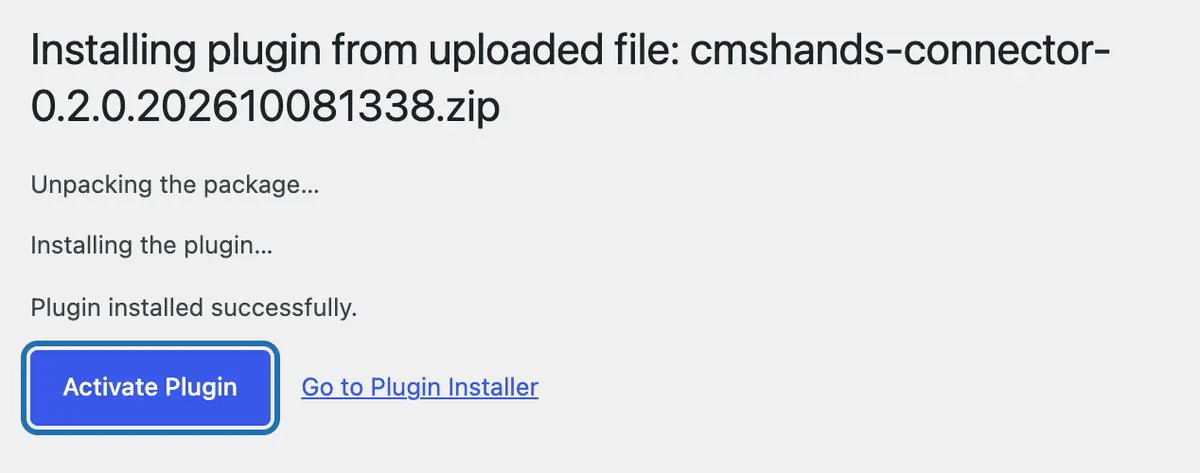
Press Activate Plugin. You're back on the Plugins screen, with a CMSHands box at the top.
3. Press Turn on.
Press Turn on CMSHands in that box. No account, no key, no password.



What Turn on does
It connects your site to cmshands.com, checks the site, and adds three small helper files we call the rescue files. Then it starts the daily check and opens the chat.
A fresh WP 7.1 site on our test server, Oct 11, 2026, right after Turn on. The 3 ticks were done 3 seconds after the press.

Watch it do this on a real site

You ask
You type the change in the chat, in your own words. The chat sits in your WP dashboard, next to your pages.
On the About page, change “since 2019” to “since 2018”.
You see it first
It finds the About page, reads it, and about 29 seconds later shows a card, a box in the chat that shows exactly what would change. It opens on After: your page with the new words. Nothing has changed yet.
Ready for you to review — it's on the About page, and the wording elsewhere on the page is untouched.
- 2 secondsLooking for what you meant
- 4 secondsReading one of your pages
- 6 secondsPreparing the change for your OK
- Previewing your page

Or see the exact words
Press Code to see the change itself: the old sentence in red, the new one in green. Now shows the page as it is today. The green button makes the change. Not now leaves the page alone.

You press the button
Only now does it change your page. It updates the About page, reads it back to check, and the card turns green with an Undo link.
- 37 secondsUpdating one of your pages
- 38 secondsChecking the change

It's on the site
The About page on the test site right after, seen by a visitor: the first line now ends in 2018. Nothing else on the page moved.
Done. I checked afterwards, and it now says "Quillmoor Pottery is a two-person studio making mugs, bowls and plates by hand since 2018.".

Undo, if you want
One press of Undo put the old sentence back. It checked again and showed exactly what it put back.
Undone. I checked afterwards, and it's back the way it was.
- 45 secondsReverting the change
- 46 secondsChecking the change
A real run on our test site, Quillmoor Pottery (WP 7.1.3, Twenty Twenty-Four), Oct 11, 2026. From asking to done, it took 38 seconds.
That's the whole job. The plugin is free: 3 changes to try it, no account. Nothing changes until you press the button.
Needs WP 6.3 to 7.1, PHP 8.0 or newer, and an administrator login. One site per install.
The download is a plugin. Turning it on connects your site to cmshands.com and adds 3 small rescue files. Deleting the plugin removes them and everything it stored. What we send
Why it won't wreck your site
Nothing changes until you press the button.
You see it first.
One click undoes it.
It won't overwrite your edits.
Updates put themselves back.
If your site breaks
We check it every day.
Once a day on the free plan. If the rescue files report a crash, we check at once.
The rescue files do the hard part.
One sits in wp-content/mu-plugins, one is a crash handler in wp-content, and one has a random name at the site root. They're plain, readable PHP. They let us reach your site even when WP can't start.

A person approves every repair.
We find what broke and prepare a fix. A person at CMSHands checks it before it runs.
You get a plain-English email.
What broke, what we did, and what to do next. Add your email to get it.
Only if CMSHands was there first.
It can't be installed into a site that won't load. Install it while your site works. Tried on our test sites; hosts differ.
What it won't do yet
- Edit pages built with a page builder like Elementor, Divi or Beaver Builder
- Change the header, footer or styling on older (classic) themes
- Upload pictures, logos or product photos
- Make backups
- Clean up malware or a hacked site
- Speed up your site (it can tell you why it's slow)
- Update WP itself, or install, update or switch themes
- Update premium plugins that don't come from the WP plugin directory
- Work on multisite networks, or in languages other than English
- Add users or reset passwords
Free to start
| No account | With your email | Paid plan | |
|---|---|---|---|
| Changes | 3 to try it | 10 every month | Coming. Nothing costs money until you choose it. |
| Questions | 30 a day | 100 a day | |
| If it breaks | Daily check and crash rescue | The same, plus email alerts |
Undo a change within 24 hours and it doesn't count. If you haven't added an email after 30 days, only crash rescue stays on until you add one. A change is one card you approve. A job that touches several pages or plugins is several changes.
Leaving is clean
Press Disconnect this site in the plugin's settings, or delete the plugin. The rescue files and everything the plugin stored are removed.
What the plugin sends us while it's on, and what it never takes: the privacy page. Who makes CMSHands, and how we test what this site shows: about us.

Try it on your own site
Needs WP 6.3 to 7.1, PHP 8.0 or newer, and an administrator login. One site per install.
The download is a plugin. Turning it on connects your site to cmshands.com and adds 3 small rescue files. Deleting the plugin removes them and everything it stored. What we send
Download the plugin.
It's free: 3 changes to try it. No account, no card.
Upload and activate it.
In your dashboard: Plugins › Add Plugin › Upload Plugin (Add New Plugin on older WP). Choose the file, press Install Now, then Activate Plugin.
Press Turn on.
Press Turn on CMSHands. No account, no key, no password.