
Add products to your store from a spreadsheet
A free plugin adds a chat to your WP dashboard. Attach your sheet and type “Add these to my shop in a new category, Autumn.” Nothing changes until you press.
Imports are on the paid plan, not open yet. Simple products, no images.
- Nothing changes without your OK
- Undo in one click, or a warning first
- No account, no password to share
Needs WP 6.3 to 7.1, PHP 8.0 or newer, and an administrator login. One site per install.
The download is a plugin. Turning it on connects your site to cmshands.com and adds 3 small rescue files. Deleting the plugin removes them and everything it stored. What we send
Imports open with the paid plan. The rest works now.

Watch it do this on a real site

You attach the sheet
The sheet is one we made up for our test shop: 8 new autumn pieces in 5 columns, named SKU, Name, Price, Stock and Description. It went in as it was. The shop had no Autumn category yet.
Add these to my shop in a new category, Autumn.
You check one card
It read the sheet, looked through the shop and checked the import against it. We had imported this same sheet earlier that night and taken it out again, so it also made sure no copy was left over. About 35 seconds after the request, one card showed the whole job: a new Autumn category and 8 products as drafts, prices from 24 to 78, stock tracking on. Nothing had changed yet.
What the card can't show: the earlier Autumn batch is not in the trash any more, and none of these eight SKUs is on the site now, so nothing will be duplicated.
- 3 secondsRunning a script on autumn.csv
- 10 secondsReading from your site
- 13 secondsReading from your site
- Reading from your site
- 15 secondsReading from your site
- 16 secondsReading from your site
- 18 secondsReading from your site
- Reading from your site
- 20 secondsReading from your site
- Reading from your site
- 26 secondsRunning a script on autumn.csv
- 28 secondsChecking the import against your site
- 31 secondsRunning a script on autumn.csv
- 33 secondsChecking the import against your site

Every row, before it goes in
Show all 8 opens each product on the same card, with every value as it will be saved: name, SKU, price, description, stock and category. Take your time. Nothing happens until you press Import it.

Added, as drafts
We pressed Import it about half a minute later. It added the category, then all 8 products, in under 2 seconds. They went in as drafts, so the shop didn't show them yet. The card turned green, with an Undo link.
- 1 minute 7 secondsAdding product category 1
- Adding products 1–8
Done. I added 1 product category (as drafts where they can be) and added 8 products (as drafts where they can be).

One Undo takes it all out
Then we pressed Undo. About 2 seconds later the 8 products were in the trash, where they stay for 30 days in case you want them back. A category has no trash, so it deleted the new Autumn category. The card now says the site is back the way it was.
Undone. I moved 8 to the trash (you can restore them from there for 30 days), deleted 1 that have no trash.
- 1 minute 22 secondsUndoing 1–9 of 9
A real run on our test site, Quillmoor Pottery (WP 7.1.3, Twenty Twenty-Four), Oct 11, 2026. From asking to done, it took 1 minute 8 seconds. Imports are on the paid plan, which isn't open yet.
That's the whole job, on the paid plan when it opens. The plugin is free today: 3 changes to try it, no account. Nothing changes until you press the button.
Needs WP 6.3 to 7.1, PHP 8.0 or newer, and an administrator login. One site per install.
The download is a plugin. Turning it on connects your site to cmshands.com and adds 3 small rescue files. Deleting the plugin removes them and everything it stored. What we send
How to import products into WooCommerce yourself
Checked on WP 7.1, Oct 11, 2026
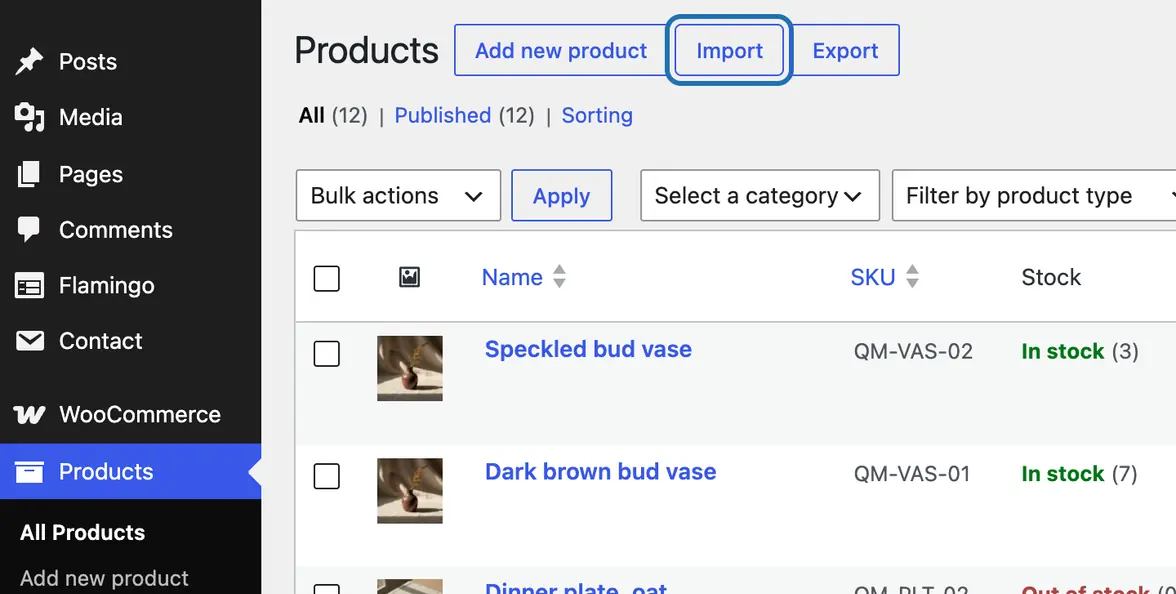
1. In your dashboard, go to Products › All Products and press Import at the top, next to Add new product.
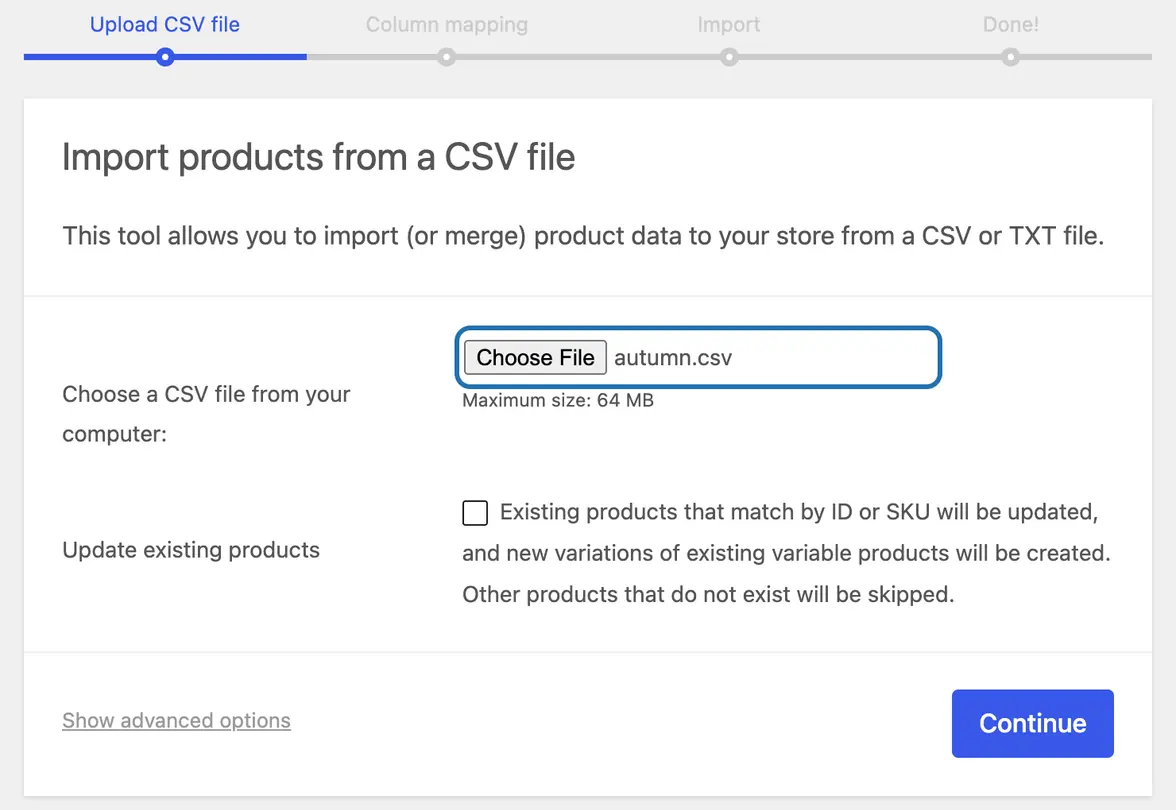
2. Press Choose File and pick your CSV. Leave Update existing products unticked when every row is a new product. Press Continue.
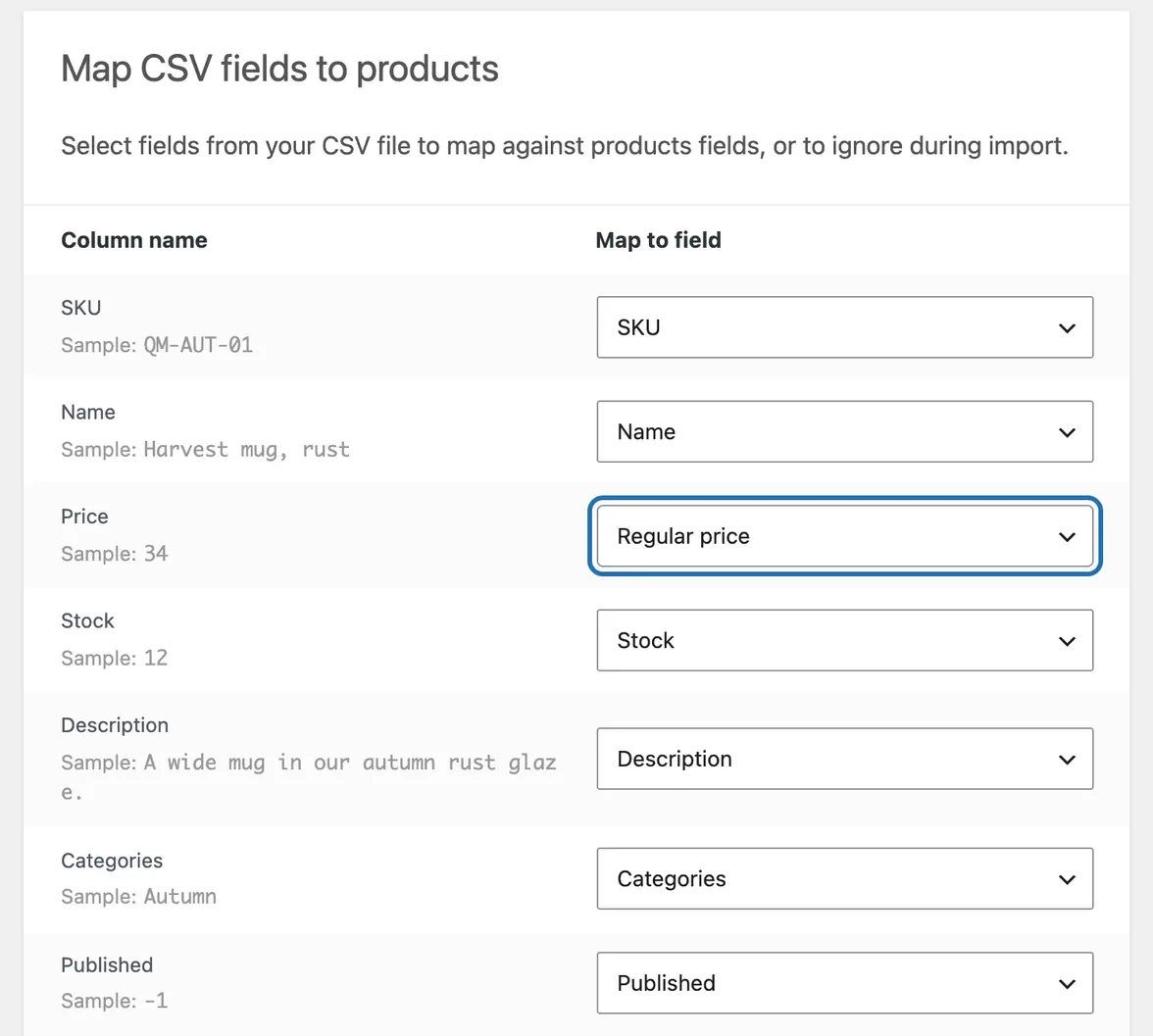
3. On Map CSV fields to products, check that each column points to the right field. Every column of ours matched on its own, even Price.
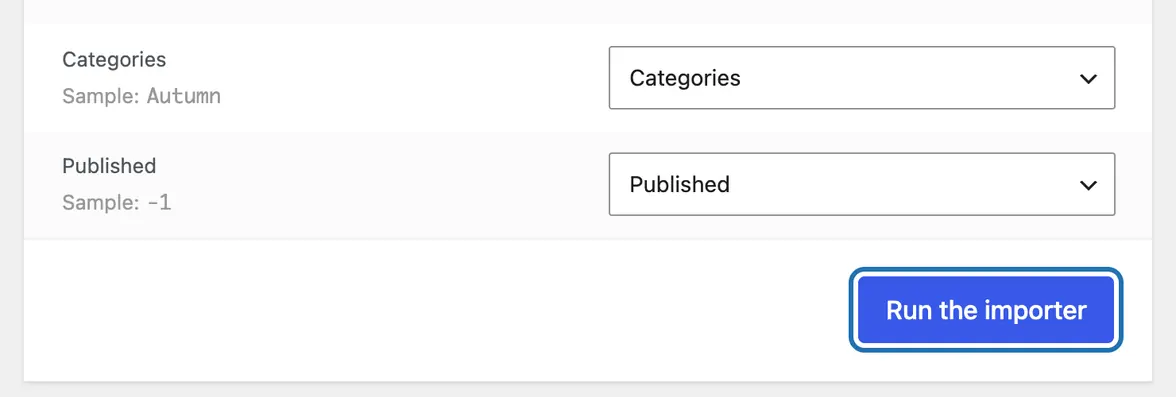
4. Scroll to the end of the list and press Run the importer. If a column says Do not import, pick a field for it first.
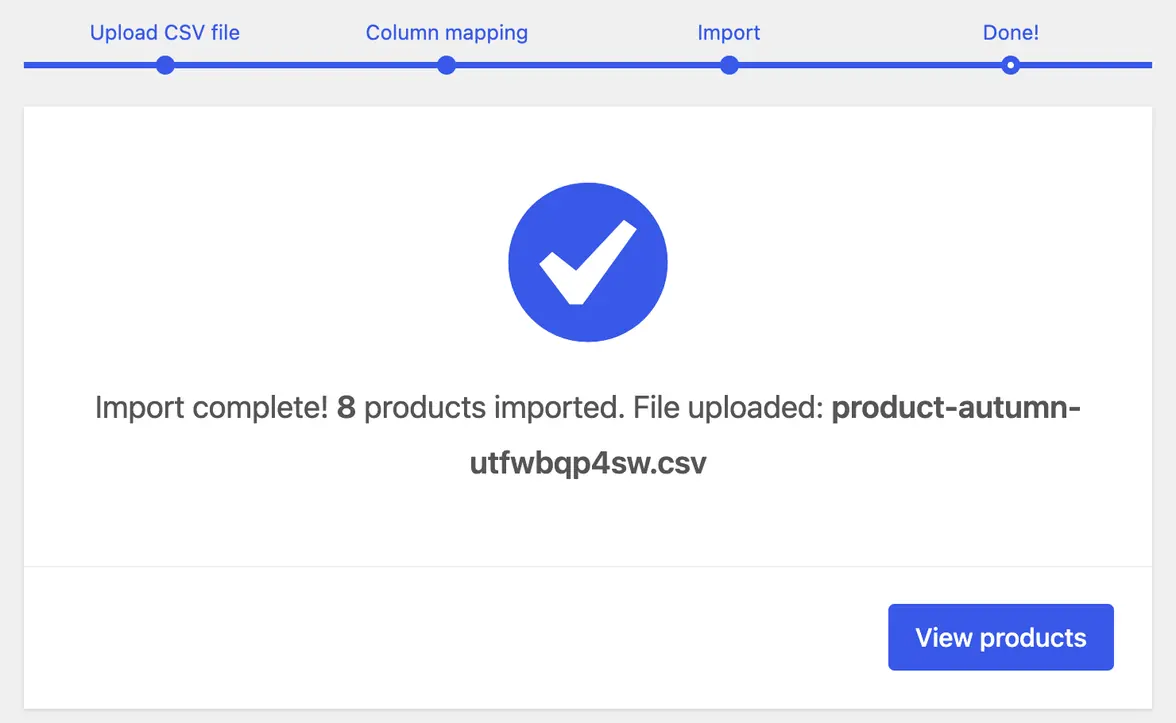
5. Wait for Import complete! and the count. Ours said 8 products imported. Press View products.
6. Check the new products in the list. Ours came in under Drafts, as the sheet asked. Publish each one when it's ready.
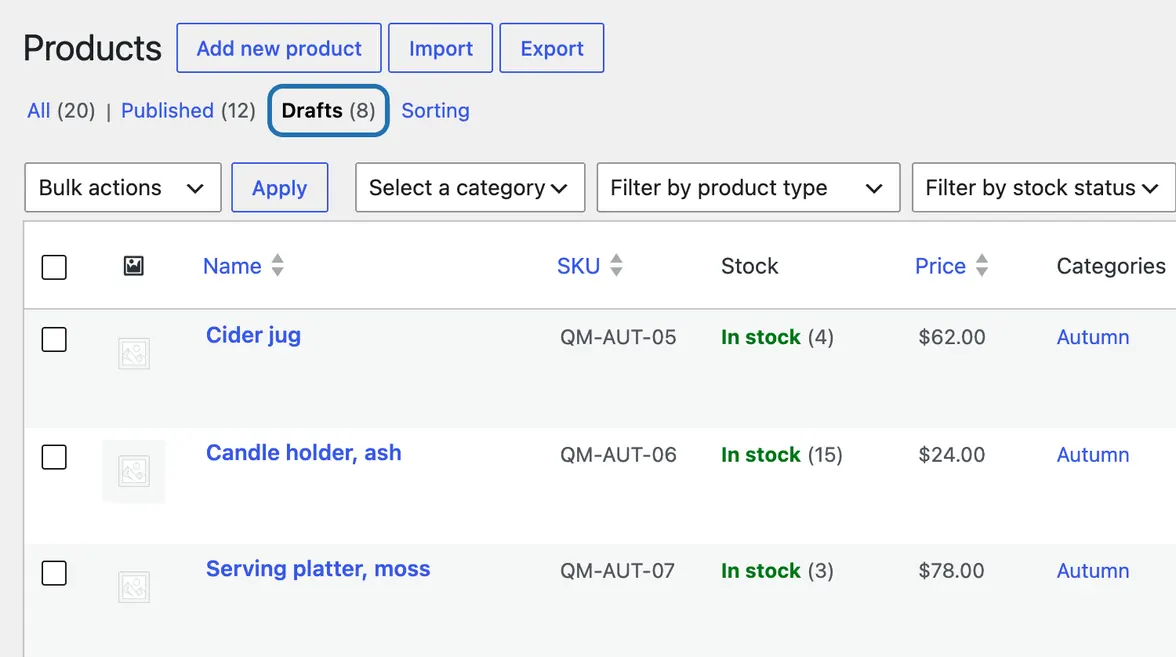


For these steps we added 2 columns to the same sheet. WooCommerce's importer publishes new products at once, unless a Published column says otherwise: -1 means draft. A Categories column names the category, and the importer creates it if it's new. A number under Stock switches stock tracking on for that product. WooCommerce is a trademark of Automattic Inc.
What it won't do here
Imports wait for the paid plan
Simple products only
No product pictures yet
Up to 2,000 products at a time
No exports, and no deleting from a file
Why it won't wreck your site
Nothing changes until you press the button.
One click undoes it.
It won't overwrite your edits.
Free to start
| No account | With your email | Paid plan | |
|---|---|---|---|
| Changes | 3 to try it | 10 every month | Coming. Nothing costs money until you choose it. |
| Questions | 30 a day | 100 a day | |
| If it breaks | Daily check and crash rescue | The same, plus email alerts |
Undo a change within 24 hours and it doesn't count. If you haven't added an email after 30 days, only crash rescue stays on until you add one. A change is one card you approve. A job that touches several pages or plugins is several changes.
Questions
Can I bulk upload products to WooCommerce without another plugin?
Yes. WooCommerce has its own importer at Products › All Products › Import, as in the steps above. It reads a CSV file with one product per row and adds them all in one go. Save an Excel sheet as CSV first: the screen says it takes CSV or TXT files. For an XML feed, or a supplier list that syncs on a schedule, you'd need an extra plugin.
How do I import products into WooCommerce as drafts?
Add a column named Published and put -1 in every row: -1 makes a draft, while 1 puts the product in your shop. Without that column, every new product goes into your shop as soon as the import ends. Imported products you can't find are often drafts: look under Products › All Products › Drafts.
Can an import update the products I already have?
Yes. Tick Update existing products on the first screen. WooCommerce then matches each row to a product by ID or SKU and changes it, and skips rows that match nothing. On the paid plan, CMSHands finds each product by its SKU, skips rows that wouldn't change anything, and leaves alone any product you edited after the card appeared.
How do I export my WooCommerce products to a CSV?
Go to Products › All Products and press Export, next to Import. Leave the boxes empty to get every column and every product, or pick only the ones you need. Then press Generate CSV. CMSHands doesn't export products: it only reads the files you give it.
How do I undo a product import?
WooCommerce's importer has no undo button. To take the products out, filter Products › All Products by their category, tick them, choose Move to Trash under Bulk actions and press Apply. In our CMSHands run, one Undo moved all 8 to the trash and deleted the new category it had made.
Can CMSHands import my product sheet for me?
Yes, on the paid plan, which isn't open yet. The chat calls it Keeper. You attach a CSV or Excel file and say what you want. It matches your columns, shows one card with the whole import, and adds the products as drafts when you press Import it. Simple products only, no images yet, up to 2,000 at a time. Until then, the free plugin answers questions about your shop, like which products are out of stock.
Written by CMSHands team.
Try the free plugin on your own shop
Needs WP 6.3 to 7.1, PHP 8.0 or newer, and an administrator login. One site per install.
The download is a plugin. Turning it on connects your site to cmshands.com and adds 3 small rescue files. Deleting the plugin removes them and everything it stored. What we send
Download the plugin.
It's free: 3 changes to try it. No account, no card.
Upload and activate it.
In your dashboard: Plugins › Add Plugin › Upload Plugin (Add New Plugin on older WP). Choose the file, press Install Now, then Activate Plugin.
Press Turn on.
Press Turn on CMSHands. No account, no key, no password.