
Which products are out of stock?
A free plugin adds a chat to your WP dashboard. Ask “Which of my products are out of stock? List them with their prices.” You get the list. Nothing changes.
A question: it lists them and changes nothing. For stores built with WooCommerce. WooCommerce is a trademark of Automattic Inc.
- Nothing changes without your OK
- Undo in one click, or a warning first
- No account, no password to share
Needs WP 6.3 to 7.1, PHP 8.0 or newer, and an administrator login. One site per install.
The download is a plugin. Turning it on connects your site to cmshands.com and adds 3 small rescue files. Deleting the plugin removes them and everything it stored. What we send
Which of my products are out of stock? List them with their prices.

Watch it do this on a real site

You ask
You type the question in the chat in your WP dashboard, the way you'd say it out loud.
Which of my products are out of stock? List them with their prices.
It answers
It looked things up in the site's database. One lookup failed, so it tried again. 8 seconds after the question, it answered with the list below. The prices came without the $ sign; the store sells in US dollars.
Three of your twelve products are out of stock: - Sage tall mug — 36 - Rust serving bowl — 68 - Dinner plate, oat — 42 All three are published and visible in the shop, with stock showing zero. The other nine have stock in hand (the lowest are Speckled bud vase with 3 and Nesting bowls, set of 3 with 4).
- 3 secondsLooking something up in the database
- 5 secondsLooking something up in the database
- 6 secondsLooking something up in the database
A real run on our test site, Oct 11, 2026. Questions change nothing, so there's no button: this is the answer it gave.
That's the whole job. The plugin is free: 30 questions a day, no account. Asking changes nothing on your site.
Needs WP 6.3 to 7.1, PHP 8.0 or newer, and an administrator login. One site per install.
The download is a plugin. Turning it on connects your site to cmshands.com and adds 3 small rescue files. Deleting the plugin removes them and everything it stored. What we send
How to find out-of-stock products in WooCommerce yourself
Checked on WP 7.1, Oct 11, 2026
1. In your dashboard, go to Products › All Products. The Stock column says In stock or Out of stock for each product.
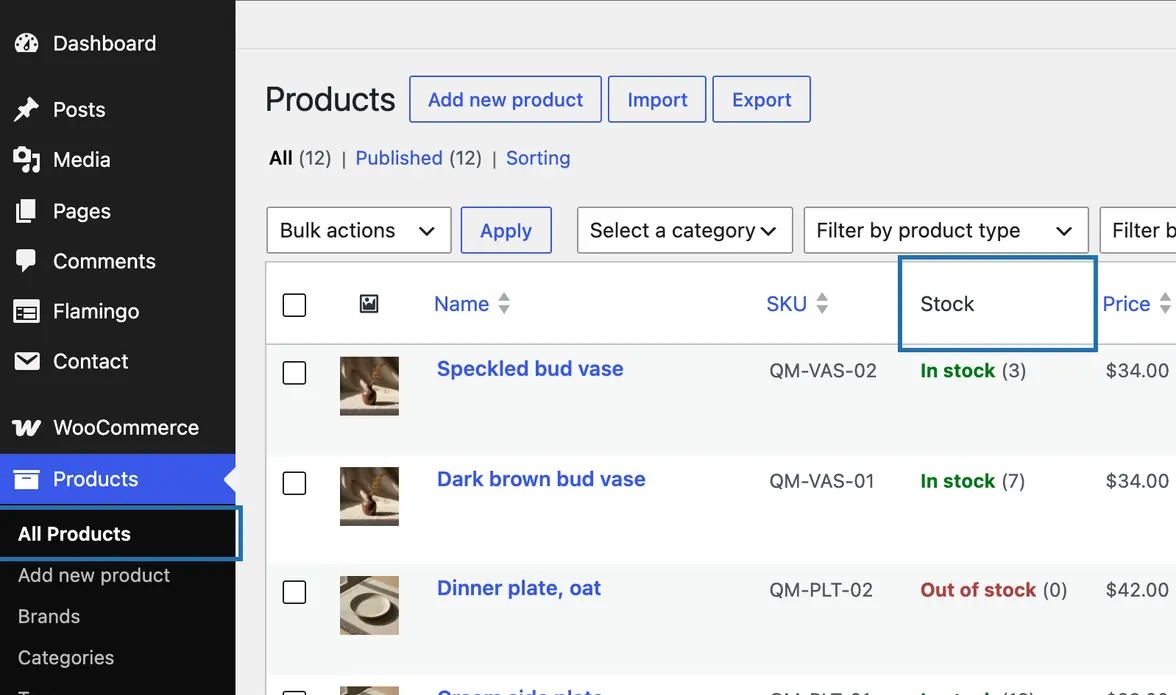
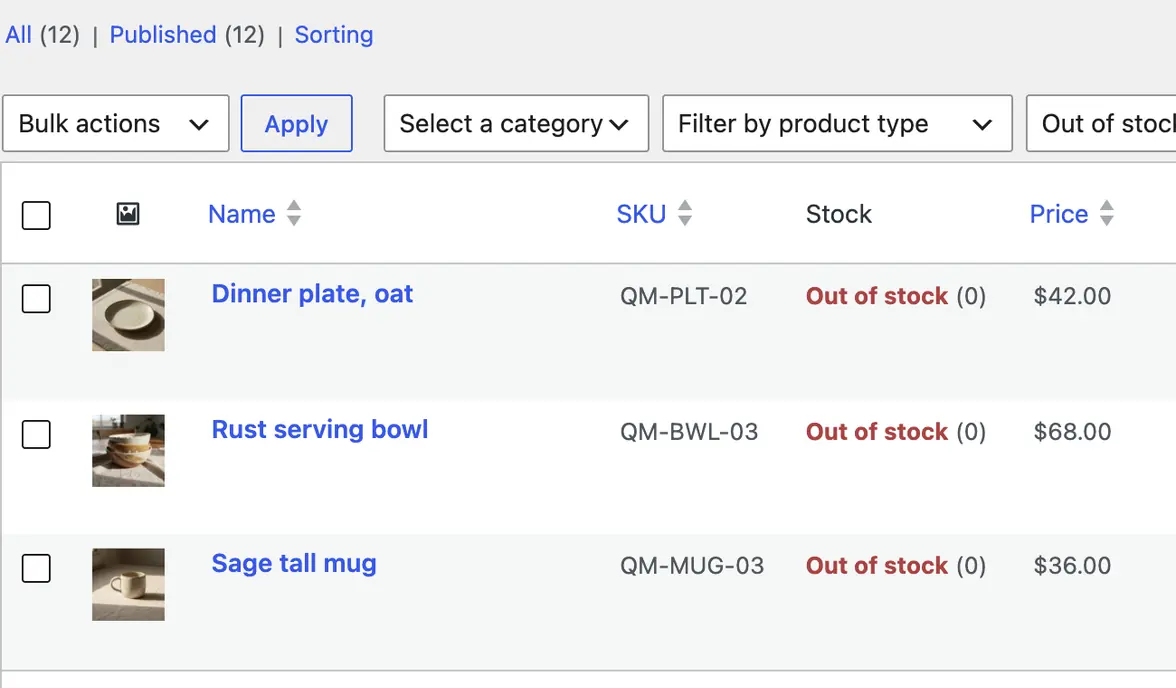
2. Above the list, open Filter by stock status and choose Out of stock. Then press Filter.

3. The list now shows only the products that are out of stock. The Price column shows what each one sells for.
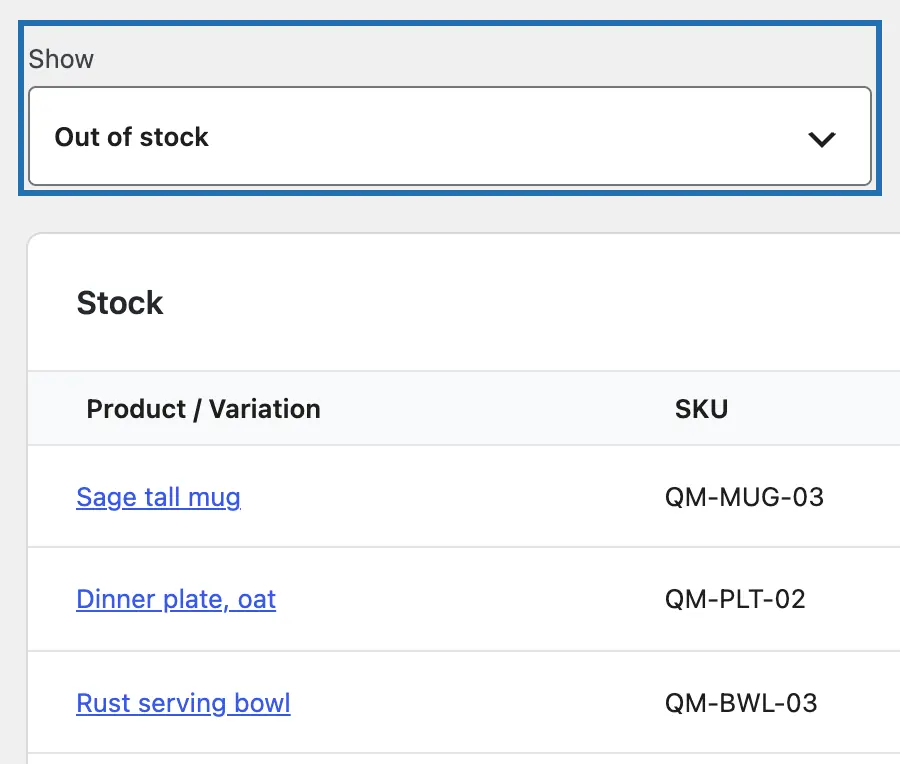
4. For a list you can keep, go to Analytics › Stock, open Show and choose Out of stock.
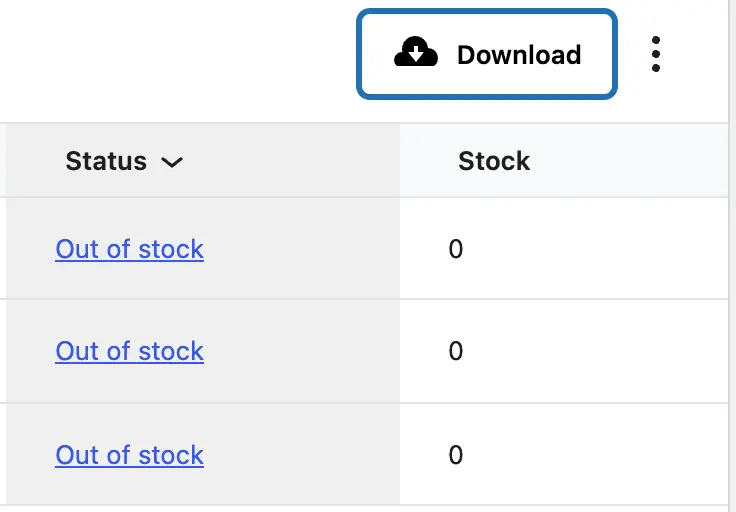
5. Press Download. You get a spreadsheet file (CSV) with each product's name, SKU (its product code), status and stock, but not its price.
6. To get an email when something sells out, open WooCommerce › Settings, then Products › Inventory. Tick Enable out of stock notifications and save.



WooCommerce marks a product out of stock when its stock number drops to the Out of stock threshold, which is 0 unless you change it. A product without Stock management keeps the status you set by hand in its Inventory tab. WooCommerce is a trademark of Automattic Inc.
What it won't do here
Restocking or changing products
Stock from a spreadsheet
Stores with hundreds sold out
Other shop plugins
Products with sizes or colors
Why it won't wreck your site
Asking changes nothing.
Nothing changes until you press the button.
Free to start
| No account | With your email | Paid plan | |
|---|---|---|---|
| Changes | 3 to try it | 10 every month | Coming. Nothing costs money until you choose it. |
| Questions | 30 a day | 100 a day | |
| If it breaks | Daily check and crash rescue | The same, plus email alerts |
Undo a change within 24 hours and it doesn't count. If you haven't added an email after 30 days, only crash rescue stays on until you add one. A change is one card you approve. A job that touches several pages or plugins is several changes.
Questions
How do I search for out-of-stock products in WooCommerce?
Use the stock filter, not the search box. Go to Products › All Products, choose Out of stock in Filter by stock status and press Filter. The search box looks for words in your products, not their stock. With CMSHands, you ask in the chat instead: “Which of my products are out of stock? List them with their prices.”
Where does WooCommerce show which products are out of stock?
In two places. Products › All Products has a Stock column that says Out of stock in red. Analytics › Stock lists every product's stock, and its Show menu narrows it to the ones that have run out. You can download that list.
Why does a product say out of stock when I have stock?
Open the product and check its Inventory tab. With Stock management off, the Stock status you picked by hand stays until you change it. With it on, a Quantity at or below the Out of stock threshold shows as out of stock. For products with options (variations), check each option's stock too.
Can I hide out-of-stock products from my shop?
Yes, with a setting. Go to WooCommerce › Settings › Products › Inventory, tick Hide out of stock items from the catalog and save. The products stay in your dashboard and show in the shop again once they're back in stock. We haven't tested asking CMSHands to change this setting yet.
Can it tell me which products are running low?
We haven't tested asking that on its own yet. In our run it named the two lowest without being asked: Speckled bud vase (3 left) and Nesting bowls, set of 3 (4 left). Your store can also email you: in WooCommerce › Settings › Products › Inventory, tick Enable low stock notifications and set the Low stock threshold.
Is it free?
To start, yes. Questions like this one are free, up to 30 a day with no account, or 100 a day once you add your email. Changes: 3 to try it, then 10 a month with your email.
Written by CMSHands team.
Try it on your own store
Needs WP 6.3 to 7.1, PHP 8.0 or newer, and an administrator login. One site per install.
The download is a plugin. Turning it on connects your site to cmshands.com and adds 3 small rescue files. Deleting the plugin removes them and everything it stored. What we send
Download the plugin.
It's free: 3 changes to try it. No account, no card.
Upload and activate it.
In your dashboard: Plugins › Add Plugin › Upload Plugin (Add New Plugin on older WP). Choose the file, press Install Now, then Activate Plugin.
Press Turn on.
Press Turn on CMSHands. No account, no key, no password.