
Know when your WP site goes down
A free plugin adds a chat to your WP dashboard. Install it while your site works. If it crashes, it tells you, finds the cause and gets the fix ready.
Not an agency: a free plugin for business sites. A daily check, at once if it crashes. A person approves every repair.
- A person approves every repair
- Install it while your site works
- No account, no password to share
Needs WP 6.3 to 7.1, PHP 8.0 or newer, and an administrator login. One site per install.
The download is a plugin. Turning it on connects your site to cmshands.com and adds 3 small rescue files. Deleting the plugin removes them and everything it stored. What we send

Watch it do this on a real site

The site crashes
We switched on Bisque Gallery, a plugin we broke on purpose. Every page showed this error, the dashboard too. The rescue files (3 small files the plugin adds so we can reach your site even when WP can't start) reported the crash. A second check confirmed it, and 80 seconds after the crash CMSHands was on it. Our test site is checked more often than a free site, but this crash came in through the crash report, which works the same on the free plan.

The chat shows what it did
Your dashboard was down too, so the chat could only open once the plugin was off. This is the card at that moment. The person who approved the fix was the engineer running this test, so it went fast. On your site, the fix waits for a person at CMSHands. Times count from the crash.
Your site is down. I'm fixing it now.
- 1 minute 20 secondsChecked your homepage — server error 500
- 2 minutes 4 secondsRead your error log — crash in Bisque Gallery
- 2 minutes 30 secondsA person at CMSHands checked the fix
- 2 minutes 35 secondsSwitched Bisque Gallery off

A person takes over
All four pages loaded again 2 minutes 35 seconds after the crash. Its next check still saw the old crash report, so it handed the incident to a person at CMSHands instead of guessing. That's why the headline still says the site is down. It changed once that person closed the incident.
Your site is down. A person at CMSHands is on it.
- 2 minutes 35 secondsChecked homepage, login page, admin and a post — all loading

What happened, in plain words
The 18 minutes run from when CMSHands noticed the crash to when a person at CMSHands closed the incident. Pages loaded again 2 minutes 35 seconds after the crash. That person checked the site and wrote the note at the bottom.
Bisque Gallery, one of your plugins, was crashing every page of your site. I switched it off, and your home page, login, admin and posts all load again. Leave it off until it's fixed, and ask me here if you need it back.
A plugin we broke on purpose on our test site, Oct 11, 2026. This is what you'd see in the chat once your dashboard loads again. A person at CMSHands approved the fix.
The plugin is free, with a daily check and crash rescue. Install it while your site works, so it's there when something breaks. A person approves every repair.
Needs WP 6.3 to 7.1, PHP 8.0 or newer, and an administrator login. One site per install.
The download is a plugin. Turning it on connects your site to cmshands.com and adds 3 small rescue files. Deleting the plugin removes them and everything it stored. What we send
How to monitor your WordPress site yourself
Checked on WP 7.1, Oct 11, 2026
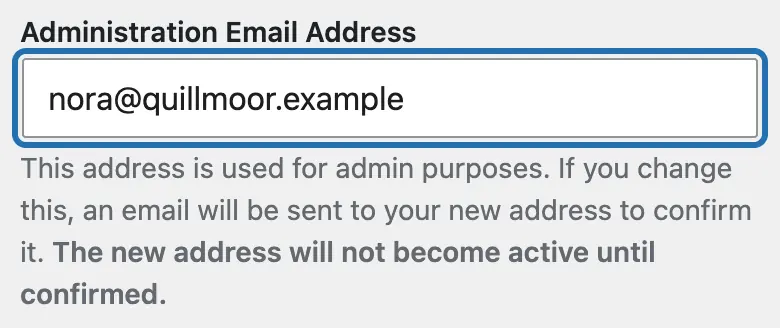
1. In your dashboard, go to Settings › General. Check that Administration Email Address is an inbox you read. WP sends crash emails there.
2. Add your home page to a free uptime monitor. It loads the page every few minutes and emails you when it stops answering.
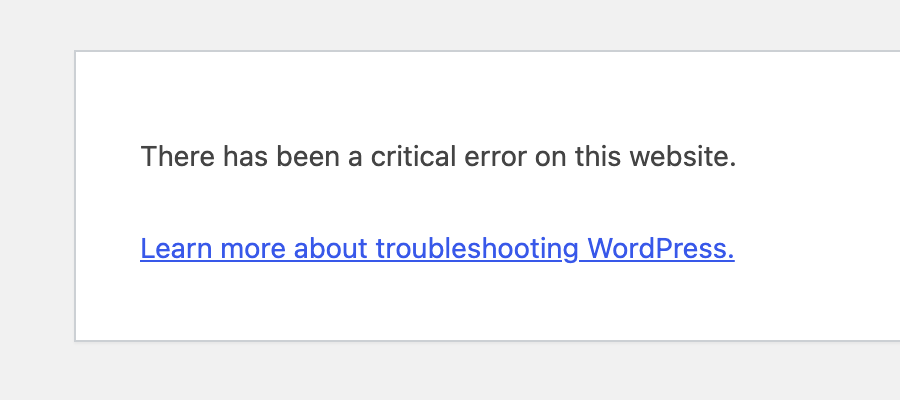
3. When a plugin or theme crashes, visitors see one line instead of your site: “There has been a critical error on this website.”
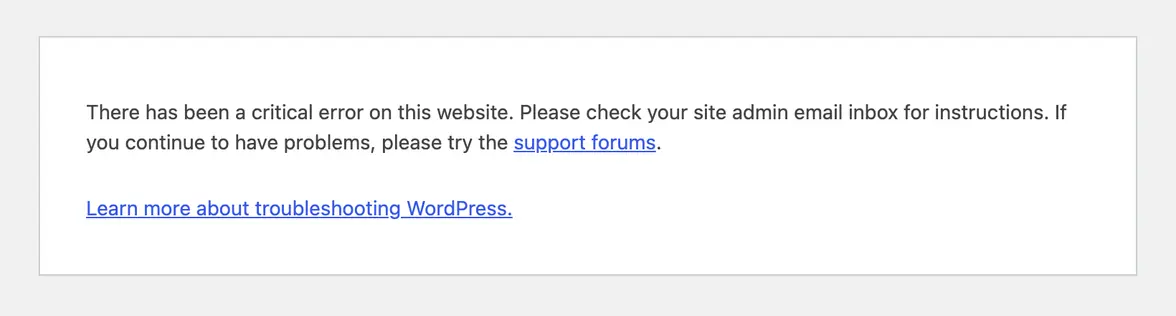
4. Open your dashboard and you see “Please check your site admin email inbox for instructions.” WP tries to email that address about the crash.
5. The email is titled “Your Site is Experiencing a Technical Issue” and names the plugin. Its link lets you log in with that plugin paused.
6. Go to Plugins and press Deactivate under that plugin. Then open your home page in a private window to check it loads.

7. No email, or the link has run out? Ask your host to rename the plugin's folder in wp-content/plugins. WP then switches it off.


WP's own email only covers a crash in a plugin or theme. If your host or your database is down, WP can't send anything. Only a check from outside your site notices that.
What it won't do here
Once a day, not every few minutes
Email alerts need your address
A person approves every repair
Install it before anything breaks
Some hosts block the rescue files
Why it won't wreck your site
A person checks every repair.
It checks your pages after the fix.
Updates put themselves back.
Free to start
| No account | With your email | Paid plan | |
|---|---|---|---|
| Changes | 3 to try it | 10 every month | Coming. Nothing costs money until you choose it. |
| Questions | 30 a day | 100 a day | |
| If it breaks | Daily check and crash rescue | The same, plus email alerts |
Undo a change within 24 hours and it doesn't count. If you haven't added an email after 30 days, only crash rescue stays on until you add one. A change is one card you approve. A job that touches several pages or plugins is several changes.
Questions
What is WordPress site monitoring?
A check from outside that tells you when your site stops loading. Uptime monitors load your home page every few minutes and email you when it fails. Some tools also watch for crashes, plugin problems or an SSL certificate (what puts the padlock and https in front of your address) about to run out. Monitoring tells you something is wrong. Finding the cause and fixing it is a separate job.
Is an uptime monitor enough for a WordPress site?
It tells you quickly that the site is down, but not why. From outside, a crashing plugin and a host outage look the same. CMSHands looks from inside: in our test it read the error log, named the plugin and got the fix ready. You can use both, an uptime monitor for speed and CMSHands for the cause.
Does WordPress tell me when my site goes down?
Only for some crashes, and only if your host can send email. When a plugin or theme crashes, WP emails the Administration Email Address. The email names the plugin and has a link to log in with it paused. By default it comes once a day at most. If your host or your database is down, WP sends nothing, so you need a check from outside.
How often does CMSHands check my site?
Once a day on the free plan. If the rescue files (3 small files the plugin adds so we can reach your site even when WP can't start) report a crash, it checks at once. In our test it was on the crash 80 seconds after it happened. A host that is down sends no report, so that waits for the next daily check.
Will I get an alert when my site goes down?
Yes, by email, once you add your email address in the chat. If your site stays down, you get a plain-English email, and another when it's sorted. Without an address we can't reach you: when the site is down, the chat in your dashboard is down too. Once it loads again, the chat shows what happened, step by step.
What can it fix, and what can't it?
It can switch off a crashing plugin, as in our test, or put back the plugin version that worked. It can also switch to a default theme or put back a broken settings file. A person at CMSHands approves each repair. Tried on our test sites; hosts differ. It can't fix a host or server outage, your domain or email, or a hacked site.
Written by CMSHands team.
Install it while your site works
Needs WP 6.3 to 7.1, PHP 8.0 or newer, and an administrator login. One site per install.
The download is a plugin. Turning it on connects your site to cmshands.com and adds 3 small rescue files. Deleting the plugin removes them and everything it stored. What we send
Download the plugin.
It's free: 3 changes to try it. No account, no card.
Upload and activate it.
In your dashboard: Plugins › Add Plugin › Upload Plugin (Add New Plugin on older WP). Choose the file, press Install Now, then Activate Plugin.
Press Turn on.
Press Turn on CMSHands. No account, no key, no password.