
Check your WP site health in one question
A free plugin adds a chat to your WP dashboard. Ask “Give me a quick health report.” It looks for crashes, lists your plugins, and nothing on your site changes.
Questions change nothing on your site. Up to 30 a day are free.
- Nothing changes without your OK
- Undo in one click, or a warning first
- No account, no password to share
Needs WP 6.3 to 7.1, PHP 8.0 or newer, and an administrator login. One site per install.
The download is a plugin. Turning it on connects your site to cmshands.com and adds 3 small rescue files. Deleting the plugin removes them and everything it stored. What we send
Give me a quick health report.

Watch it do this on a real site

You ask
You type one plain sentence in the chat box. No settings to fill in, no scan to set up.
Give me a quick health report.
It reports back
It opened the home page the way a visitor would, checked that WP was running, and read the list of plugins and themes. The report came back about 8 seconds after the question. Nothing on the site changed.
The site is up. The home page loads with a 200, no redirect loops, in about a quarter of a second. No error, database or maintenance message on the page. No crashes recorded. Nothing in the guard's fatal-error record. Software: WordPress 7.1.3 on PHP 8.4.26. Plugins: 14 installed, 11 switched on. Akismet, Hello Dolly and WP Mail SMTP are installed but off.
- 2 secondsLoading a page the way a visitor would
- Checking whether WordPress is loading
- 5 secondsListing your plugins and themes
A real run on our test site, Oct 10, 2026. Questions change nothing, so there's no button: this is the answer it gave.
That's the whole job. The plugin is free: 30 questions a day, no account. Asking changes nothing on your site.
Needs WP 6.3 to 7.1, PHP 8.0 or newer, and an administrator login. One site per install.
The download is a plugin. Turning it on connects your site to cmshands.com and adds 3 small rescue files. Deleting the plugin removes them and everything it stored. What we send
How to do a WordPress health check yourself
Checked on WP 7.1, Oct 11, 2026
1. Log in at yoursite.com/wp-admin. That's your dashboard. Go to Tools › Site Health and give its tests a few seconds to run.
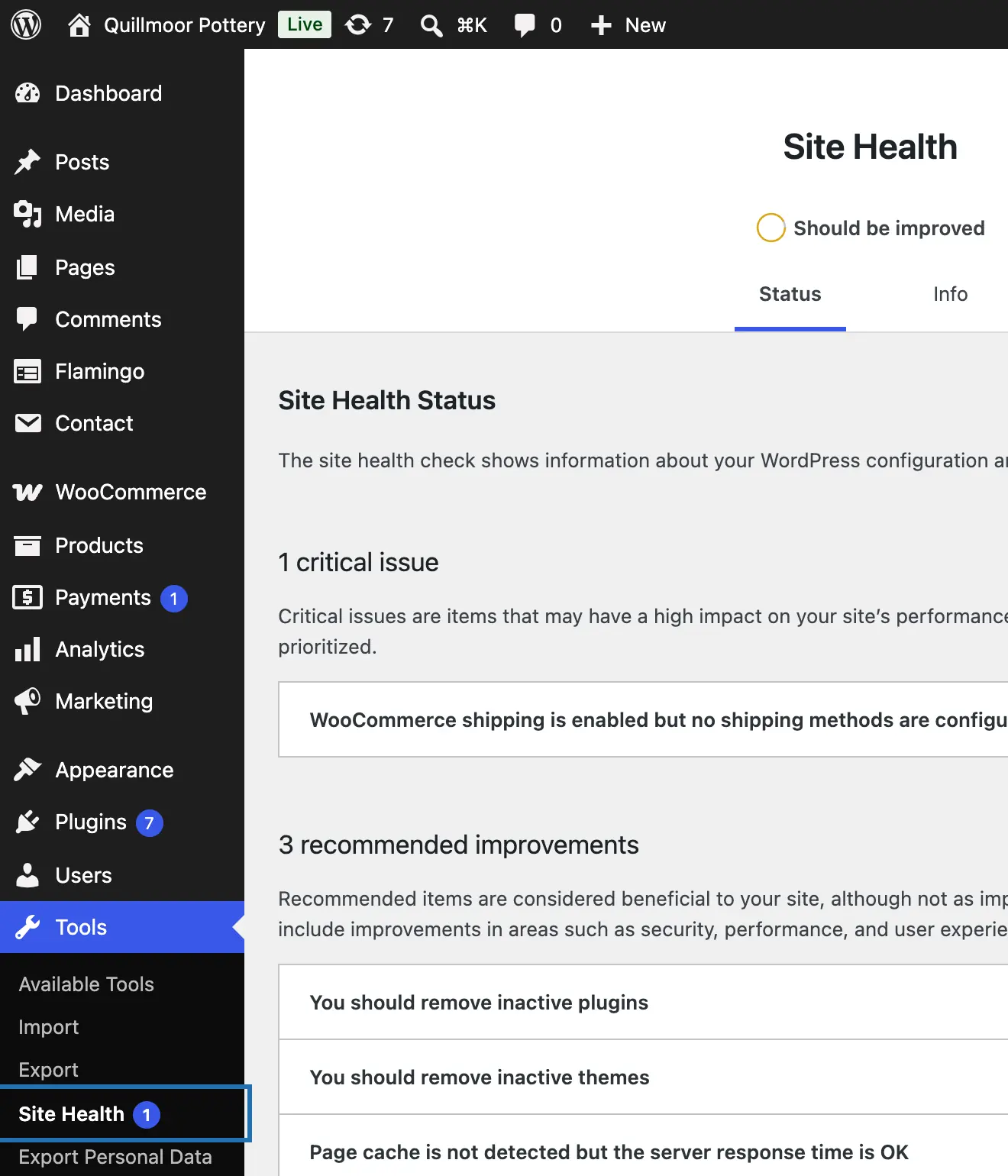
2. Check the circle at the top. Good means no critical issues and most tests passed. Should be improved means something below is worth a look.
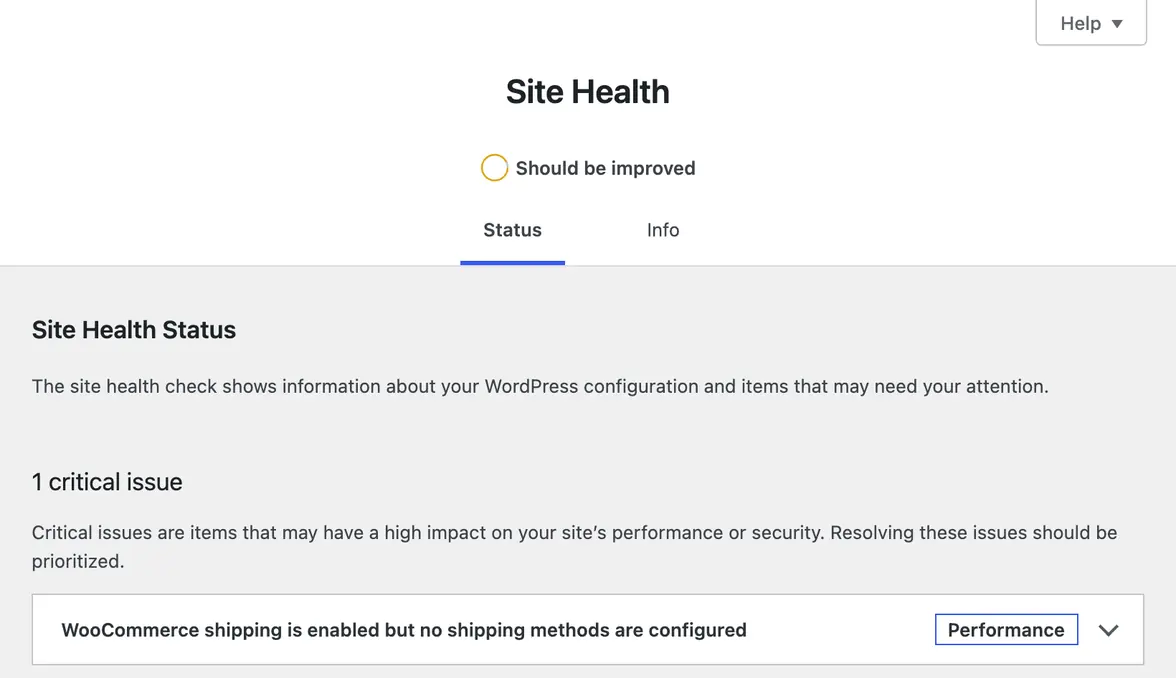
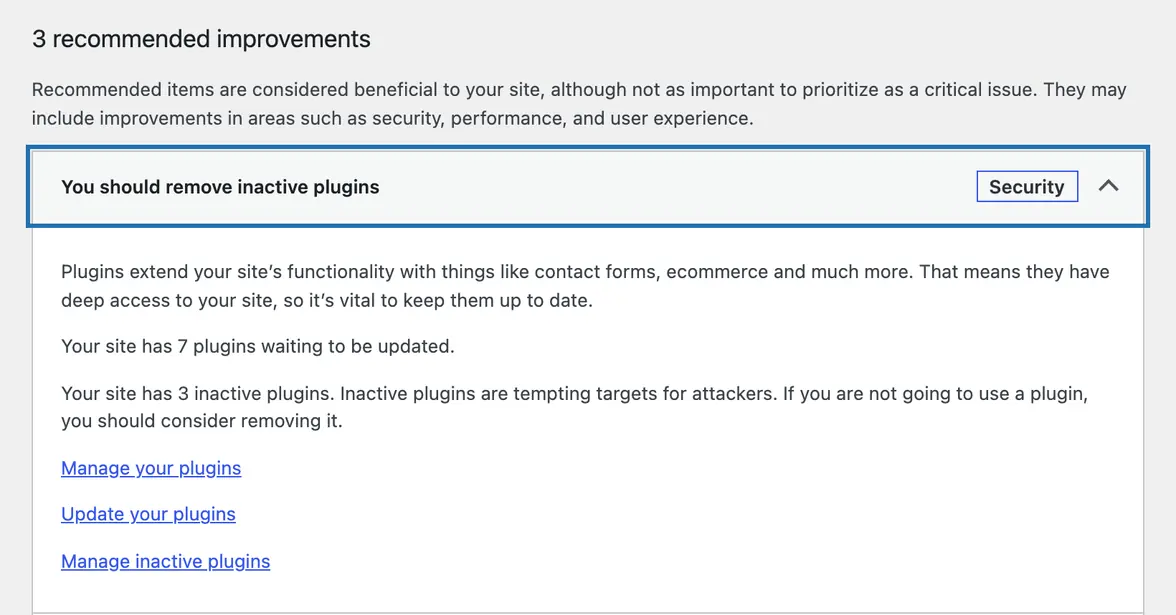
3. Read the critical issues first, then the recommended improvements. Click one to open it: WP says what it means and what to do.
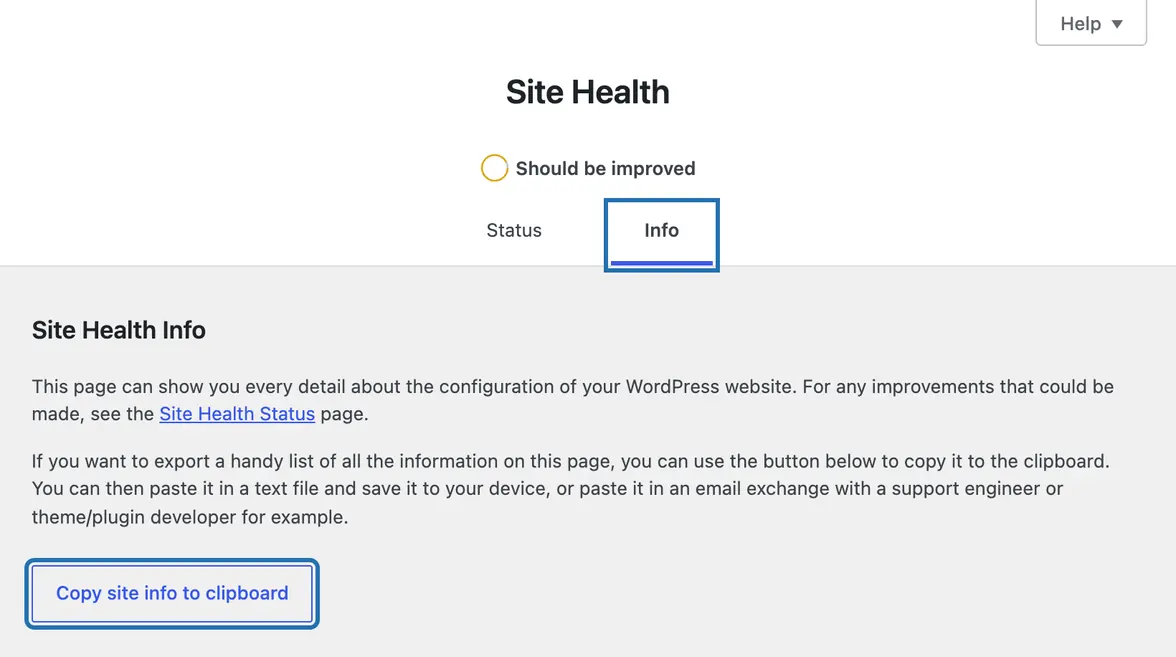
4. Open the Info tab for your WP version, theme and plugins. Copy site info to clipboard puts it all in one paste for your host.
5. Go to Dashboard › Updates. It lists every plugin, theme and WP update waiting, with the version you have and the new one.
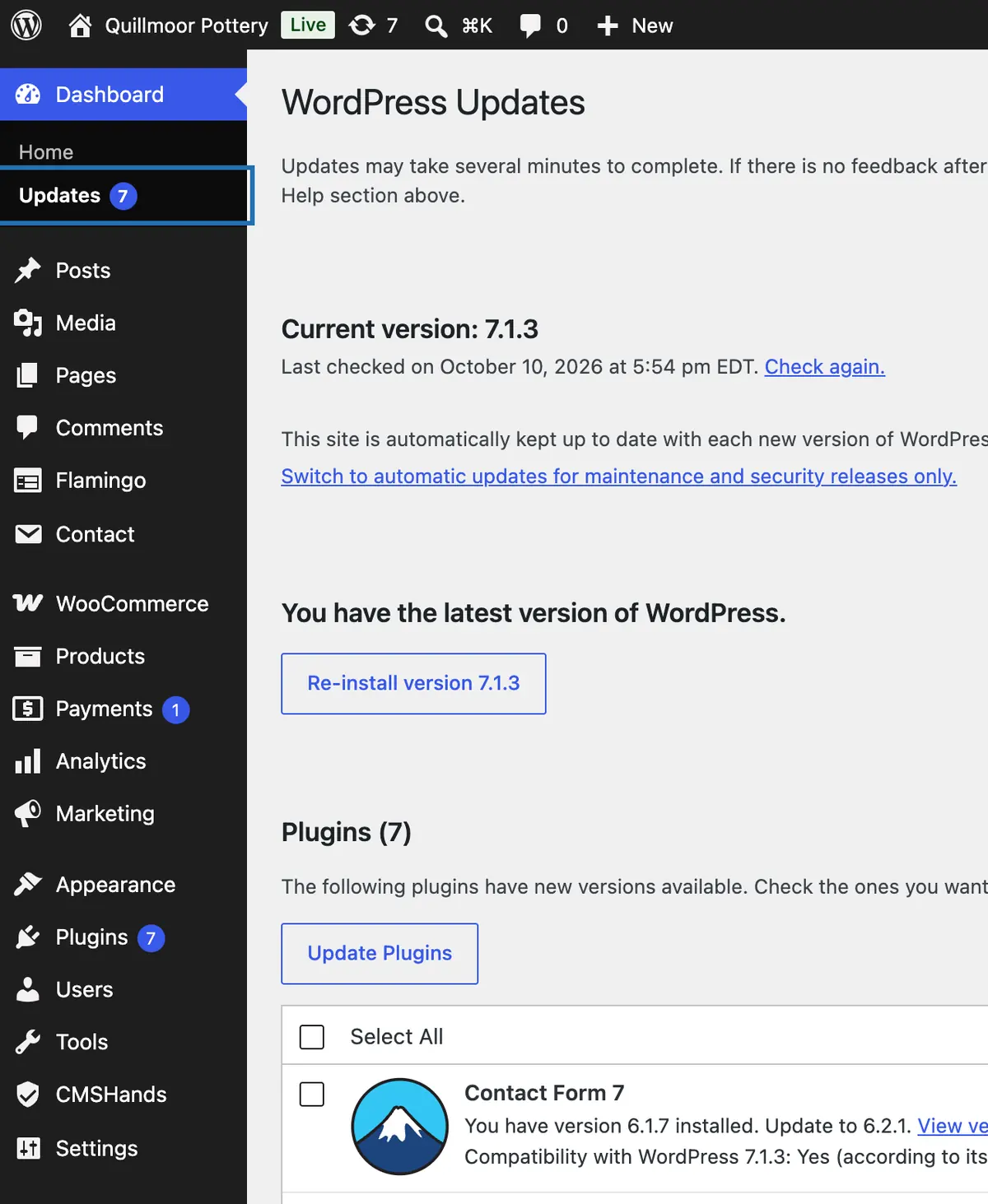
6. Open your home page in a private browser window. Check that it loads, looks right and shows no error message.



Site Health has been part of WP since version 5.2, so every site has it and you don't need a plugin for it. The number next to Site Health in the menu is how many critical issues it found.
What it won't do here
Scanning your files for harmful code
Updating WP itself
Making your site faster
Fixing what it finds
Removing plugins you don't use
Why it won't wreck your site
Asking changes nothing.
Nothing changes until you press the button.
Updates put themselves back.
Free to start
| No account | With your email | Paid plan | |
|---|---|---|---|
| Changes | 3 to try it | 10 every month | Coming. Nothing costs money until you choose it. |
| Questions | 30 a day | 100 a day | |
| If it breaks | Daily check and crash rescue | The same, plus email alerts |
Undo a change within 24 hours and it doesn't count. If you haven't added an email after 30 days, only crash rescue stays on until you add one. A change is one card you approve. A job that touches several pages or plugins is several changes.
Questions
What is Site Health in WordPress?
It's a screen built into WP, under Tools › Site Health. It tests your setup and sorts what it finds into critical issues and recommended improvements, each with a short how-to. The Info tab lists your versions, theme, plugins and server settings. It has been part of WP since version 5.2.
How do I find my WP version?
Look at the bottom right of any dashboard screen: our test site shows “Version 7.1.3” there. Dashboard › Updates shows it too, next to Current version. Or ask CMSHands for a health report. It names your WP version and your PHP version. PHP is the language WP runs on; your host sets its version.
Are WP plugins safe to use?
Usually, if it's up to date and still maintained. Dashboard › Updates shows the updates waiting, and release notes say when one fixes a security problem. Delete plugins you've switched off and don't need. For a plugin from the WP plugin directory (the free plugins at wordpress.org, the ones Plugins › Add Plugin searches; Add New Plugin on older WP), ask CMSHands whether it's still maintained.
Do I need a health check plugin?
Not for a basic check. A health check plugin earns its place when you're chasing a problem. The free Health Check & Troubleshooting plugin from the WP plugin directory adds a troubleshooting mode: your plugins go off and a default theme goes on, but only for you, so visitors still see your normal site. It can also check that WP's own files haven't been changed and that your site can send email.
Does the health report change anything on my site?
No. Questions change nothing. In our test run it opened the home page, checked that WP was running, and listed the plugins and themes. If you want something fixed, it shows you a card first, and nothing happens until you press the button.
How do I audit my WP plugins?
In Plugins › Installed Plugins, ask 3 things of each one. Do you still use it? Is it switched on? Is an update waiting? Delete the ones you don't need. Or ask CMSHands: on our test site its health report counted 14 plugins, 11 switched on, and named the 3 that were off. Then ask it to look for updates: each one is its own card you approve. To check your admins too, see how to audit your WP site.
Written by CMSHands team.
Ask your own site for a health report
Needs WP 6.3 to 7.1, PHP 8.0 or newer, and an administrator login. One site per install.
The download is a plugin. Turning it on connects your site to cmshands.com and adds 3 small rescue files. Deleting the plugin removes them and everything it stored. What we send
Download the plugin.
It's free: 3 changes to try it. No account, no card.
Upload and activate it.
In your dashboard: Plugins › Add Plugin › Upload Plugin (Add New Plugin on older WP). Choose the file, press Install Now, then Activate Plugin.
Press Turn on.
Press Turn on CMSHands. No account, no key, no password.