
Change a page title in WP
A free plugin adds a chat to your WP dashboard. Type “Rename the ‘Shop’ page to ‘Our pottery’.” See the new title first, press the button, undo in one click.
The title on the page itself, not the one your SEO plugin sets.
- Nothing changes without your OK
- Undo in one click, or a warning first
- No account, no password to share
Needs WP 6.3 to 7.1, PHP 8.0 or newer, and an administrator login. One site per install.
The download is a plugin. Turning it on connects your site to cmshands.com and adds 3 small rescue files. Deleting the plugin removes them and everything it stored. What we send
Rename the “Shop” page to “Our pottery”.

Watch it do this on a real site

You ask
You name the page and the new title, in your own words. The chat sits in your WP dashboard.
Rename the “Shop” page to “Our pottery”.
You see it first
It finds the page and comes back with a card: the old title in red, the new one in green. Nothing has changed yet.
It's the Shop page (id 20, at /shop/) — ready for you to review. The web address stays /shop/.
- 1 secondLooking for what you meant
- 3 secondsPreparing the change for your OK

You press the button
Only now does it change the site. It renames the page, reads the title back to check, and the card turns green with an Undo link.
- 10 secondsUpdating one of your pages
- 11 secondsChecking the change

It's on the site
The Shop page on the test site right after: the big title now says Our pottery. The menu at the top still says Shop, because on this theme menu links keep their own words.
Done. I checked afterwards, and it now says "Our pottery".

Undo, if you want
One press of Undo put the old title back. It checked again and showed what it put back: Shop, as before.
Undone. I checked afterwards, and it's back the way it was.
- 19 secondsReverting the change
- Checking the change
A real run on our test site, Quillmoor Pottery (WP 7.1.3, Twenty Twenty-Four), Oct 11, 2026. From asking to done, it took 11 seconds.
That's the whole job. The plugin is free: 3 changes to try it, no account. Nothing changes until you press the button.
Needs WP 6.3 to 7.1, PHP 8.0 or newer, and an administrator login. One site per install.
The download is a plugin. Turning it on connects your site to cmshands.com and adds 3 small rescue files. Deleting the plugin removes them and everything it stored. What we send
How to change a page title in WordPress yourself
Checked on WP 7.1, Oct 11, 2026
1. Open your WP dashboard, the screens you log in to at yoursite.com/wp-admin. Go to Pages › All Pages.
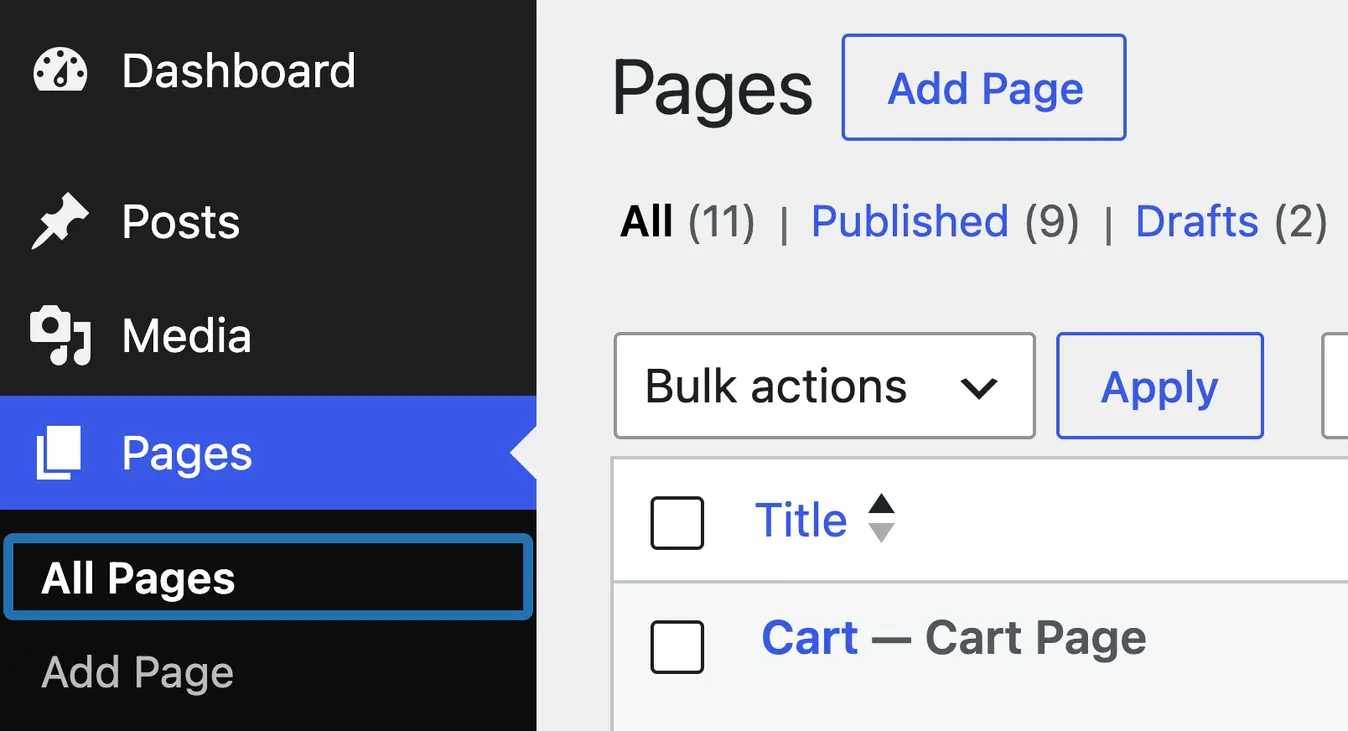
2. Find the page in the list and click its name. It opens in the editor.
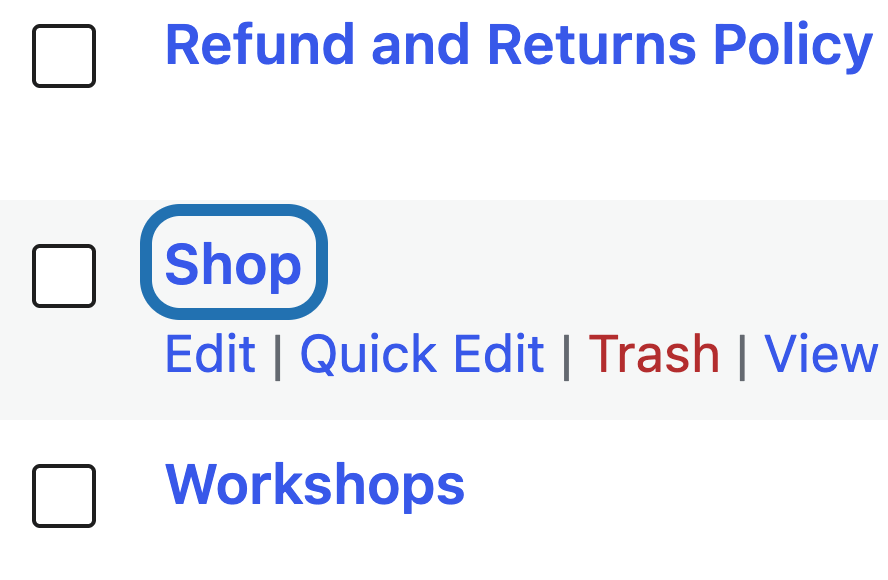
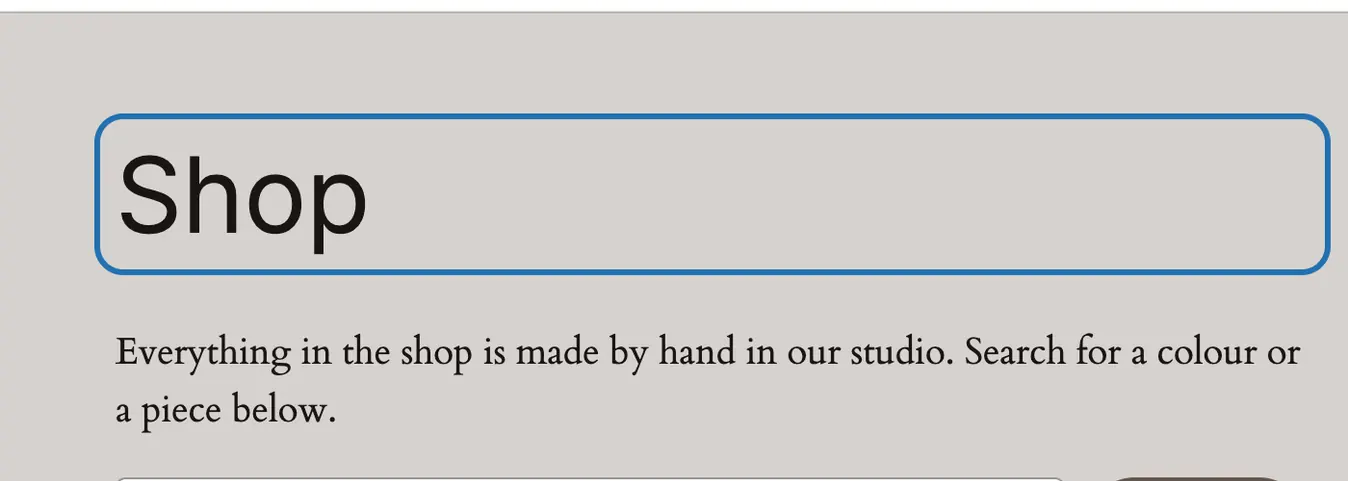
3. Click the title at the top of the page, or Add title if it has none. Type the new title over the old one.
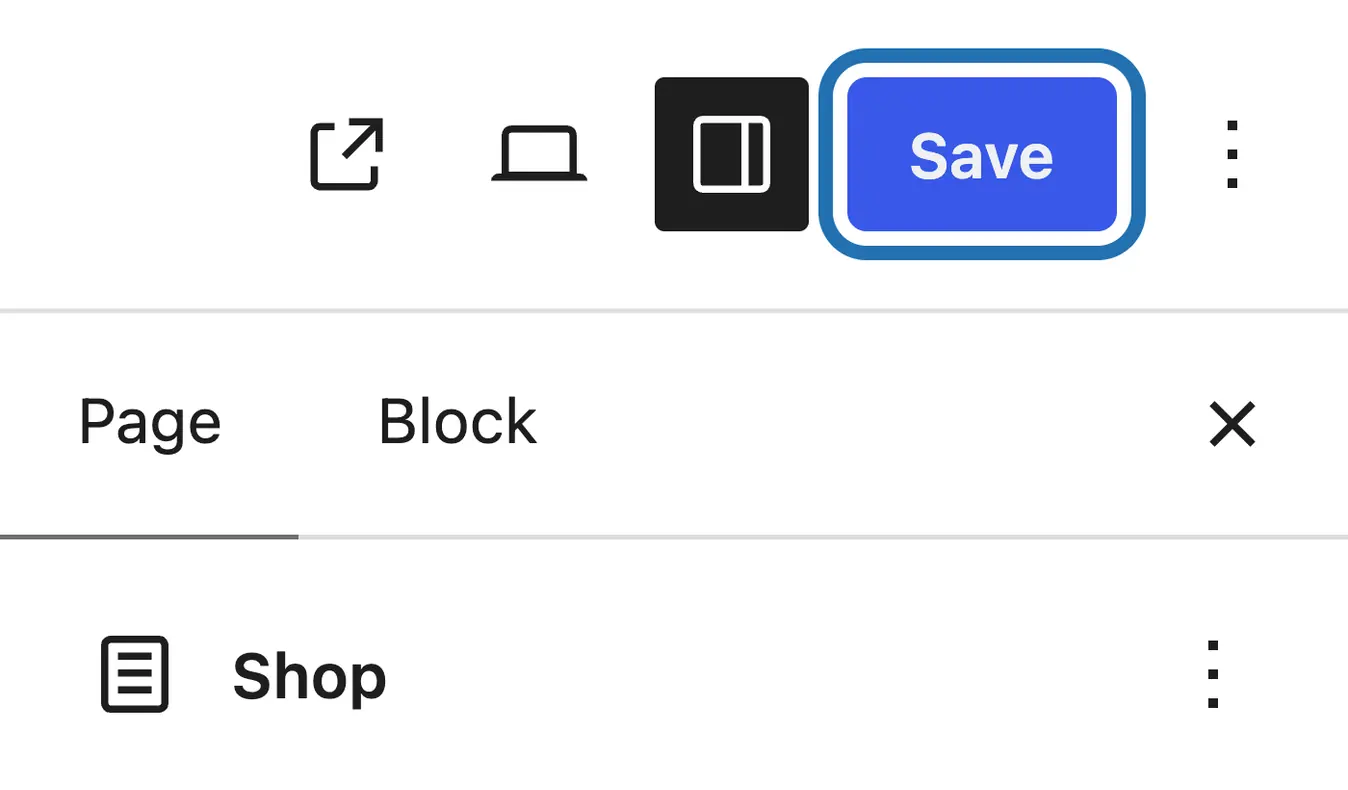
4. Press Save at the top right. On a page that's already live, the new title shows on your site once it saves.
5. Open the page on your site. Most themes show the title as the big heading at the top, and the browser tab shows it too.
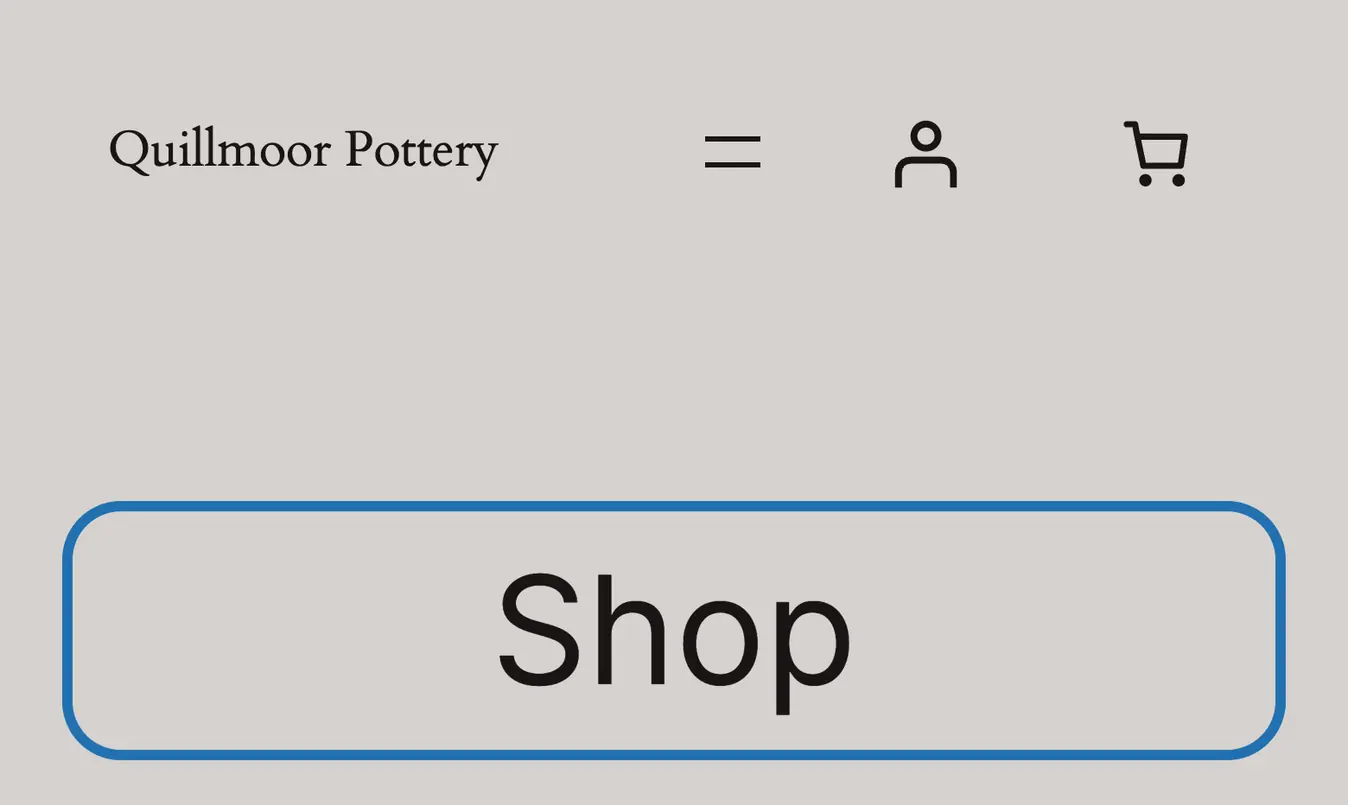
6. Look at your menu. If it still shows the old name, change that link in Appearance › Editor › Navigation.
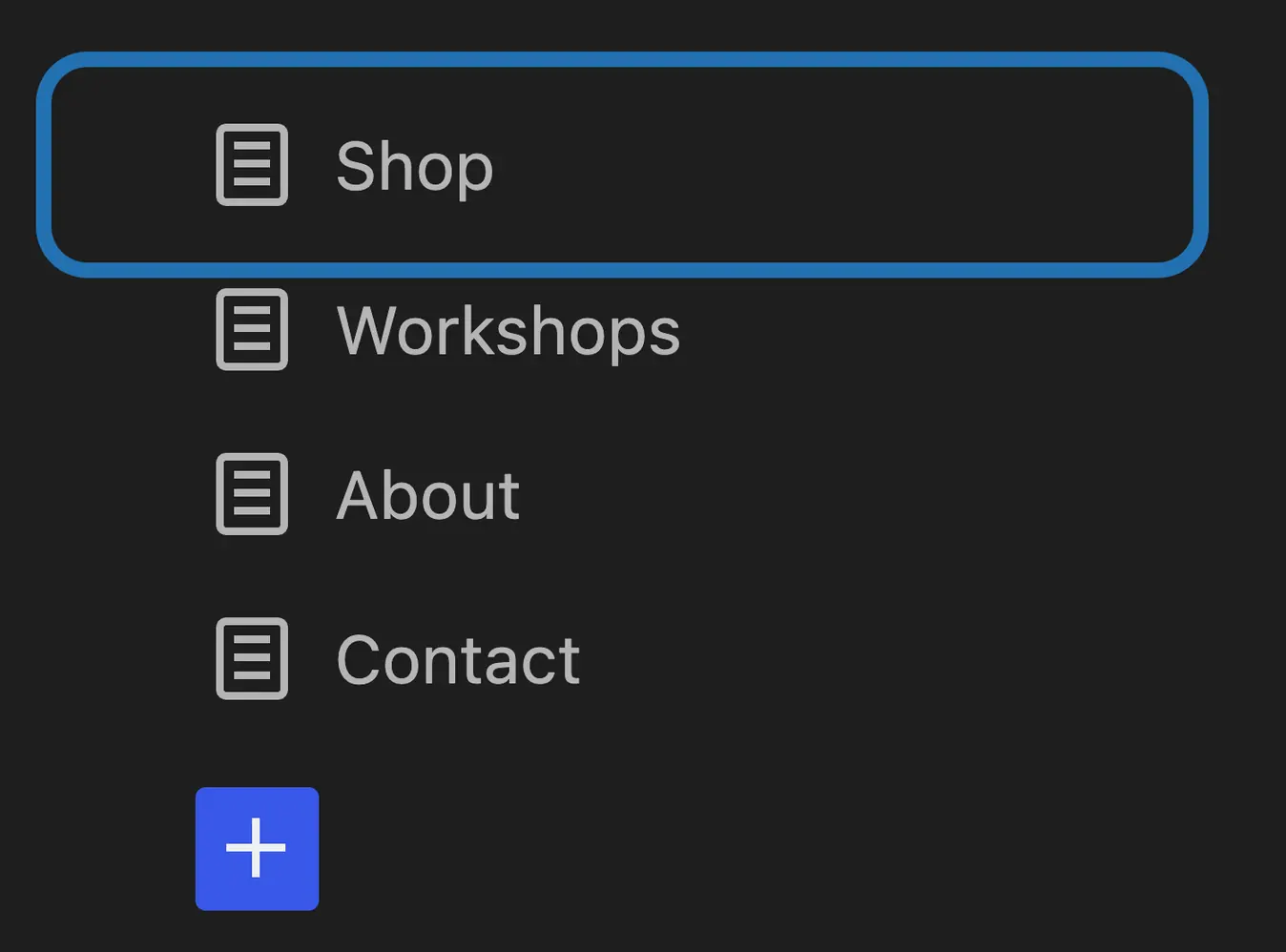


On an older (classic) theme, the kind with Appearance › Customize instead of Editor, steps 1 to 5 are the same. Your menu is in Appearance › Menus, and a link there follows the page's title unless someone typed its own label.
Renaming a page doesn't change its web address. To rename it without opening the editor, hover over the page in the list and choose Quick Edit: it has a Title box. WP keeps older versions of a page under Revisions, in the editor's Page panel. CMSHands keeps the old title too, so Undo on its card puts it back.
What it won't do here
The title your SEO plugin sets
Your menu's words
The page's web address
Page-builder headings
Why it won't wreck your site
Nothing changes until you press the button.
You see it first.
One click undoes it.
Free to start
| No account | With your email | Paid plan | |
|---|---|---|---|
| Changes | 3 to try it | 10 every month | Coming. Nothing costs money until you choose it. |
| Questions | 30 a day | 100 a day | |
| If it breaks | Daily check and crash rescue | The same, plus email alerts |
Undo a change within 24 hours and it doesn't count. If you haven't added an email after 30 days, only crash rescue stays on until you add one. A change is one card you approve. A job that touches several pages or plugins is several changes.
Questions
Is a page's name the same as its title?
Yes. WP calls it the Title, and it's the name you see in Pages › All Pages. Most themes show it as the big heading at the top of the page, and the browser tab shows it too. The page's web address is a separate setting, the slug, so renaming a page leaves the address as it was.
Does changing a page title change its URL?
No. The URL, or web address, comes from the slug, which WP makes from the title when the page is first published. You can change it in Quick Edit or in the editor's Page panel, under Slug. Know this first: WP doesn't send visitors from a page's old address to the new one, so old links to it stop working. A redirect plugin can fix that.
How do I change the home page title?
It depends on what your home page is. If Settings › Reading says your homepage displays A static page, rename that page like any other, in Pages › All Pages. If it shows Your latest posts, there's no page to rename: the browser tab shows your site title instead. Change that in Settings › General, or see changing your site title.
Can the title in search results be different from the page title?
Yes, with an SEO plugin, a plugin that sets how your pages show up in search. Without one, WP puts the page title and your site title in the browser tab, like “Shop – Quillmoor Pottery”, and search engines usually show that. An SEO plugin adds its own title box under the editor. CMSHands changes the page title, not that box.
Is it free?
To start, yes: 3 changes with no account, then 10 a month once you add your email. Questions are free: 30 a day, or 100 once you add your email.
Written by CMSHands team.
Try it on your own page titles
Needs WP 6.3 to 7.1, PHP 8.0 or newer, and an administrator login. One site per install.
The download is a plugin. Turning it on connects your site to cmshands.com and adds 3 small rescue files. Deleting the plugin removes them and everything it stored. What we send
Download the plugin.
It's free: 3 changes to try it. No account, no card.
Upload and activate it.
In your dashboard: Plugins › Add Plugin › Upload Plugin (Add New Plugin on older WP). Choose the file, press Install Now, then Activate Plugin.
Press Turn on.
Press Turn on CMSHands. No account, no key, no password.