
Add a new page to your WP site
A free plugin adds a chat to your WP dashboard. Type “Add a page called Classes” and what goes on it. Press the button, undo in one click.
It makes the page in the WP editor, not with a page builder. What's a page builder?
- Nothing changes without your OK
- Undo in one click, or a warning first
- No account, no password to share
Needs WP 6.3 to 7.1, PHP 8.0 or newer, and an administrator login. One site per install.
The download is a plugin. Turning it on connects your site to cmshands.com and adds 3 small rescue files. Deleting the plugin removes them and everything it stored. What we send
Add a page called Classes: Saturday classes, 10am, $45, book by email.

Watch it do this on a real site

You ask
You type what the page should be called and what it should say. The chat sits in your WP dashboard.
Add a page called Classes: Saturday classes, 10am, $45, book by email.
It asks first
It checks there's no Classes page already, and about 7 seconds after you ask it shows a card. The card names the change; it doesn't show the page itself. Nothing is on your site yet.
Ready for you to review. There was no page called "Classes" already, and it isn't linked from anywhere yet — say the word if you want it in your menu.
- 2 secondsLooking for what you meant
- 5 secondsPreparing the change for your OK

You press the button
Only now does it add the page. It adds it, reads it back to check, and the card turns green with an Undo link. In our run the button was pressed about 5 seconds after the card showed; adding and checking took under a second.
- 12 secondsAdding a page
- Checking the change

It's on the site
The new page at /classes/ right after, seen by a visitor: the title, then the words from the request as one line. The menu didn't change.
Done. I checked afterwards, and the change is in place.

Undo, if you want
One press of Undo moved the page to the trash. It checked again, and /classes/ showed Page Not Found, as before the run.
Undone. I checked afterwards, and it's back the way it was.
- 21 secondsReverting the change
- Checking the change
A real run on our test site, Quillmoor Pottery (WP 7.1.3, Twenty Twenty-Four), Oct 11, 2026. From asking to done, it took 12 seconds.
That's the whole job. The plugin is free: 3 changes to try it, no account. Nothing changes until you press the button.
Needs WP 6.3 to 7.1, PHP 8.0 or newer, and an administrator login. One site per install.
The download is a plugin. Turning it on connects your site to cmshands.com and adds 3 small rescue files. Deleting the plugin removes them and everything it stored. What we send
How to create a page in WordPress yourself
Checked on WP 7.1, Oct 11, 2026
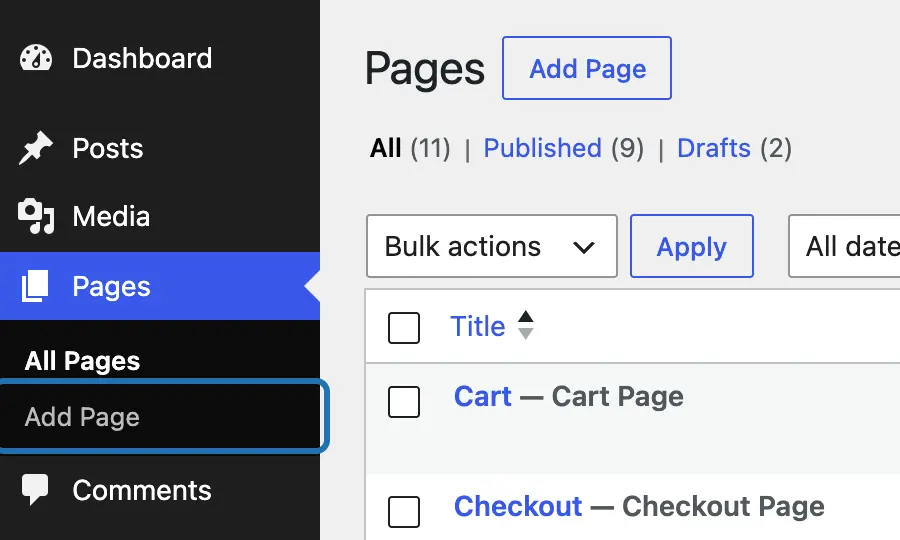
1. Log in to your dashboard (yoursite.com/wp-admin) and go to Pages › Add Page. The Add Page button on the Pages screen does the same.
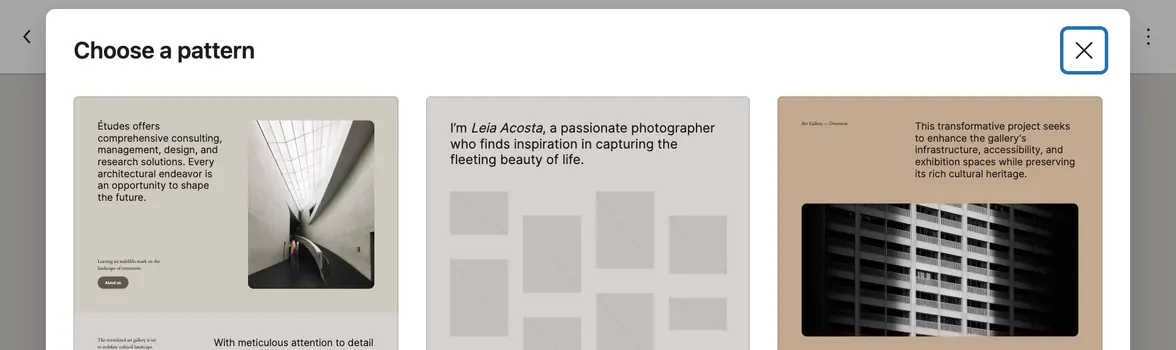
2. WP may open Choose a pattern, a set of ready-made layouts. Pick one to start from, or close the box for a blank page.
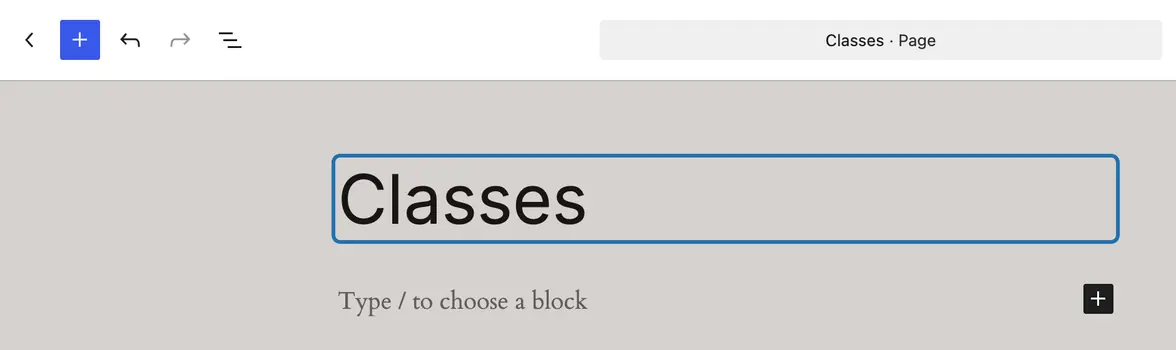
3. Click Add title and type the page's name, like Classes. WP makes the page's address from it: yoursite.com/classes.
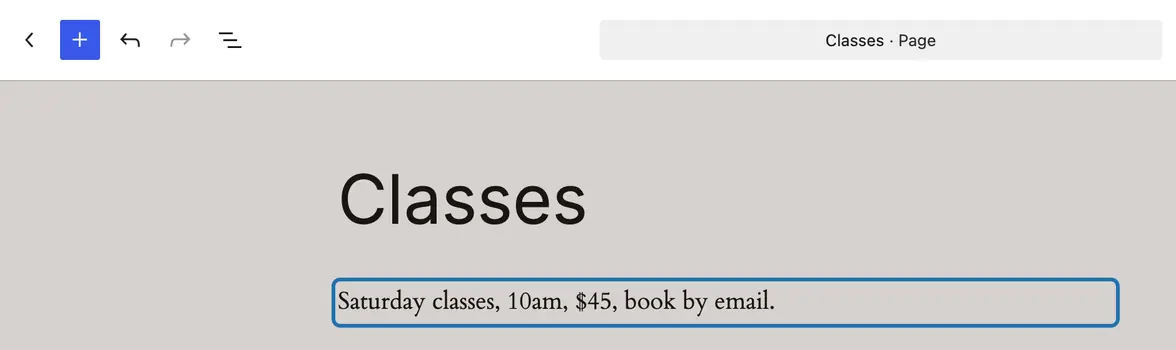
4. Press Enter and type what the page should say. Each paragraph is a block: a box you can move or change later.
5. For a heading, a list, a picture or a button, press the + at the top left and pick a block from the list.
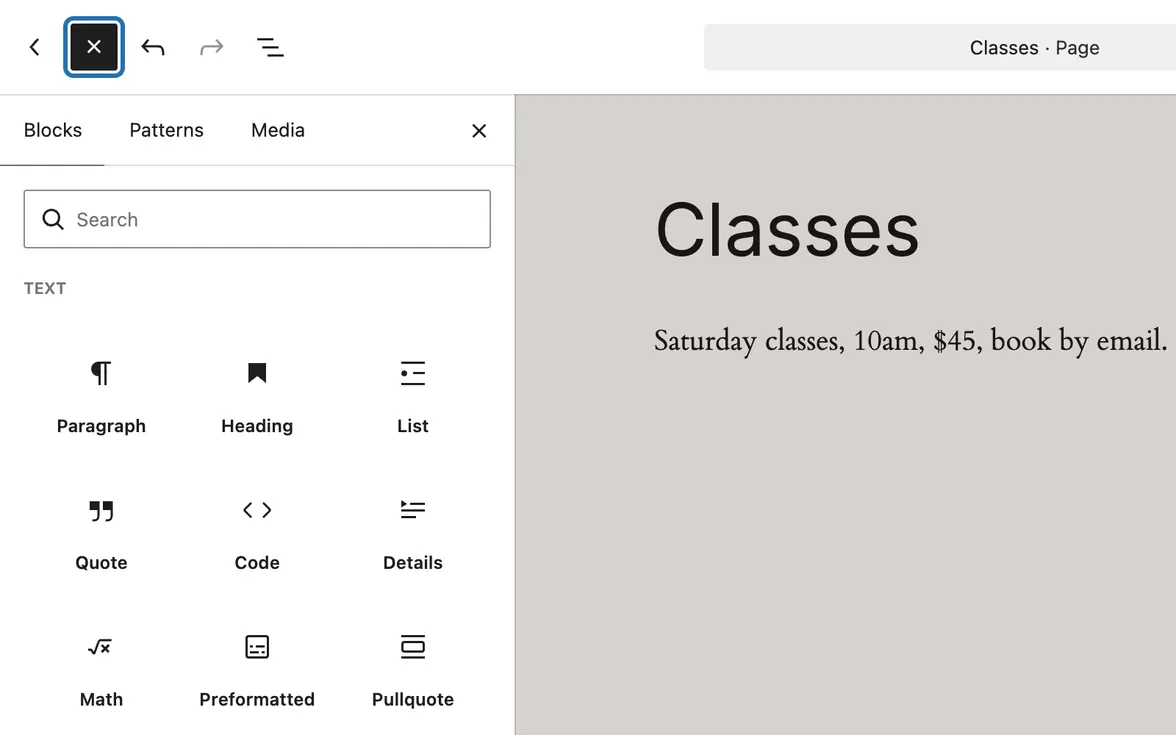
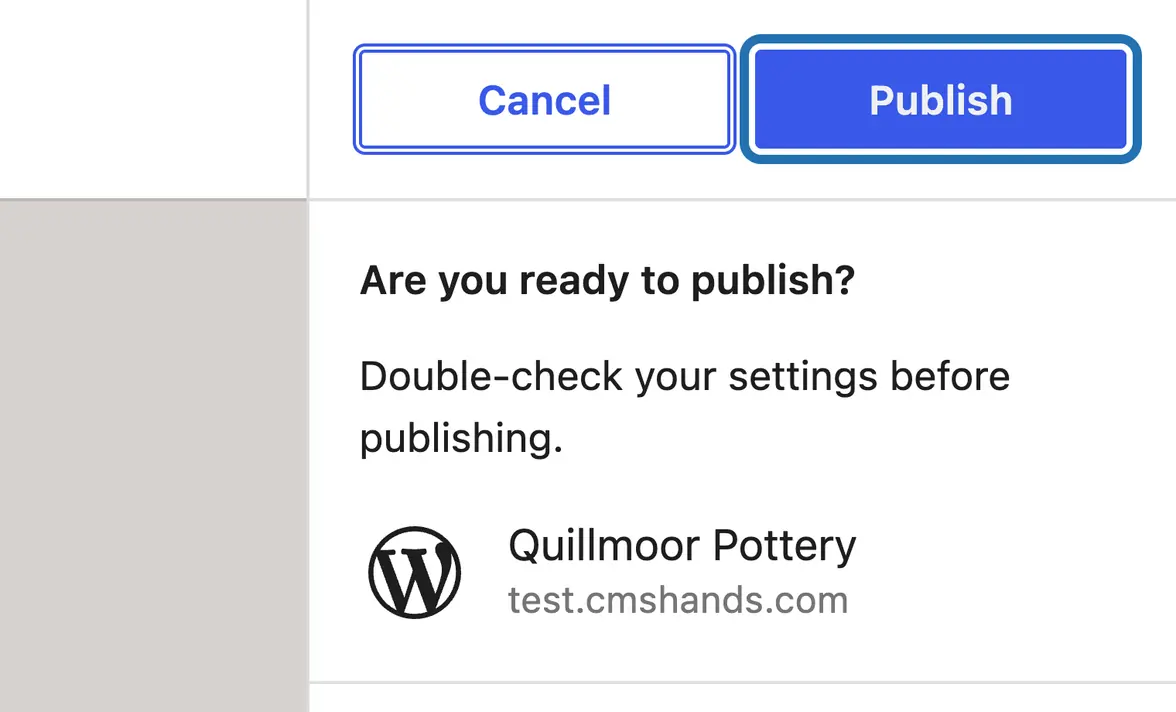
6. Press Publish at the top right. WP asks if you're ready: press Publish again. Not finished? Press Save draft instead.
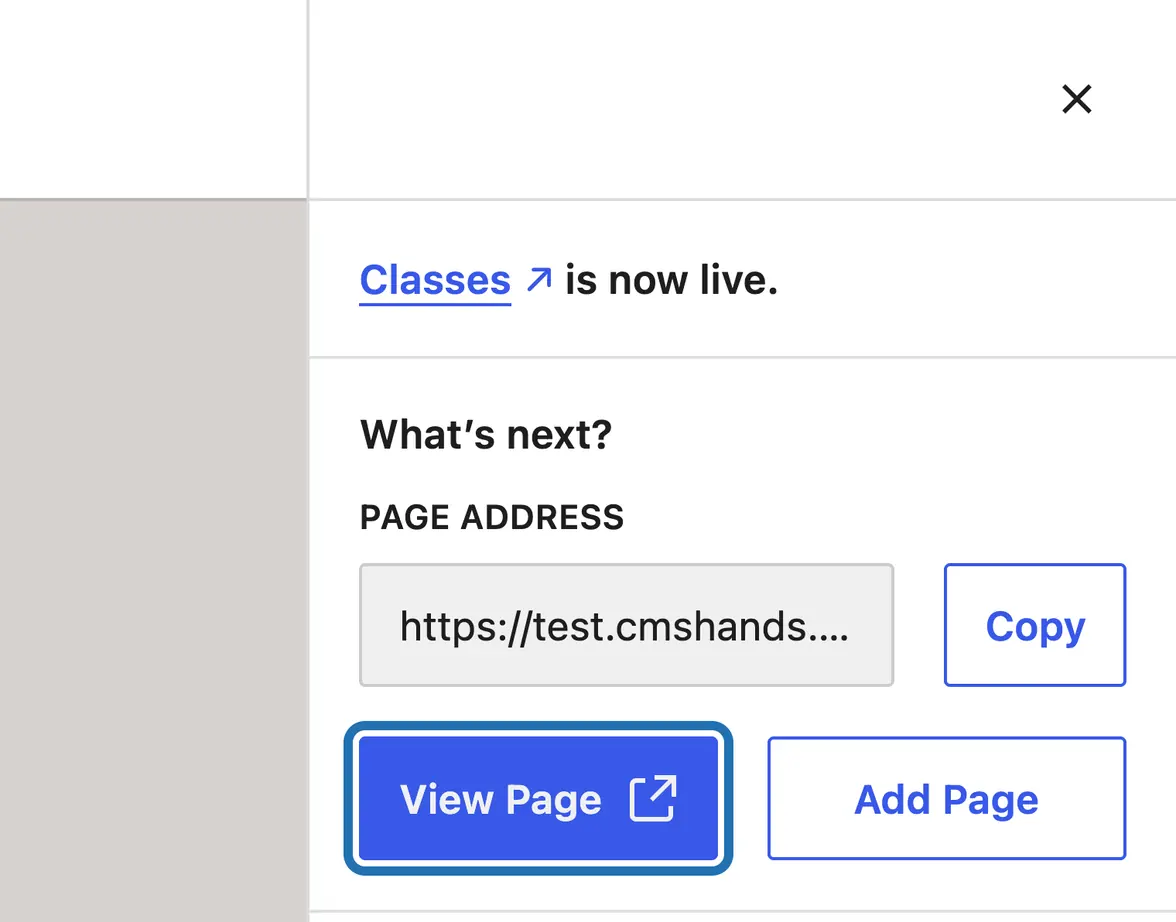
7. WP says the page is now live. Press View Page to see it the way your visitors will.


If your site has the Classic Editor plugin, the new page opens as one big text box instead of blocks. Type the title at the top, the words below, and press Publish on the right.
Pages are for things that stay put, like About, Contact or Classes. Posts are dated news that show up on your blog. A new page often isn't in your menu until you add it, and it doesn't become your home page on its own: both are answered in the questions below.
What it won't do here
A preview of the new page
Adding it to your menu
Pictures on the new page
Page builders
Why it won't wreck your site
Nothing changes until you press the button.
One click undoes it.
Free to start
| No account | With your email | Paid plan | |
|---|---|---|---|
| Changes | 3 to try it | 10 every month | Coming. Nothing costs money until you choose it. |
| Questions | 30 a day | 100 a day | |
| If it breaks | Daily check and crash rescue | The same, plus email alerts |
Undo a change within 24 hours and it doesn't count. If you haven't added an email after 30 days, only crash rescue stays on until you add one. A change is one card you approve. A job that touches several pages or plugins is several changes.
Questions
How do I add an About Us page in WordPress?
Like any other page: go to Pages › Add Page, title it About us, write a few lines about who you are, and press Publish. Then check your menu, because on many sites a new page isn't added to it on its own. With CMSHands, type “Add a page called About us” followed by the words you want on it.
How do I make a new page my home page?
Publish the page first. Then open Settings › Reading, set Your homepage displays to A static page, and select the new page under Homepage. Press Save Changes, and your site's main address opens that page. We haven't tested CMSHands switching this setting yet, so do this part yourself.
Can I import a Word document into a WP page?
WP has no Word button, but pasting works. Open the document, copy the text, and paste it into a new page in the WP editor. Headings, bold, lists and links usually come across. Pictures often don't, so add those with an Image block. Our test run on this page used words typed into the chat, not a file.
Can I undo adding a page?
Yes. In Pages › All Pages, hover over the page and click Trash. WP usually keeps trashed pages for 30 days, so you can restore one. With CMSHands, press Undo on the card. In our test run that moved the new page to the trash, and the assistant said: “Undone. I checked afterwards, and it's back the way it was.”
Is it free?
To start, yes: 3 changes with no account, then 10 a month once you add your email. Questions are free, up to 30 a day (100 with your email).
Written by CMSHands team.
Try it on your next new page
Needs WP 6.3 to 7.1, PHP 8.0 or newer, and an administrator login. One site per install.
The download is a plugin. Turning it on connects your site to cmshands.com and adds 3 small rescue files. Deleting the plugin removes them and everything it stored. What we send
Download the plugin.
It's free: 3 changes to try it. No account, no card.
Upload and activate it.
In your dashboard: Plugins › Add Plugin › Upload Plugin (Add New Plugin on older WP). Choose the file, press Install Now, then Activate Plugin.
Press Turn on.
Press Turn on CMSHands. No account, no key, no password.