
Add custom CSS to WP, with a preview
A free plugin adds a chat to your WP dashboard. Type “Give the search box on my Shop page rounded corners…” See the CSS first, undo in one click.
Block themes only. On an older theme it writes the CSS for you to paste. How to tell
- Nothing changes without your OK
- Undo in one click, or a warning first
- No account, no password to share
Needs WP 6.3 to 7.1, PHP 8.0 or newer, and an administrator login. One site per install.
The download is a plugin. Turning it on connects your site to cmshands.com and adds 3 small rescue files. Deleting the plugin removes them and everything it stored. What we send
Give the search box on my Shop page rounded corners, in the site's brown.

Watch it do this on a real site

You ask
One sentence in the chat. You don't need to write CSS, the rules that set how your site looks, or know what your theme calls its colors.
Give the search box on my Shop page rounded corners, in the site's brown.
I'll look at your Shop page and the theme's design first.
You see it first
It read your theme's colors and the Shop page, wrote the CSS and tried it in a preview. Its first try made the Search button squarer than the shop's other buttons, so it fixed that and tried again. About 47 seconds after the request, the card showed the Shop page with the new CSS, here on a phone.
The button came out as a squared-off box, out of step with the pill-shaped buttons elsewhere on the page. Fixing that.
- 2 secondsLooking for what you meant
- Looking at your theme’s colours and sizes
- 4 secondsReading one of your pages
- 14 secondsPreparing the new styles for your OK
- Previewing the change
- 30 secondsPreparing the new styles for your OK
- 31 secondsPreviewing the change

See the CSS it adds
Code shows the exact CSS it would add, for the search field only. The color is your theme's own light brown, which it calls accent-2, not the darker brown of the buttons. If you meant that one, say so before you press.
Ready for you to review — the search field now has a brown, rounded outline; the Search button is unchanged.

You press the button
Nothing on the site changed until this press. Then it added the CSS to your site's Additional CSS, read it back and turned the card green. Its check quotes the CSS it found there.
- 1 minute 3 secondsAdding styles to your site
- Checking the change

It's on the site
The Shop page right after, as a visitor sees it. Nothing else on the page changed. The CSS sits in your site's Additional CSS, so a search box on another page would get the same look.
Done. I checked afterwards, and it now says "/* CMSHands: Rounded brown search box */ .wp-block-search .wp-block-search__input { border: 2px solid var(--wp--preset--color--accent-2); border-radius: 6px; }".

Undo, if you want
Pressing Undo took the CSS out again. It read your site's styles back to make sure, and the Shop page looked as it did before. This picture is the chat opened again afterwards: the card's foot says the site is back too.
Undone. I checked afterwards, and it's back the way it was.
- 1 minute 14 secondsReverting the change
- 1 minute 15 secondsChecking the change
A real run on our test site, Quillmoor Pottery (WP 7.1.3, Twenty Twenty-Four), Oct 11, 2026. From asking to done, it took 1 minute 4 seconds.
That's the whole job. The plugin is free: 3 changes to try it, no account. Nothing changes until you press the button.
Needs WP 6.3 to 7.1, PHP 8.0 or newer, and an administrator login. One site per install.
The download is a plugin. Turning it on connects your site to cmshands.com and adds 3 small rescue files. Deleting the plugin removes them and everything it stored. What we send
How to add custom CSS to WordPress yourself
Checked on WP 7.1, Oct 11, 2026
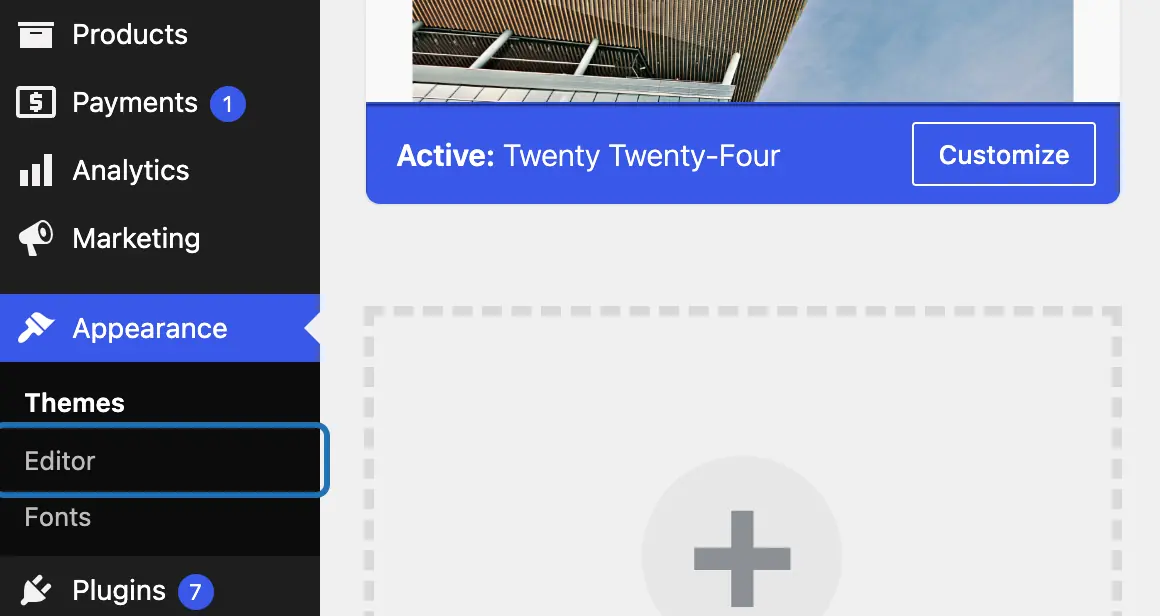
1. In your dashboard, go to Appearance › Editor. See Appearance › Customize instead? You have an older theme: use the note under these steps.
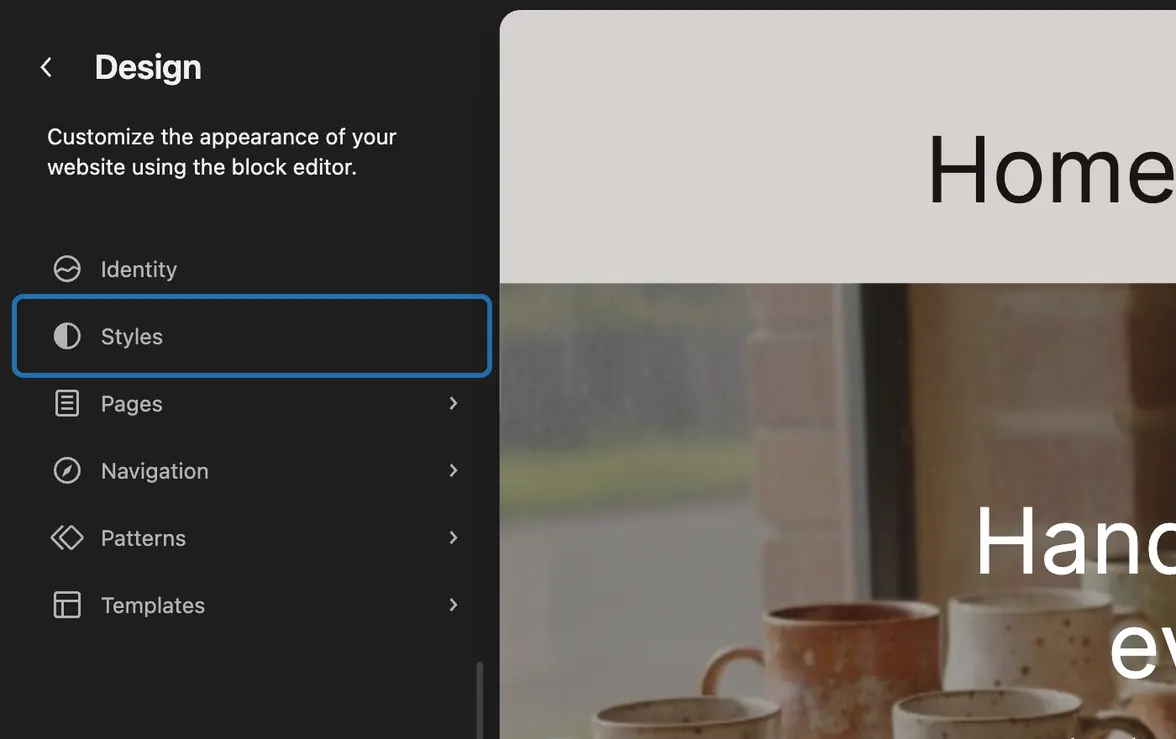
2. Choose Styles in the list on the left.
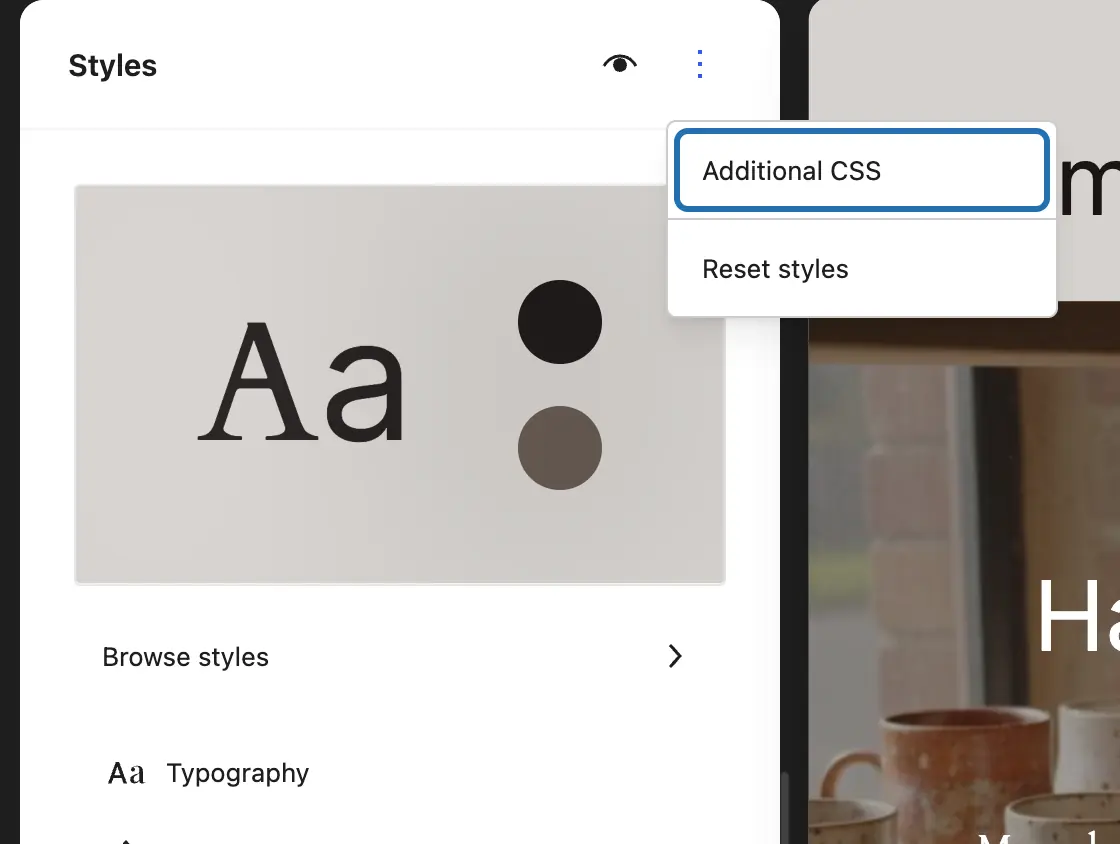
3. Press the ⋮ (More) button at the top of the Styles panel, then choose Additional CSS.
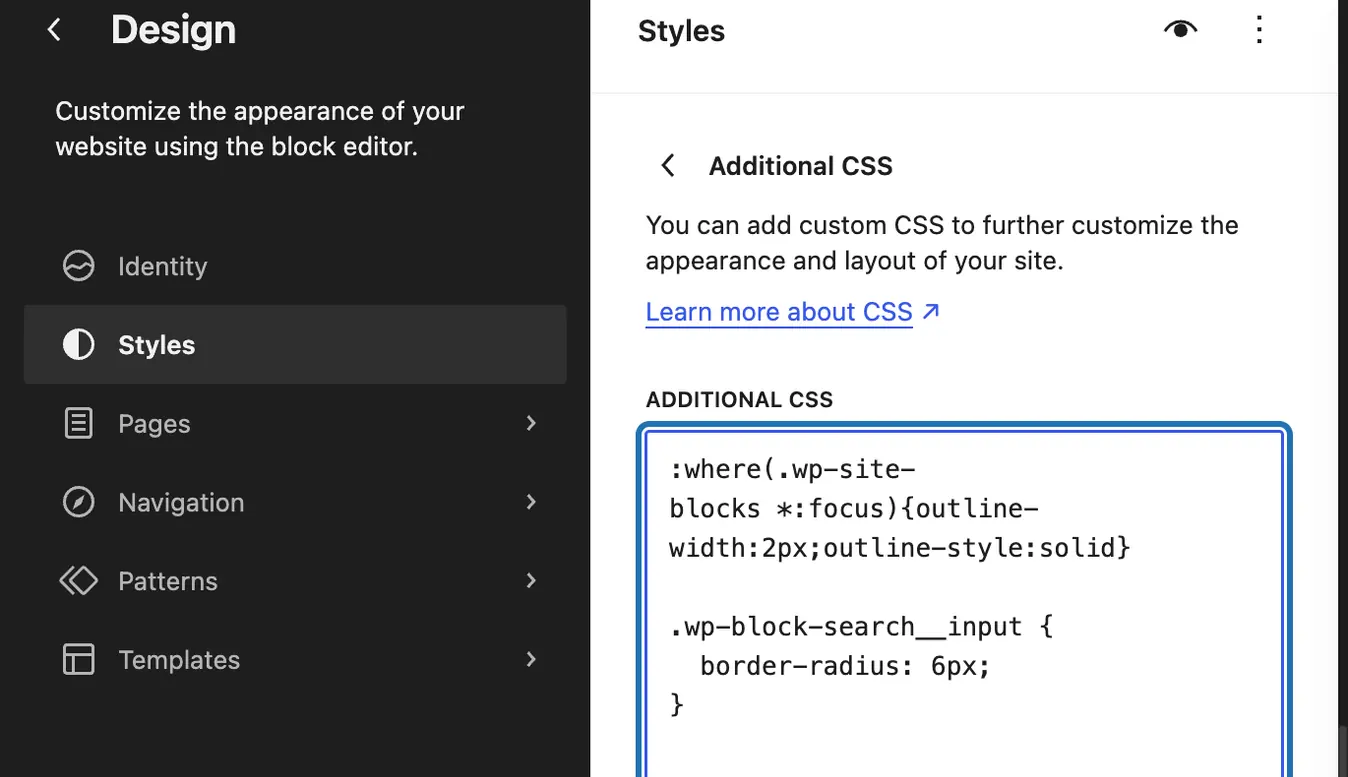
4. Click after anything already in the box and type your rule. This one rounds the search box: “.wp-block-search__input { border-radius: 6px; }”
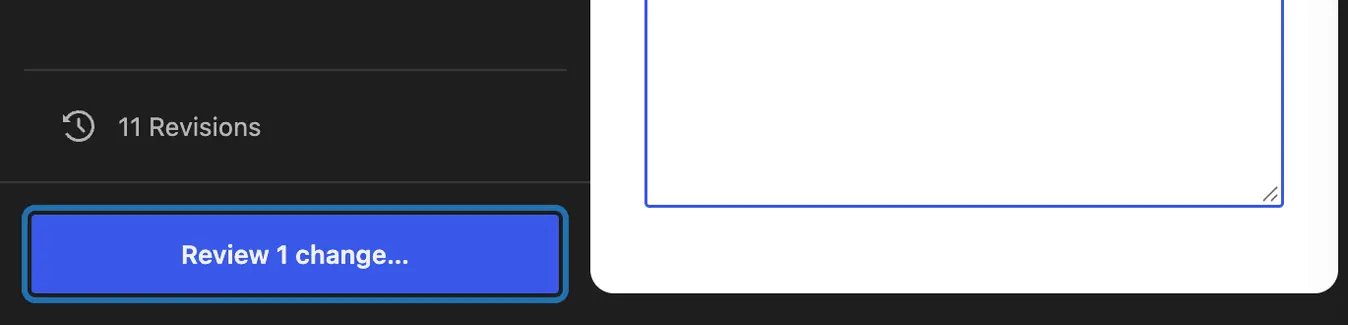
5. Press Review 1 change… at the bottom left of the editor.
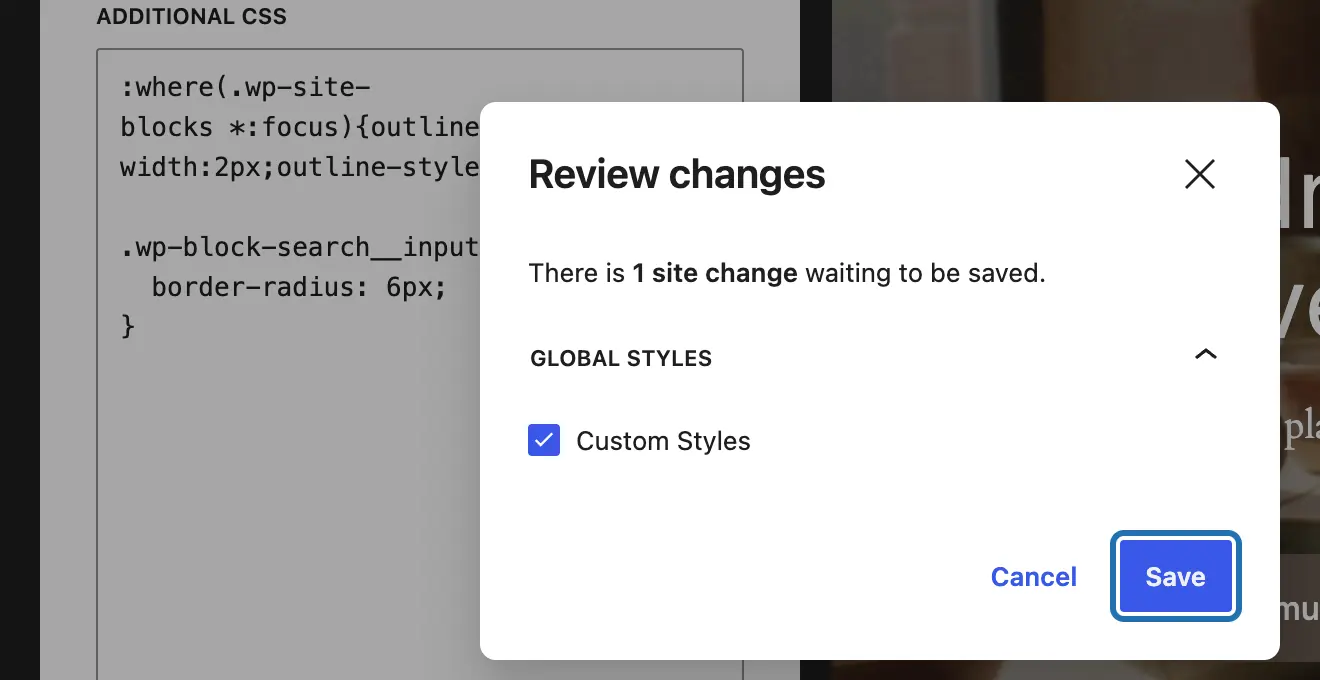
6. In the Review changes box that opens, leave Custom Styles ticked and press Save.
7. Open the page on your site in a new tab and check it, on your phone too. No change? Reload the page.
8. For one block only (WP 7.1): select it in the page editor, then open Advanced at the bottom of the Block panel.
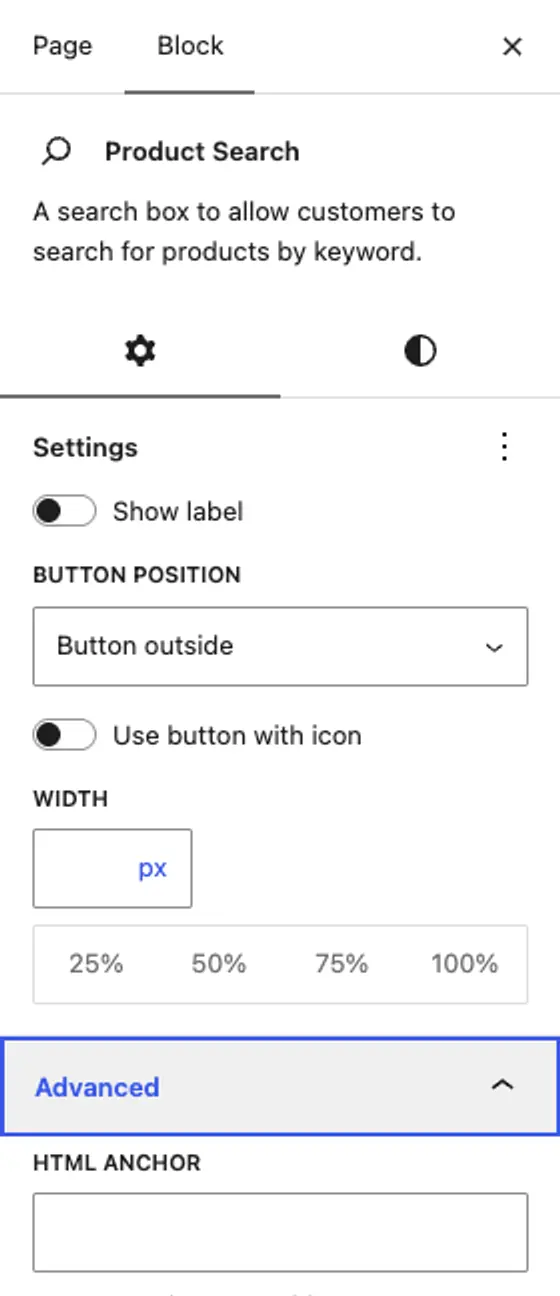
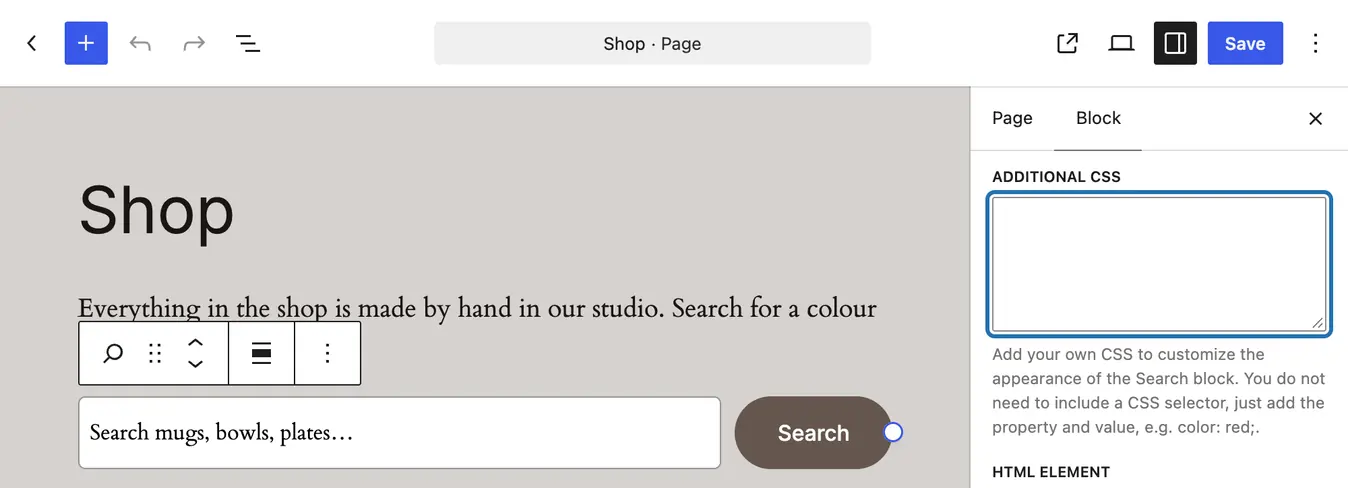
9. Type the look in its Additional CSS box, with no name in front, like “color: red;”. Then press Save at the top right.


These steps are for a block theme, the newer kind of WP theme where your dashboard has Appearance › Editor. On an older (classic) theme, a theme with Appearance › Customize instead of Editor, go there and choose Additional CSS. Type your rules and press Publish. CMSHands can't add CSS there itself. It writes the CSS and tells you where to paste it.
Additional CSS stays when your theme updates, but CSS typed into the theme's style.css file is lost. To find a thing's name, right-click it on your site in Chrome and choose Inspect: the words after class= are its names, like wp-block-search.
What it won't do here
Older (classic) themes
Your whole site's colors and fonts
JavaScript, tracking codes and PHP snippets
New fonts and background pictures
Why it won't wreck your site
Nothing changes until you press the button.
You see it first.
One click undoes it.
Free to start
| No account | With your email | Paid plan | |
|---|---|---|---|
| Changes | 3 to try it | 10 every month | Coming. Nothing costs money until you choose it. |
| Questions | 30 a day | 100 a day | |
| If it breaks | Daily check and crash rescue | The same, plus email alerts |
Undo a change within 24 hours and it doesn't count. If you haven't added an email after 30 days, only crash rescue stays on until you add one. A change is one card you approve. A job that touches several pages or plugins is several changes.
Questions
How do I add custom CSS to my WordPress site?
On a block theme, go to Appearance › Editor, choose Styles, open the ⋮ menu and choose Additional CSS. Type your rules, press Review 1 change…, then Save. On an older theme it's Appearance › Customize › Additional CSS, then Publish. Either way, look at the page on a phone too before you leave it.
Will my custom CSS survive a theme update?
Yes, if it's in Additional CSS. WP keeps that with your site, not in the theme's files, so updates leave it alone. CSS typed into the theme's own style.css file is lost at the next update. One catch: Additional CSS belongs to the theme you add it to. Switch themes and it stops showing, until you switch back.
How do I edit CSS in WordPress?
Open the box you added it in, Additional CSS, change the rule and save. To find what a rule should name, open your site in Chrome, right-click the thing and choose Inspect. The words after class= are its names, like wp-block-search for a search box. Change one thing at a time, and check the page after each save.
Do I need a CSS editor plugin for WordPress?
Usually not. WP has its own Additional CSS box, and on WP 7.1 each block has one too, under Advanced. A plugin can help if you want CSS on one page only, or JavaScript as well. CMSHands works another way: you ask in plain words, and it writes the CSS and shows it to you before anything changes. That needs a block theme, and it can't add JavaScript.
Will the CSS from CMSHands change the rest of my site?
No. On a block theme, every rule it writes starts with the name of the thing you asked about, like “.wp-block-search” for search boxes, so nothing else matches. It goes into your site-wide Additional CSS, though, so every search box on the site gets the new look, not only the one on Shop. Undo on the card takes it out again.
Is it free?
To start, yes: 3 changes with no account, then 10 a month once you add your email. Questions are free, up to 30 a day.
Written by CMSHands team.
Try it on your own site
Needs WP 6.3 to 7.1, PHP 8.0 or newer, and an administrator login. One site per install.
The download is a plugin. Turning it on connects your site to cmshands.com and adds 3 small rescue files. Deleting the plugin removes them and everything it stored. What we send
Download the plugin.
It's free: 3 changes to try it. No account, no card.
Upload and activate it.
In your dashboard: Plugins › Add Plugin › Upload Plugin (Add New Plugin on older WP). Choose the file, press Install Now, then Activate Plugin.
Press Turn on.
Press Turn on CMSHands. No account, no key, no password.