
Change text color or size in WP
A free plugin adds a chat to your WP dashboard. Type “Make the first paragraph on the About page orange and a bit bigger.” See it first; one-click undo.
Works on block themes: you'll see Appearance › Editor in your dashboard. How to tell
- Nothing changes without your OK
- Undo in one click, or a warning first
- No account, no password to share
Needs WP 6.3 to 7.1, PHP 8.0 or newer, and an administrator login. One site per install.
The download is a plugin. Turning it on connects your site to cmshands.com and adds 3 small rescue files. Deleting the plugin removes them and everything it stored. What we send
Make the first paragraph on the About page orange and a bit bigger.

Watch it do this on a real site

You ask
One short sentence in the chat. You don't need to know what your theme calls its colors and sizes, or where the settings live.
Make the first paragraph on the About page orange and a bit bigger.
You see it first
It reads your theme's colors and sizes, tries the change in a preview, and about 26 seconds later shows a card. After shows the paragraph in your theme's own orange, one size up. Nothing has changed yet.
Ready for you to review — one thing the card can't tell you: this is the smallest step up the theme's sizes go, so it is a fair bit bigger than before rather than slightly. If it's too much, say so and I'll bring it back down.
- 1 secondLooking for what you meant
- 2 secondsLooking at your theme’s colours and sizes
- 4 secondsReading one of your pages
- 11 secondsReading one of your pages
- 13 secondsPreparing the change for your OK
- 14 secondsPreviewing your page

See exactly what changes
Code shows the one thing it touches: that paragraph gets your theme's own orange (“accent-3”) and its “large” size. The picture and the other paragraphs stay as they were. The phone button shows the same page on a phone.

You press the button
Nothing on the site changed until this press. Then it saved the page, read it back and turned the card green. Its check quotes the words, which stayed the same; the new color and size are in the next picture.
- 42 secondsUpdating one of your pages
- Checking the change

It's on the site
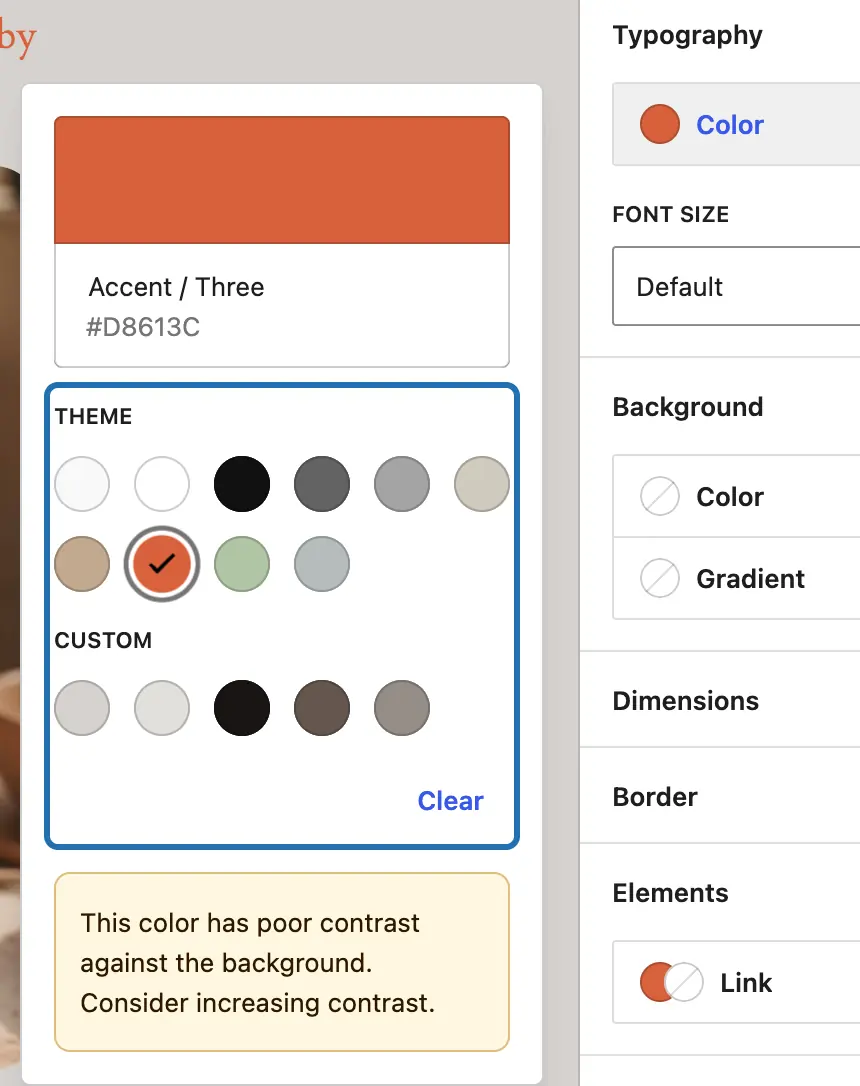
The About page right after, as a visitor sees it: the first paragraph in your theme's orange and its large size, in the same font as before. Nothing else on the page changed. One catch: WP's own editor warns that this orange is hard to read on the beige background (step 4 of the do-it-yourself steps below shows that warning). The chat didn't mention it, so look at the After picture yourself before you press.
Done. I checked afterwards, and it now says "Quillmoor Pottery is a two-person studio making mugs, bowls and plates by hand since 2019.".

Undo, if you want
Pressing Undo put the paragraph back to its old color and size. It read the page again to make sure, and showed the markup it put back.
Undone. I checked afterwards, and it's back the way it was.
- 50 secondsReverting the change
- 51 secondsChecking the change
A real run on our test site, Quillmoor Pottery (WP 7.1.3, Twenty Twenty-Four), Oct 11, 2026. From asking to done, it took 42 seconds.
That's the whole job. The plugin is free: 3 changes to try it, no account. Nothing changes until you press the button.
Needs WP 6.3 to 7.1, PHP 8.0 or newer, and an administrator login. One site per install.
The download is a plugin. Turning it on connects your site to cmshands.com and adds 3 small rescue files. Deleting the plugin removes them and everything it stored. What we send
How to change text color and size in WordPress yourself
Checked on WP 7.1, Oct 11, 2026
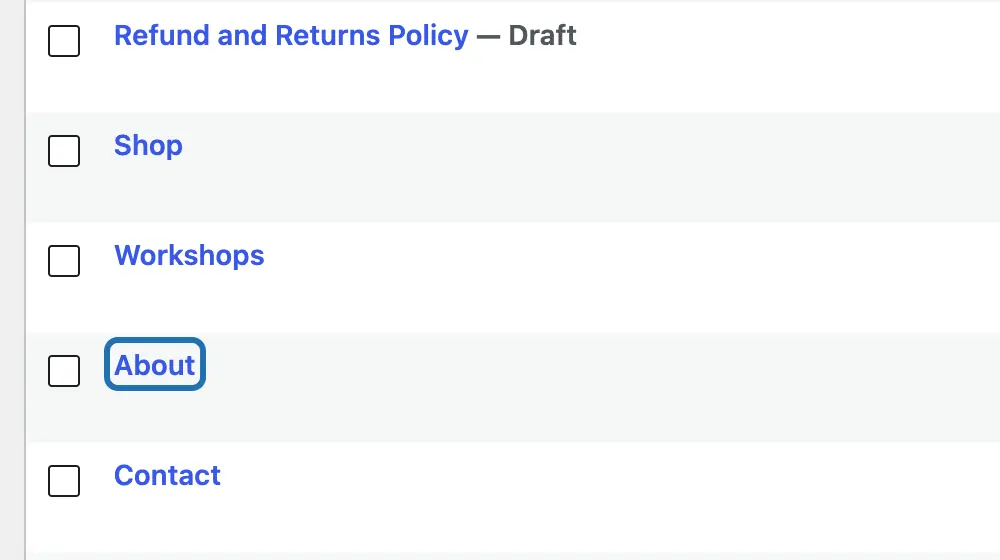
1. In your dashboard, go to Pages › All Pages and click the page's name. It opens in the editor. Posts work the same way.
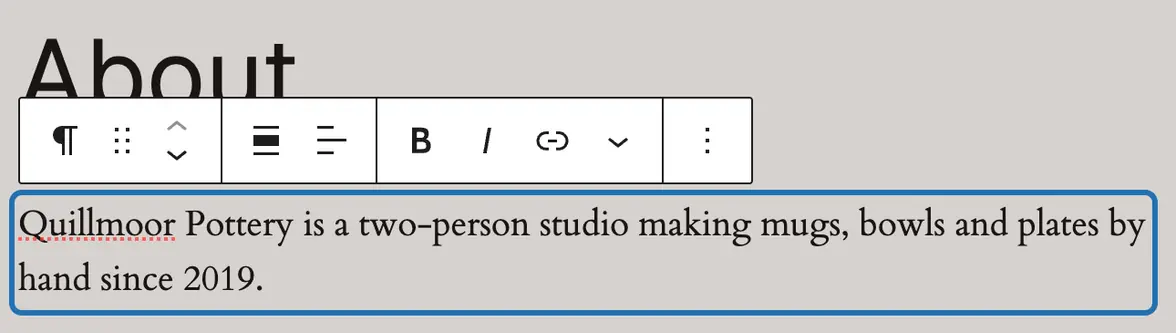
2. Click the paragraph or heading you want to change. A box appears around it, with a small toolbar above.
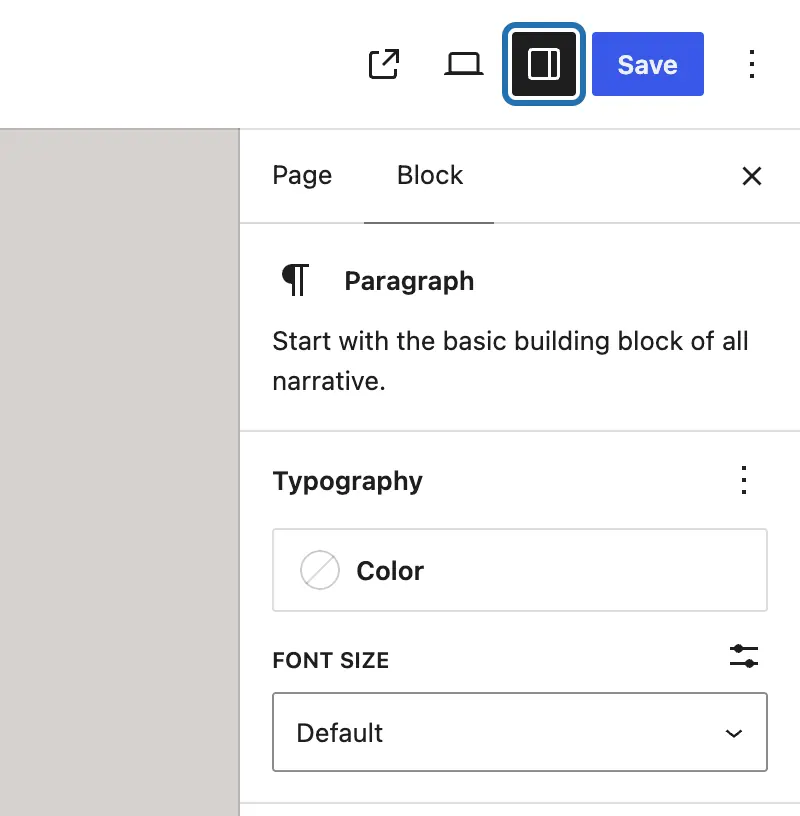
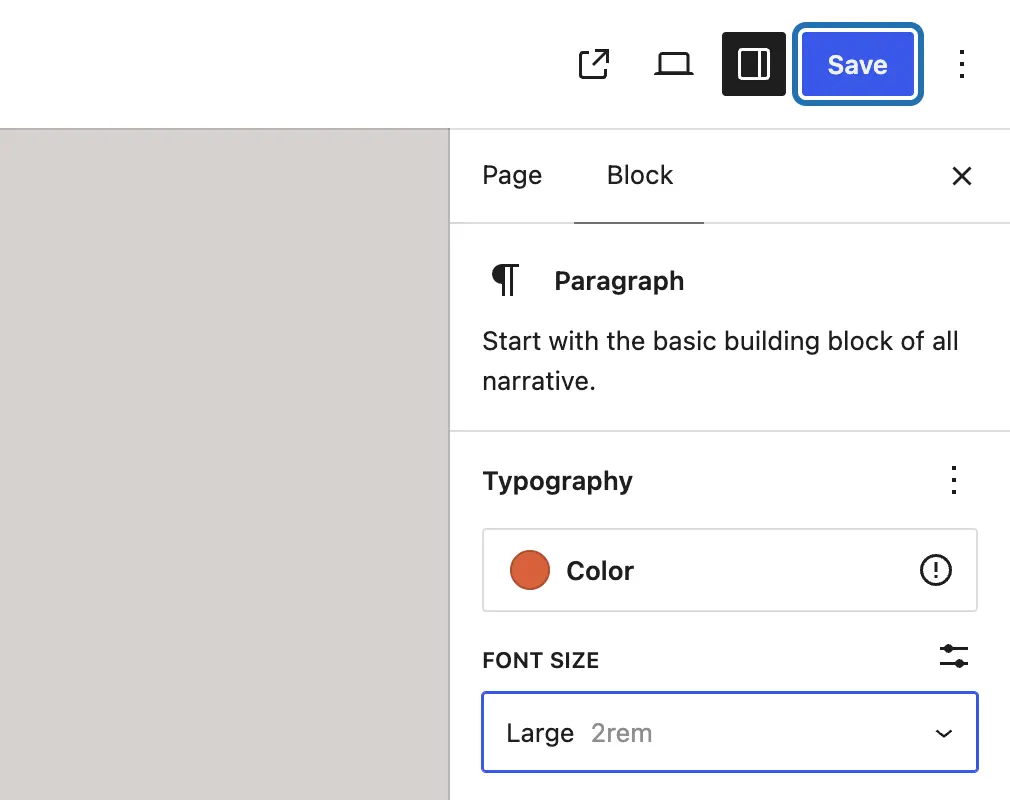
3. Look at the panel on the right, on its Block tab. No panel? Press the Settings button, the square one beside Save.
4. For color, open Color under Typography and pick a circle under Theme. Our orange got a contrast warning; if yours does, pick a darker one.
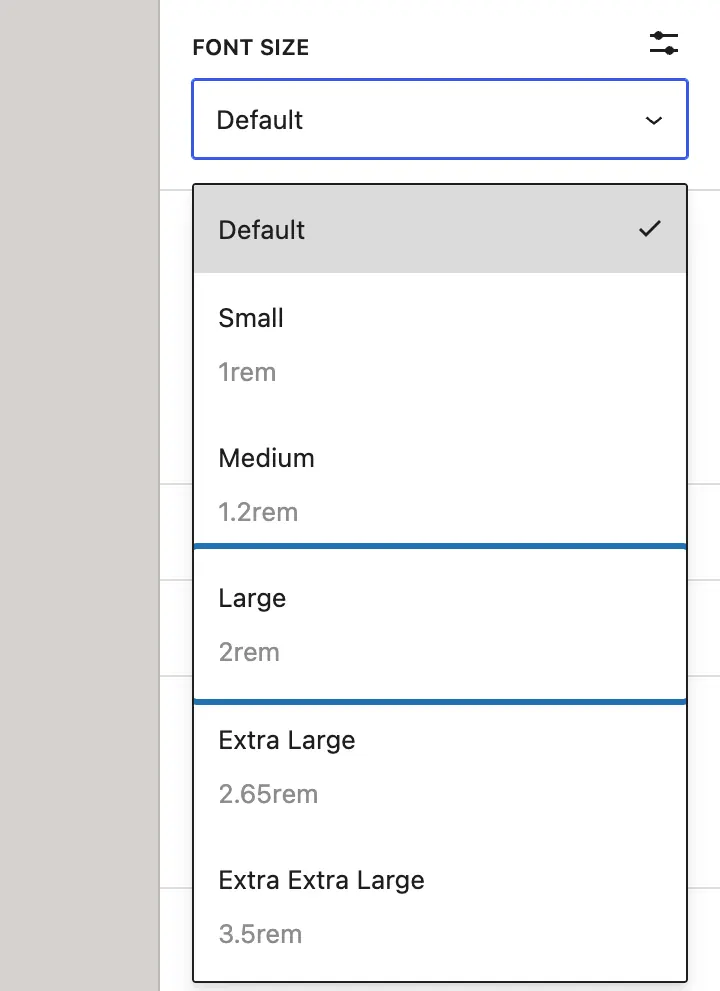
5. For size, open the Font size list below it and choose one, like Large. The paragraph grows in the editor as you choose.
6. Press Save at the top right. Then open the page on your site and look at it on your phone too.
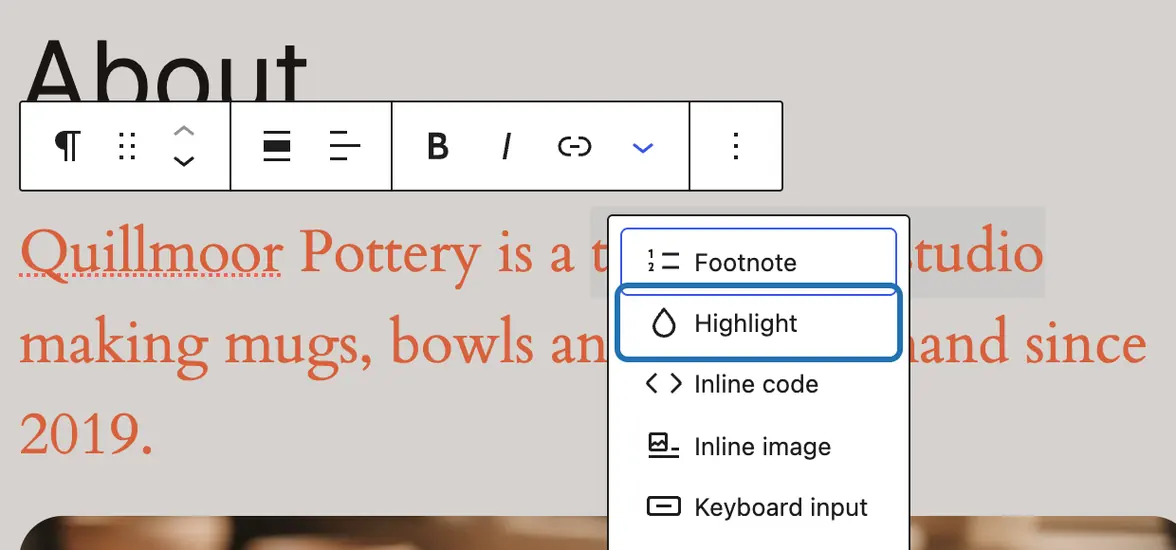
7. To color only a few words, select them, press the small down arrow in the toolbar, choose Highlight and pick a color.


On an older (classic) theme, pages still open in this editor, so the steps usually work there too. Colors and fonts for the whole site, if your theme offers them, are under Appearance › Customize.
Your theme comes with a set of colors and sizes picked to look right together. Choosing from them keeps every page consistent. To change all paragraphs at once on a block theme, go to Appearance › Editor › Styles, then Typography or Colors. That changes the whole site, so try it on one paragraph first.
What it won't do here
Older (classic) themes
A color your theme doesn't have
A few words inside a paragraph
Your whole site's colors and fonts
Page-builder pages
Why it won't wreck your site
Nothing changes until you press the button.
You see it first.
One click undoes it.
Free to start
| No account | With your email | Paid plan | |
|---|---|---|---|
| Changes | 3 to try it | 10 every month | Coming. Nothing costs money until you choose it. |
| Questions | 30 a day | 100 a day | |
| If it breaks | Daily check and crash rescue | The same, plus email alerts |
Undo a change within 24 hours and it doesn't count. If you haven't added an email after 30 days, only crash rescue stays on until you add one. A change is one card you approve. A job that touches several pages or plugins is several changes.
Questions
How do I change the text color in WordPress?
Click the paragraph or heading in the editor. In the panel on the right, on the Block tab, open Color under Typography and pick a color. Press Save. That's WP 7.1; some older versions put it under Color › Text instead. To color only a few words, select them and use Highlight in the toolbar's down-arrow menu.
How do I change the text size in WordPress?
Click the paragraph, then open the Font size list under Typography in the panel on the right and choose a size, like Large. The sizes in that list come from your theme. The small sliders button beside Font size lets you type your own size instead. Press Save when it looks right.
How do I change the text color on my whole site?
On a block theme, go to Appearance › Editor, choose Styles, then Colors or Typography. A change there reaches every page that uses the theme's default text. Blocks, at the bottom of that panel, sets the style of one kind of block, like all headings. CMSHands doesn't change these site-wide styles; it changes one block at a time.
Can I change the color of a few words only?
Yes, in WP itself. Select the words, press the small down arrow in the block's toolbar and choose Highlight. Pick a color on the Text tab, or Background to mark the words like a highlighter pen. CMSHands changes whole paragraphs; we haven't tested it on a few words yet.
Will CMSHands pick colors that clash with my site?
It picks from your theme's own colors and sizes, the set your theme was designed with. In our test, “orange” became the theme's own orange. It doesn't check whether text stays easy to read, so look at the After picture on a computer and a phone first. Not now leaves the page as it is.
Is it free?
To start, yes: 3 changes with no account, then 10 a month once you add your email. Questions are free, up to 30 a day.
Written by CMSHands team.
Try it on your own text
Needs WP 6.3 to 7.1, PHP 8.0 or newer, and an administrator login. One site per install.
The download is a plugin. Turning it on connects your site to cmshands.com and adds 3 small rescue files. Deleting the plugin removes them and everything it stored. What we send
Download the plugin.
It's free: 3 changes to try it. No account, no card.
Upload and activate it.
In your dashboard: Plugins › Add Plugin › Upload Plugin (Add New Plugin on older WP). Choose the file, press Install Now, then Activate Plugin.
Press Turn on.
Press Turn on CMSHands. No account, no key, no password.