
Make Contact Form 7 match your site
A free plugin adds a chat to your WP dashboard. Type “Make my contact form match the rest of the site.” See the new form first. Undo in one click.
Block themes only. It styles the form; it doesn't build new forms. How to tell
- Nothing changes without your OK
- Undo in one click, or a warning first
- No account, no password to share
Needs WP 6.3 to 7.1, PHP 8.0 or newer, and an administrator login. One site per install.
The download is a plugin. Turning it on connects your site to cmshands.com and adds 3 small rescue files. Deleting the plugin removes them and everything it stored. What we send
Contact Form 7 is a trademark of its owner. CMSHands is not affiliated with it.
Make my contact form match the rest of the site.

Watch it do this on a real site

You ask
One sentence in the chat in your WP dashboard. You don't say which form, or write any CSS, the rules that set how your site looks. It looks for the form first.
Make my contact form match the rest of the site.
You see it first
It read the theme's colors and sizes and the Contact page. 33 seconds after the request, a card showed the form with the new styles, and nothing had changed yet. Its note says the button matches the site's other buttons, but it's near-black and theirs are brown and round.
Ready for you to review — the fields and the Submit button now use the same colours, corner rounding and text sizes as the rest of the site's buttons and forms.
- 2 secondsLooking for what you meant
- Listing your plugins and themes
- 4 secondsLooking at your theme’s colours and sizes
- Reading one of your pages
- 14 secondsReading a file on your site
- 20 secondsPreparing the new styles for your OK
- Previewing the change

See the CSS it adds
Code lists every rule it would add to the site's Additional CSS. Each one starts with .wpcf7, the box Contact Form 7 puts around a form, so the rest of the site stays as it is. The colors and text sizes come from the theme.

You press the button
Nothing on the site changed until this press of Add the styles. Then it added the rules, checked the page, and the card turned green with an Undo link.
- 50 secondsAdding styles to your site
- Checking the change

It's on the site
The Contact page as a visitor sees it: before first, then right after. The fields are full width, in the theme's font and colors, with rounded corners. The Submit is the near-black one from the After picture.
Done. I checked afterwards, and the change is in place.

Undo, if you want
Pressing Undo took the rules out again. It checked the page and said so, and the form went back to its plain look. We reloaded the chat before taking this picture.
Undone. I checked afterwards, and it's back the way it was.
- 59 secondsReverting the change
- 1 minuteChecking the change
A real run on our test site, Quillmoor Pottery (WP 7.1.3, Twenty Twenty-Four), Oct 10, 2026. From asking to done, it took 50 seconds.
That's the whole job. The plugin is free: 3 changes to try it, no account. Nothing changes until you press the button.
Needs WP 6.3 to 7.1, PHP 8.0 or newer, and an administrator login. One site per install.
The download is a plugin. Turning it on connects your site to cmshands.com and adds 3 small rescue files. Deleting the plugin removes them and everything it stored. What we send
How to style Contact Form 7 with CSS in WordPress yourself
Checked on WP 7.1, Oct 11, 2026
1. In your dashboard, go to Appearance › Editor. Choose Styles, open the ⋮ (More) menu and choose Additional CSS.
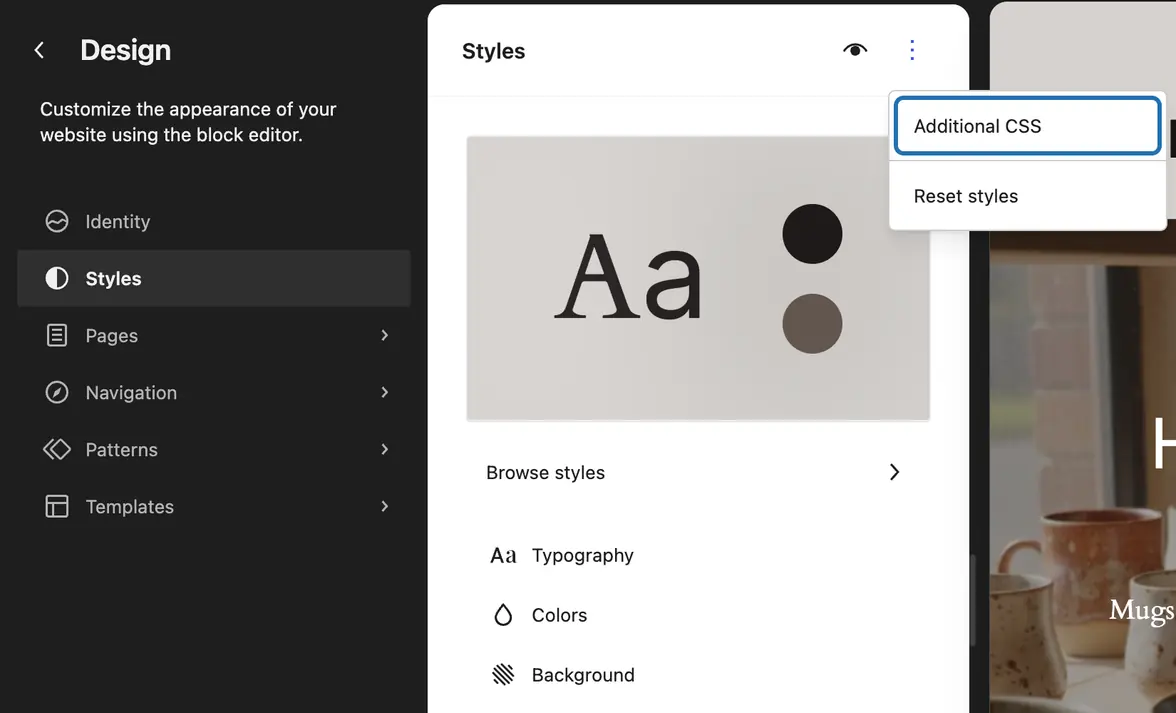
2. Contact Form 7 puts every form in a box, written
div.wpcf7in CSS. Start each rule with it and it touches only your forms.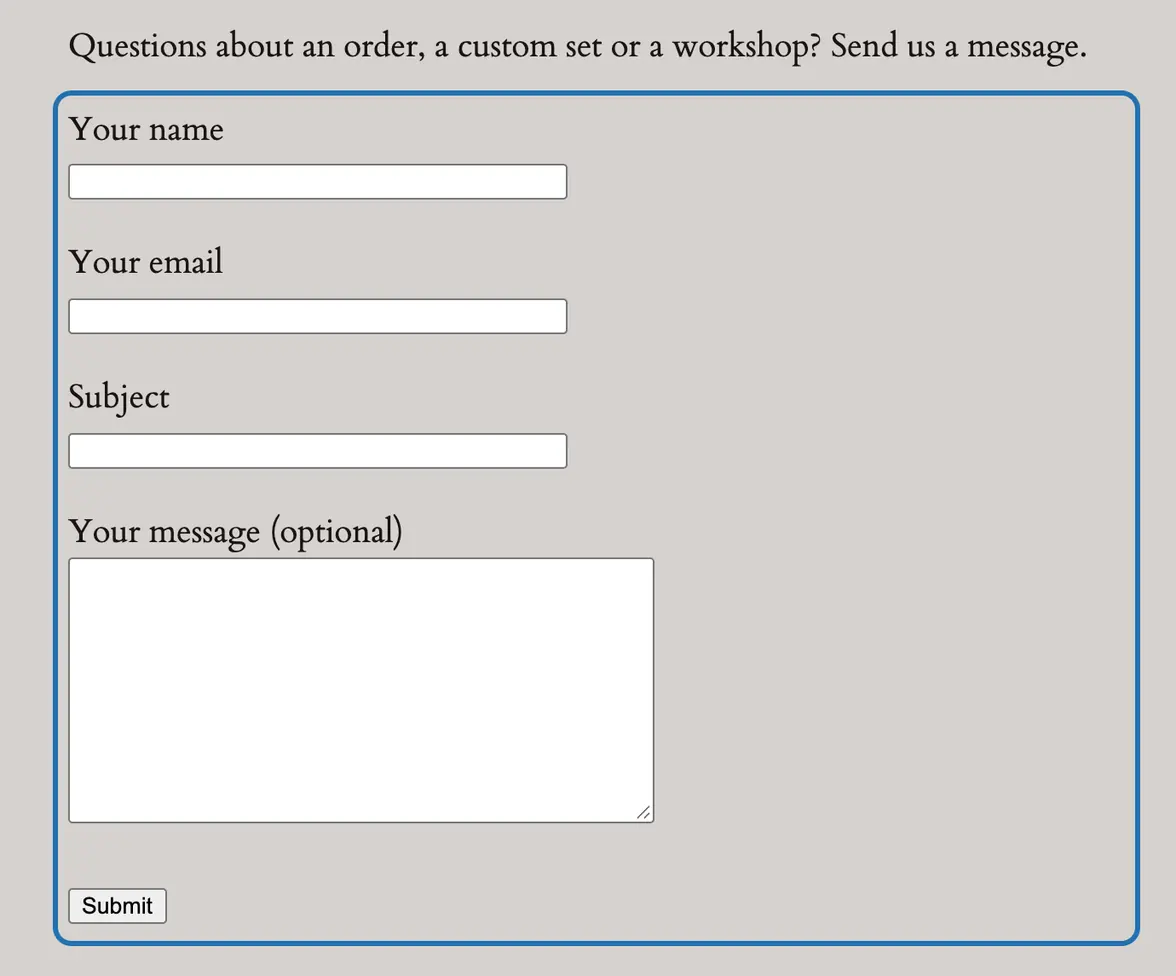
3. For the fields, add:
div.wpcf7 input.wpcf7-text, div.wpcf7 textarea { width: 100%; box-sizing: border-box; padding: 10px; border: 1px solid #958d86; border-radius: 6px; font: inherit; }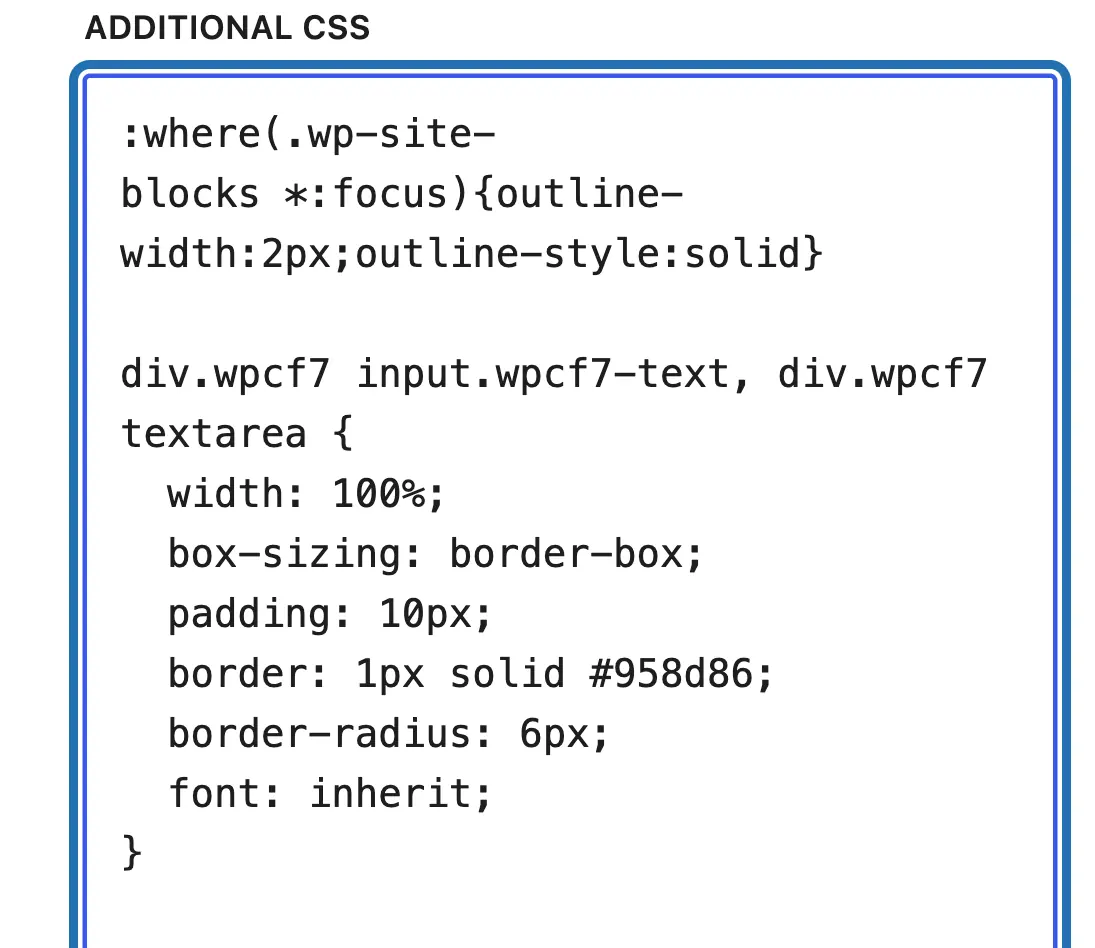
4. For the button, add:
div.wpcf7 input.wpcf7-submit { background-color: #65574e; color: #ffffff; font: inherit; border: 0; border-radius: 100px; padding: 12px 32px; }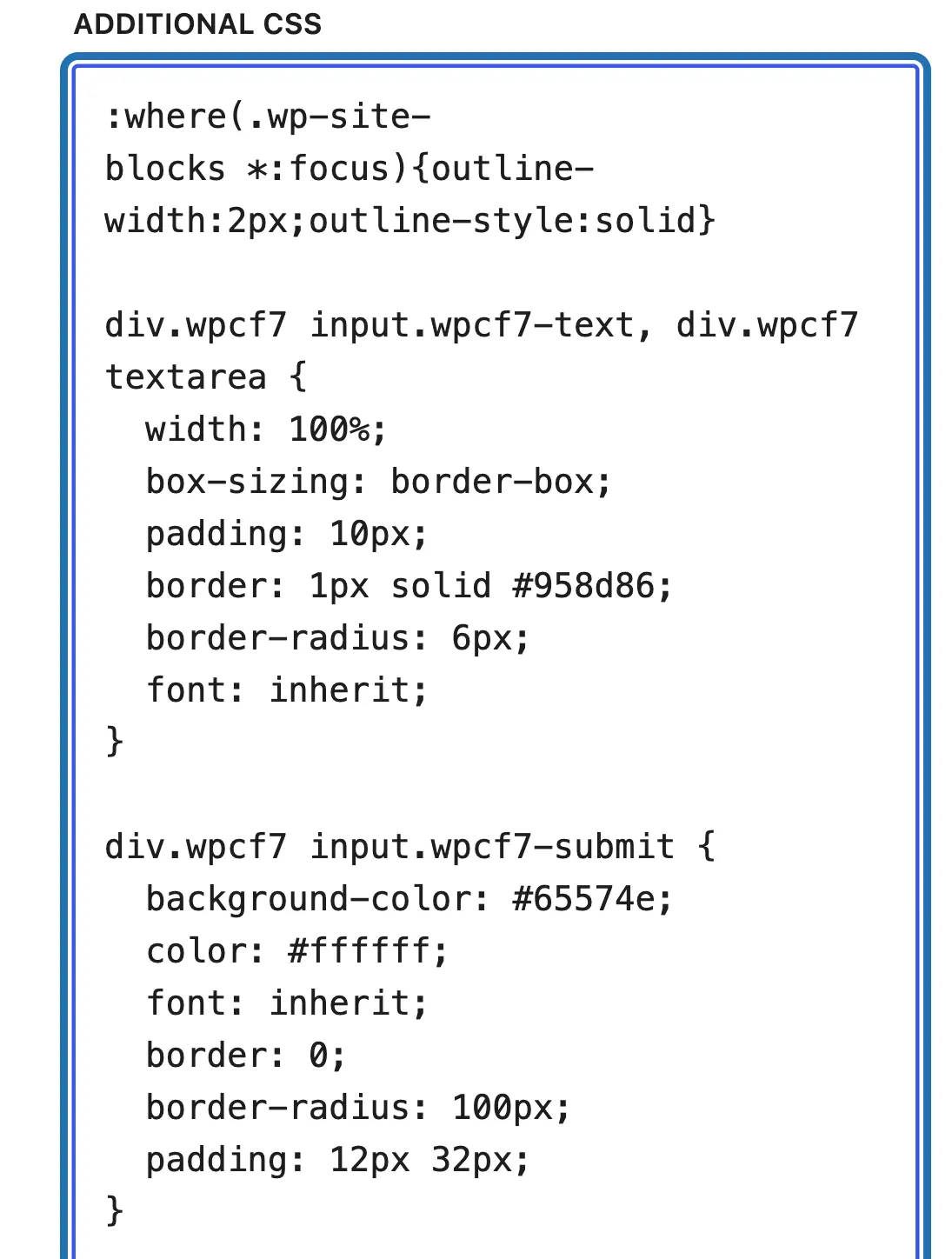
5. Put your own colors in place of
#958d86, the border, and#65574e, the button. Press Review 1 change… at the bottom left, then Save.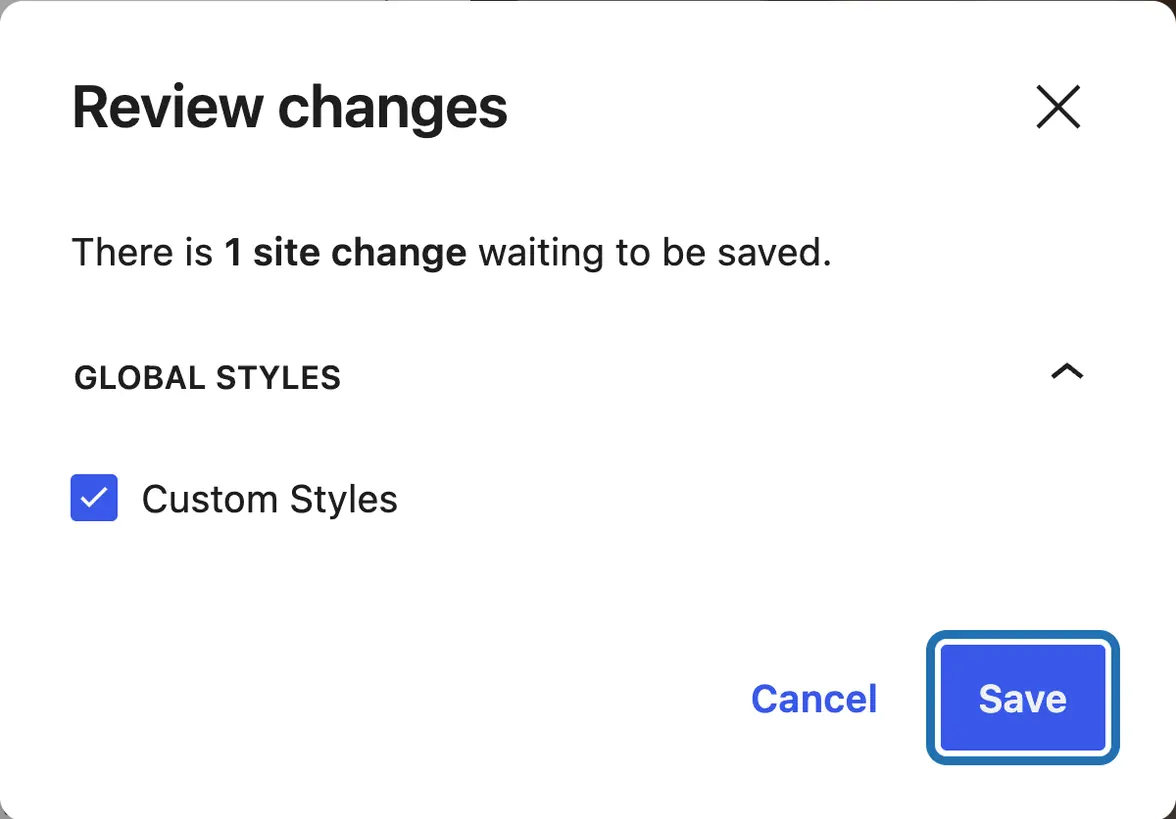
6. Open your form's page in a new tab and on your phone. Press Submit with a required field empty to check the error still shows.
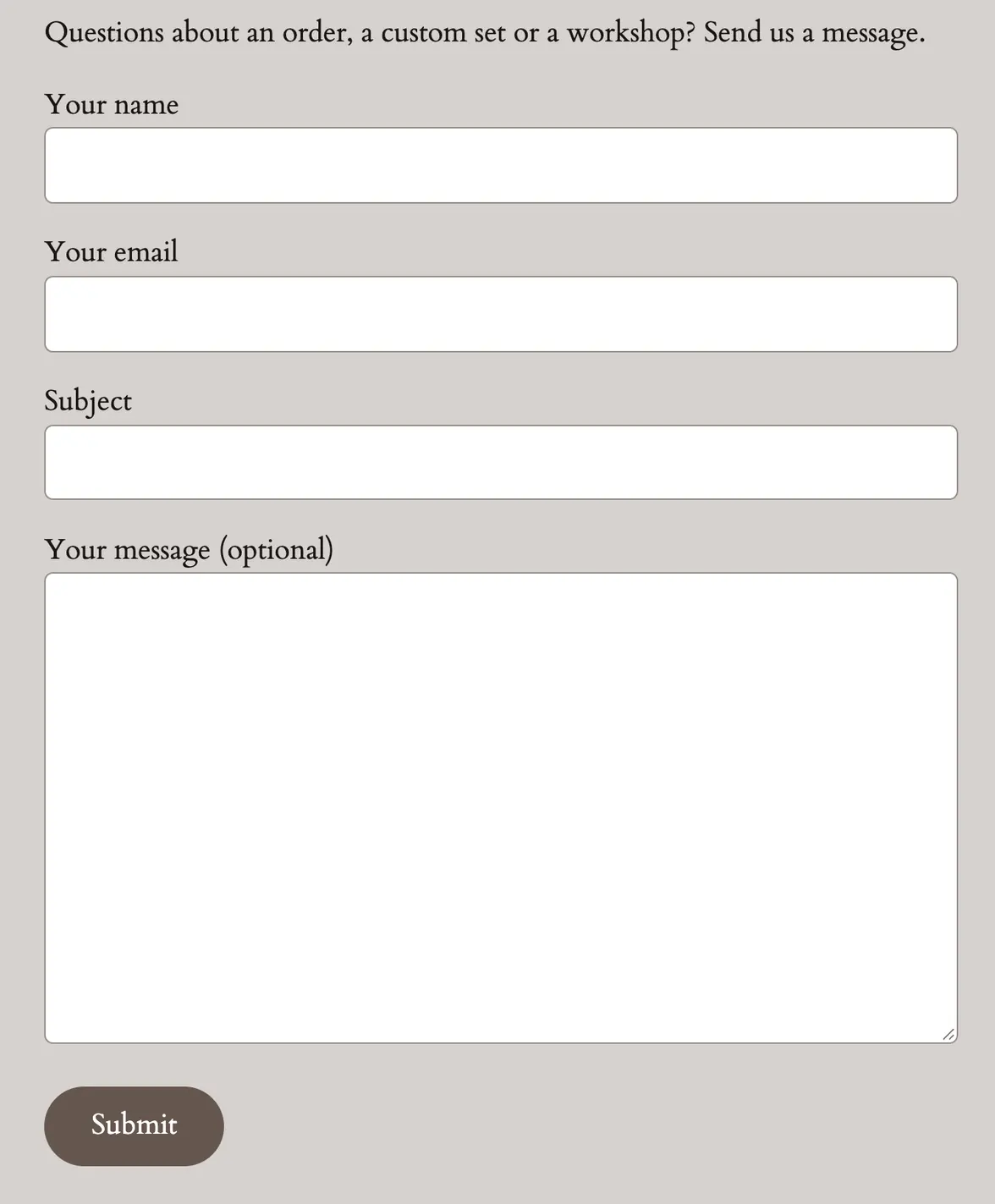


On an older (classic) theme, the kind with Appearance › Customize instead of Editor, the same rules go in Appearance › Customize › Additional CSS. Press Publish to keep them. CMSHands can't add them there; it writes the CSS in the chat and tells you where to paste it.
Contact Form 7 leaves the look of its fields to your theme, so on many themes they show up as small, plain browser boxes. Your rules live in your site's styles, not in the plugin, so a Contact Form 7 update leaves them alone. Switching themes does drop them: each theme keeps its own Additional CSS. The two colors above are our test site's own gray and brown, the brown of its other buttons. A color code is # and six letters or digits.
What it won't do here
Older (classic) themes
An exact match with your other buttons
Building or changing the form
Other form plugins
Fonts, pictures and scripts
Why it won't wreck your site
Nothing changes until you press the button.
You see it first.
One click undoes it.
Free to start
| No account | With your email | Paid plan | |
|---|---|---|---|
| Changes | 3 to try it | 10 every month | Coming. Nothing costs money until you choose it. |
| Questions | 30 a day | 100 a day | |
| If it breaks | Daily check and crash rescue | The same, plus email alerts |
Undo a change within 24 hours and it doesn't count. If you haven't added an email after 30 days, only crash rescue stays on until you add one. A change is one card you approve. A job that touches several pages or plugins is several changes.
Questions
Where do I add custom CSS for Contact Form 7?
In your site's Additional CSS, not in the plugin's own files, which an update would overwrite. On a block theme it's under Appearance › Editor › Styles, then the ⋮ menu. On an older theme it's Appearance › Customize › Additional CSS. Start each rule with div.wpcf7, the box around every form, so it touches only your forms.
How do I style one Contact Form 7 form and not the others?
Give that form a class of its own. In the Contact Form 7 block, open Form attributes in the sidebar and type booking under Class. In a shortcode, add html_class="booking", like [contact-form-7 id="9" html_class="booking"], keeping your form's own id. Then start those rules with form.booking instead of div.wpcf7. Your other forms keep their look.
Why isn't my Contact Form 7 CSS working?
Most often your theme's rule for fields wins over yours. Make yours more specific: div.wpcf7 input.wpcf7-text beats a plain input rule. Check the spelling, clear any cache plugin, then reload the page. Switched themes lately? Paste the CSS again, since each theme keeps its own Additional CSS.
Do I need a plugin to design my forms?
No, not for colors, borders, sizes and rounded corners. A few lines of CSS in Additional CSS do that, and the steps above show them. Form-styling plugins give you sliders for the same things. On a block theme, CMSHands can write the CSS for you and show the form before and after.
Is it free?
To start, yes: 3 changes with no account, then 10 a month once you add your email. Questions are free, up to 30 a day.
Written by CMSHands team.
Try it on your own contact form
Needs WP 6.3 to 7.1, PHP 8.0 or newer, and an administrator login. One site per install.
The download is a plugin. Turning it on connects your site to cmshands.com and adds 3 small rescue files. Deleting the plugin removes them and everything it stored. What we send
Download the plugin.
It's free: 3 changes to try it. No account, no card.
Upload and activate it.
In your dashboard: Plugins › Add Plugin › Upload Plugin (Add New Plugin on older WP). Choose the file, press Install Now, then Activate Plugin.
Press Turn on.
Press Turn on CMSHands. No account, no key, no password.