
Change the copyright line in your footer
A free plugin adds a chat to your WP dashboard. Type “Add © 2026 Quillmoor Pottery to my footer.” See it first, press the button, undo in one click.
Works on block themes: you'll see Appearance › Editor in your dashboard. How to tell
- Nothing changes without your OK
- Undo in one click, or a warning first
- No account, no password to share
Needs WP 6.3 to 7.1, PHP 8.0 or newer, and an administrator login. One site per install.
The download is a plugin. Turning it on connects your site to cmshands.com and adds 3 small rescue files. Deleting the plugin removes them and everything it stored. What we send
Change the copyright line in my footer to © 2026 Quillmoor Pottery.

Watch it do this on a real site

You ask
You type the line you want, the way you'd say it. The chat sits in your WP dashboard.
Change the copyright line in my footer to © 2026 Quillmoor Pottery.
You see it first
It reads your footer and comes back with a card: the footer as it would look with the new line. This is the phone view. Nothing has changed yet.
It's ready for you to review — the line sits in the same place, same size and colour as before.
- 1 secondLooking at your themes
- 3 secondsReading your footer
- 4 secondsPreparing the change for your OK
- 5 secondsPreviewing your footer

The exact line it changes
Press Code to see the line itself: 2025 in red, 2026 in green. Every other line of the footer stays as it was.

You press the button
Only now does it change the site. It saves the footer, reads it back to check, and the card turns green with an Undo link.
- 30 secondsChanging your footer
- Checking the change

It's on the site
The test site's home page right after, seen by a visitor. The footer shows the new line in the same spot, size and color.
Done. I checked afterwards, and it now says "© 2026 Quillmoor Pottery".

Undo, if you want
One press of Undo put the 2025 line back. It checked the footer again and showed what it put back.
Undone. I checked afterwards, and it's back the way it was.
- 38 secondsReverting the change
- Checking the change
A real run on our test site, Quillmoor Pottery (WP 7.1.3, Twenty Twenty-Four), Oct 11, 2026. From asking to done, it took 30 seconds.
That's the whole job. The plugin is free: 3 changes to try it, no account. Nothing changes until you press the button.
Needs WP 6.3 to 7.1, PHP 8.0 or newer, and an administrator login. One site per install.
The download is a plugin. Turning it on connects your site to cmshands.com and adds 3 small rescue files. Deleting the plugin removes them and everything it stored. What we send
How to change the copyright line in WordPress yourself
Checked on WP 7.1, Oct 11, 2026
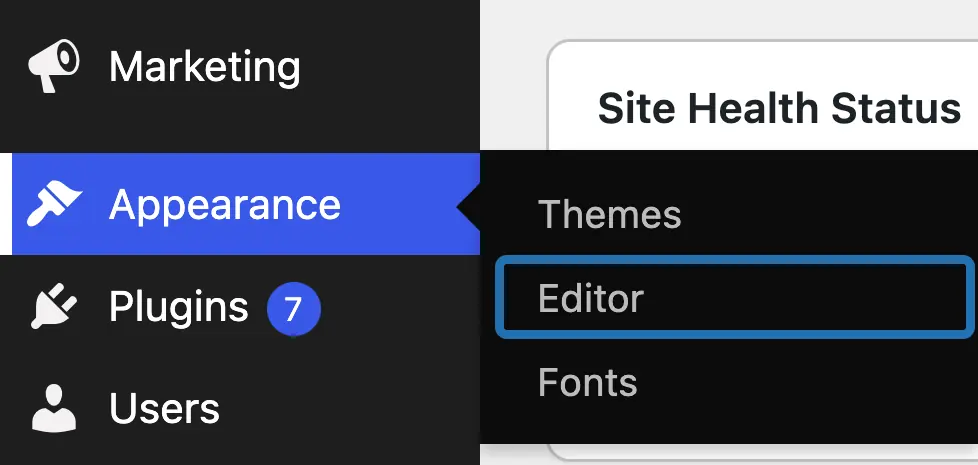
1. From your dashboard menu, open Appearance › Editor. If the menu shows Appearance › Customize instead, your theme is an older one: see below.
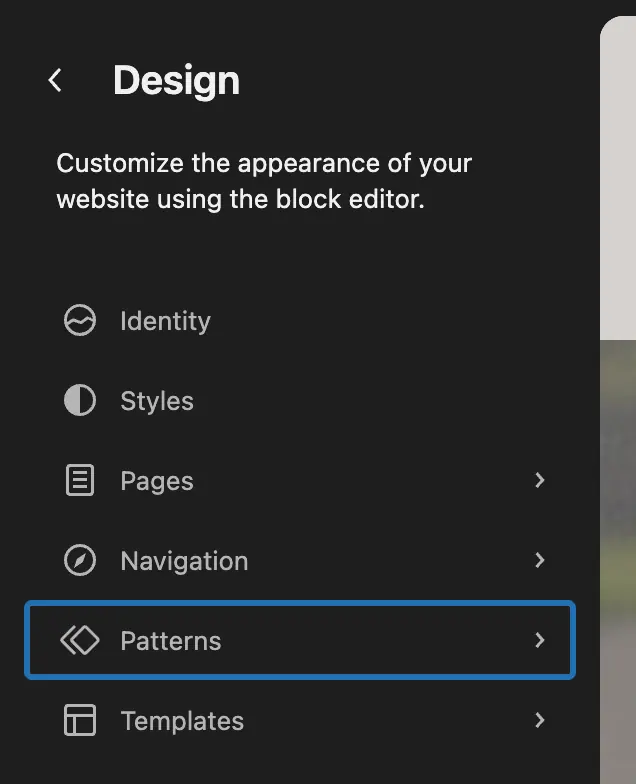
2. In the dark menu on the left, choose Patterns.
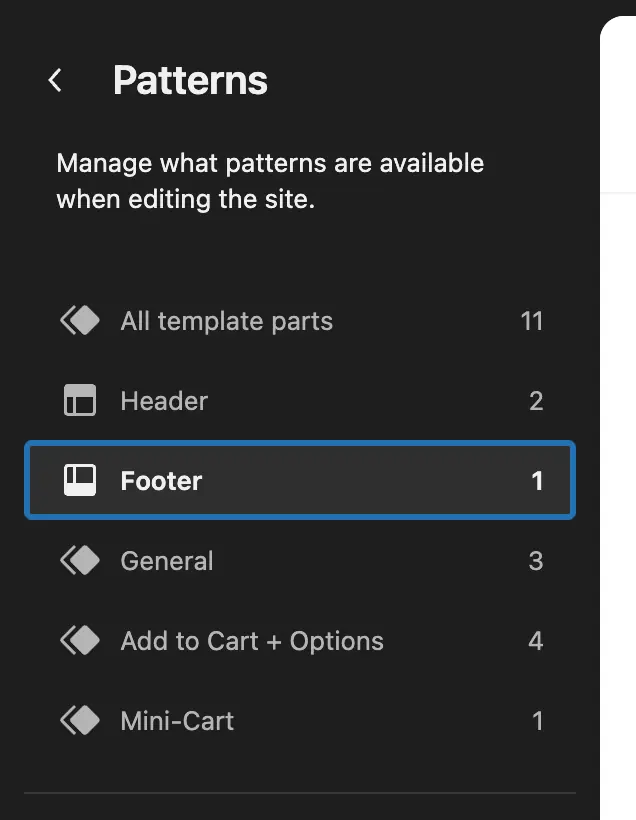
3. The menu now lists your template parts first. Choose Footer, the one below Header.
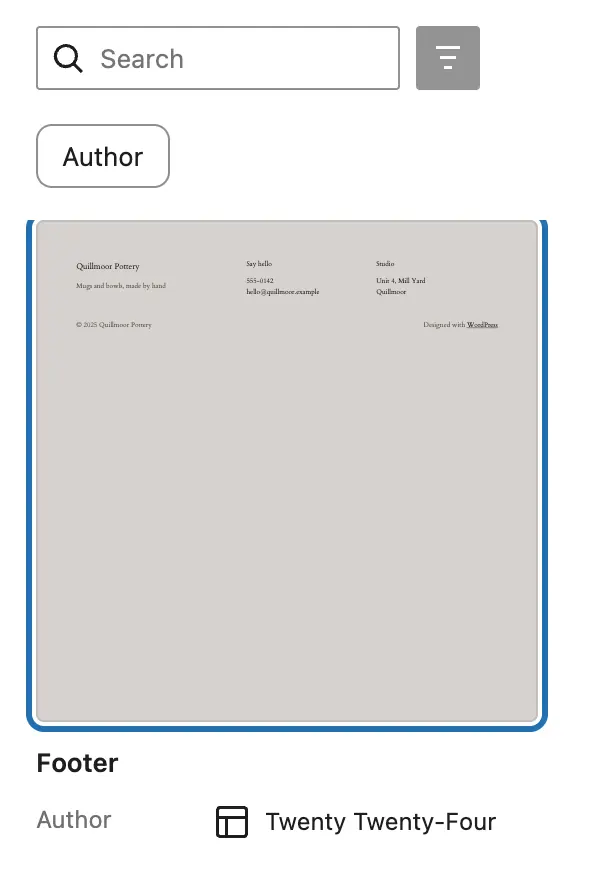
4. Your footer shows on the right as a small picture. Click the picture to open the footer.
5. Click the copyright line at the bottom of the footer. A small toolbar appears above it.
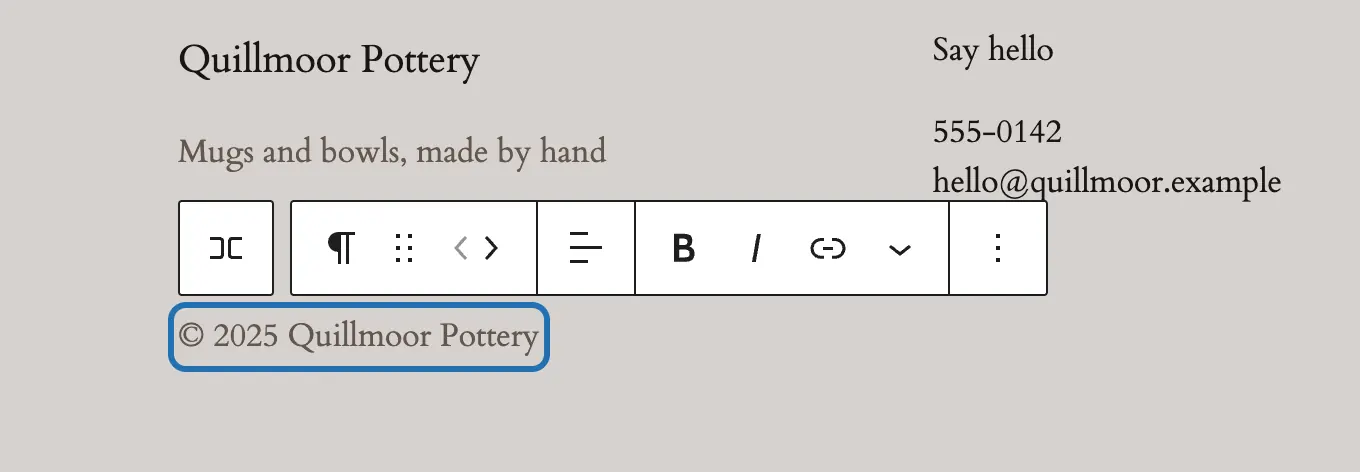
6. Select the old year and type the new one. To add the © sign, copy it from here: ©
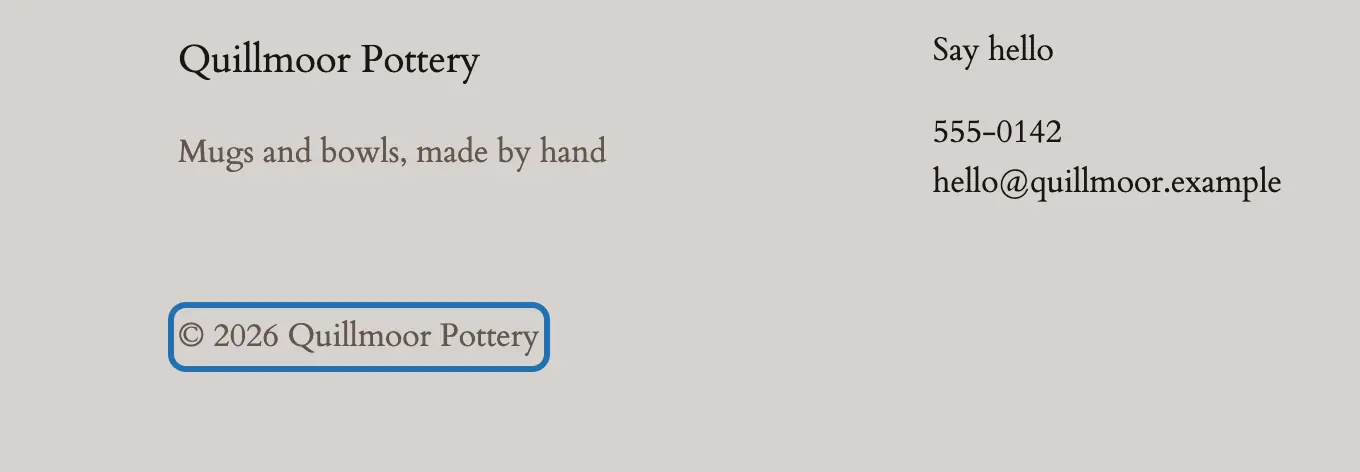
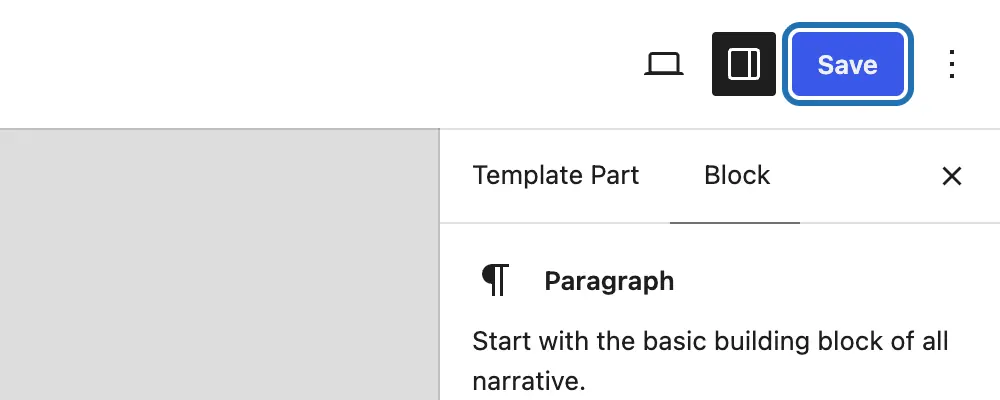
7. Press Save, the blue button in the top right corner. With only the footer edited, WP saves it straight away.
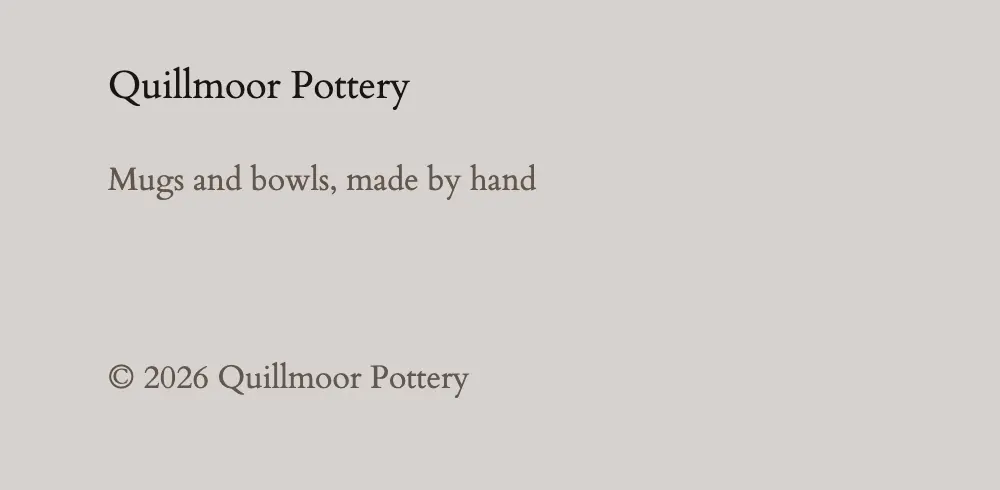
8. Look at the bottom of any page on your site. Every page that uses this footer shows the new line.


On an older (classic) theme, the copyright line usually lives in Appearance › Customize, often in a section called Footer, or on the theme's own settings page. Some themes write it into their files instead. CMSHands can't edit a classic theme's footer yet.
Your pages share one footer, so you change the line once and it updates across the site. WP 7.1 has no block that shows the current year, so the year in your footer is plain text. It stays as you typed it until someone changes it.
What it won't do here
Older (classic) themes
A year that changes by itself
Page-builder footers
One card per place
Why it won't wreck your site
Nothing changes until you press the button.
You see it first.
One click undoes it.
Free to start
| No account | With your email | Paid plan | |
|---|---|---|---|
| Changes | 3 to try it | 10 every month | Coming. Nothing costs money until you choose it. |
| Questions | 30 a day | 100 a day | |
| If it breaks | Daily check and crash rescue | The same, plus email alerts |
Undo a change within 24 hours and it doesn't count. If you haven't added an email after 30 days, only crash rescue stays on until you add one. A change is one card you approve. A job that touches several pages or plugins is several changes.
Questions
How do I add the copyright symbol in a WordPress footer?
Open your footer, click where the sign goes and type or paste ©. On a block theme the footer is in Appearance › Editor › Patterns › Footer. To type it, press Option+G on a Mac, or on Windows hold Alt and type 0169 on the number pad. WP doesn't turn (c) into © for you. Then press Save.
How do I change the copyright in the WordPress footer?
On a block theme, go to Appearance › Editor › Patterns, choose Footer and open it. Click the copyright line, type the new words and press Save. On an older theme, look in Appearance › Customize, often in a Footer section, or on the theme's own settings page.
Does the copyright year update itself in WordPress?
Not in a block theme's footer. WP 7.1 has no block for the current year, so the year stays as you typed it. Some themes and plugins add one with a bit of code. CMSHands can't add code yet, so ask it each January to change the line, as in the run above.
Can I undo the change?
Yes. Press Undo on the card. In our test run it put “© 2025 Quillmoor Pottery” back, checked the footer again, and the assistant said: “Undone. I checked afterwards, and it's back the way it was.” If you edit by hand, WP keeps your earlier saves: open the footer and press Revisions in the Template Part panel on the right.
Is it free?
To start, yes: 3 changes with no account, then 10 a month once you add your email. Questions are free, up to 30 a day.
Written by CMSHands team.
Try it on your own copyright line
Needs WP 6.3 to 7.1, PHP 8.0 or newer, and an administrator login. One site per install.
The download is a plugin. Turning it on connects your site to cmshands.com and adds 3 small rescue files. Deleting the plugin removes them and everything it stored. What we send
Download the plugin.
It's free: 3 changes to try it. No account, no card.
Upload and activate it.
In your dashboard: Plugins › Add Plugin › Upload Plugin (Add New Plugin on older WP). Choose the file, press Install Now, then Activate Plugin.
Press Turn on.
Press Turn on CMSHands. No account, no key, no password.