
Change your WP header by asking
A free plugin adds a chat to your WP dashboard. Type “Add our phone number, 555-0142, to the header.” See it first, press the button, undo in one click.
Works on block themes: you'll see Appearance › Editor in your dashboard. How to tell
- Nothing changes without your OK
- Undo in one click, or a warning first
- No account, no password to share
Needs WP 6.3 to 7.1, PHP 8.0 or newer, and an administrator login. One site per install.
The download is a plugin. Turning it on connects your site to cmshands.com and adds 3 small rescue files. Deleting the plugin removes them and everything it stored. What we send
Add our phone number, 555-0142, to the header.

Watch it do this on a real site

You ask
You type what you want in the chat in your WP dashboard. You don't have to say where in the header the number goes, or open the header first.
Add our phone number, 555-0142, to the header.
You see it first
It looked at the theme, read the header and came back with a card. Its After view is the header with 555-0142 after the cart icon, in the theme's small text size. Nothing on the site has changed yet.
I'll look at your header first. It's ready for you to review — on a narrow screen the header now wraps onto two rows, with the number after the cart icon.
- 2 secondsLooking at your themes
- 3 secondsLooking at your theme’s colours and sizes
- 4 secondsReading your header
- 9 secondsReading your footer
- 15 secondsPreparing the change for your OK
- 16 secondsPreviewing your header

Check it on a phone
The same card shows the header on a phone: the name on the first row, then the menu, cart and number on the second. Its Now tab shows the header as it is today, and Code shows the exact lines that change.

You press the button
Only now does it change the site. It saved the new header, read it back to check, and the card turned green with an Undo link.
- 53 secondsChanging your header
- Checking the change

It's on the site
The right half of the test site's header right after, as a visitor sees it. The number sits after the cart icon. The rest of the header is as it was.
Done. I checked afterwards, and it now says "555-0142".

Undo, if you want
One press of Undo took the number out again. It checked the header and showed what it put back: the lines with the number, in red, are gone.
Undone. I checked afterwards, and it's back the way it was.
- 1 minute 2 secondsReverting the change
- Checking the change
A real run on our test site, Quillmoor Pottery (WP 7.1.3, Twenty Twenty-Four), Oct 10, 2026. From asking to done, it took 54 seconds.
That's the whole job. The plugin is free: 3 changes to try it, no account. Nothing changes until you press the button.
Needs WP 6.3 to 7.1, PHP 8.0 or newer, and an administrator login. One site per install.
The download is a plugin. Turning it on connects your site to cmshands.com and adds 3 small rescue files. Deleting the plugin removes them and everything it stored. What we send
How to edit the header in WordPress yourself
Checked on WP 7.1, Oct 11, 2026
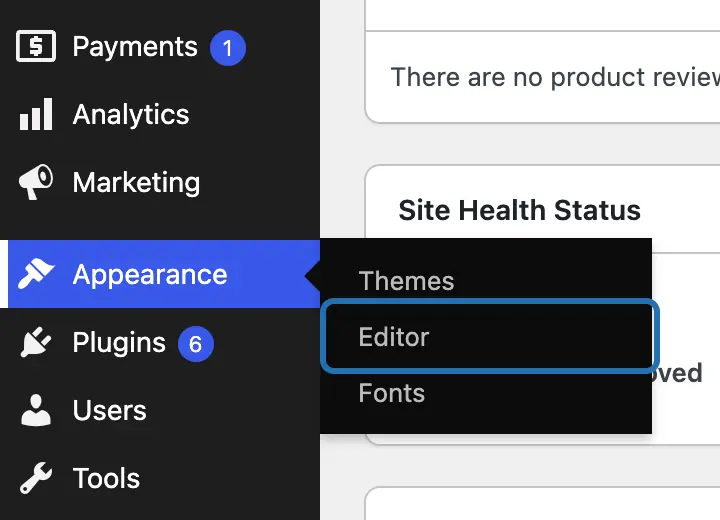
1. Go to Appearance › Editor in your dashboard. Only Customize there? Your theme is an older (classic) one: see the note after the steps.
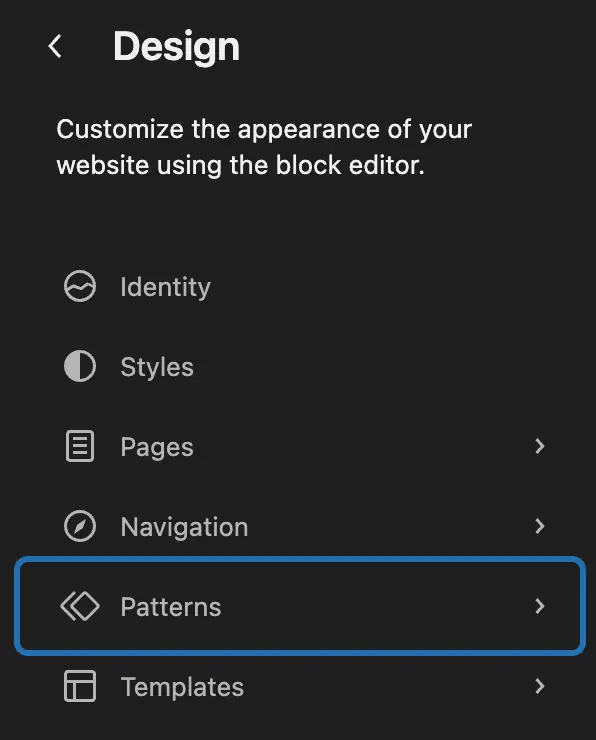
2. The Design list opens on the left. Pick Patterns, the item under Navigation.
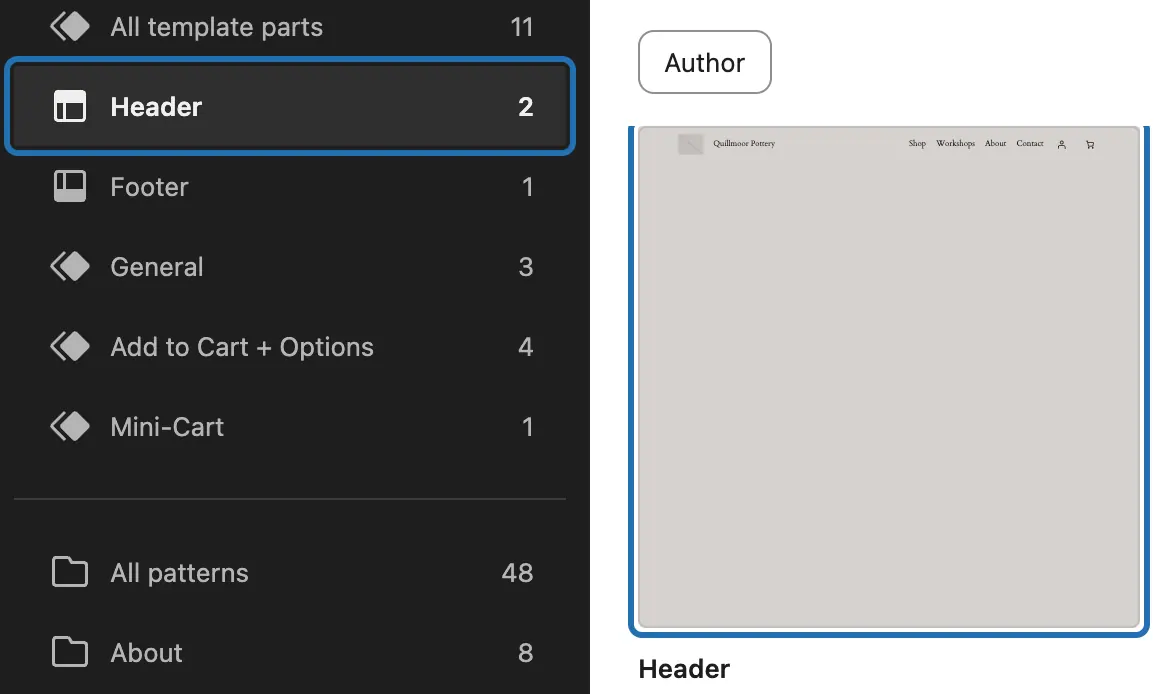
3. Pick Header, second in the list. Then click the big preview named Header to open it in the editor.
4. A welcome box may pop up: press Get started. Then click the item at the right end of your header. Ours is a cart icon.
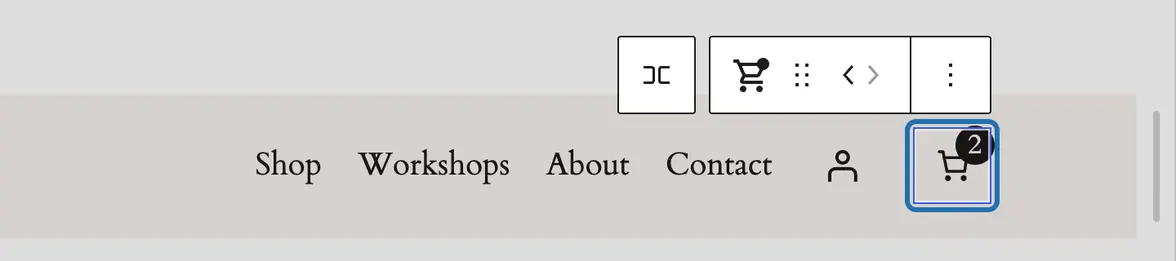
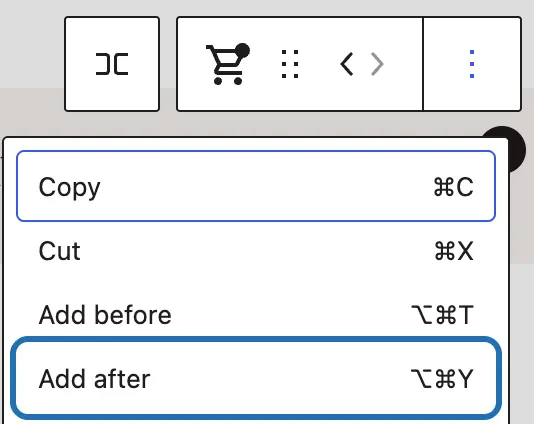
5. A small toolbar shows above it. Press its ⋮ (Options) button, then Add after. An empty spot for text opens next to the cart.
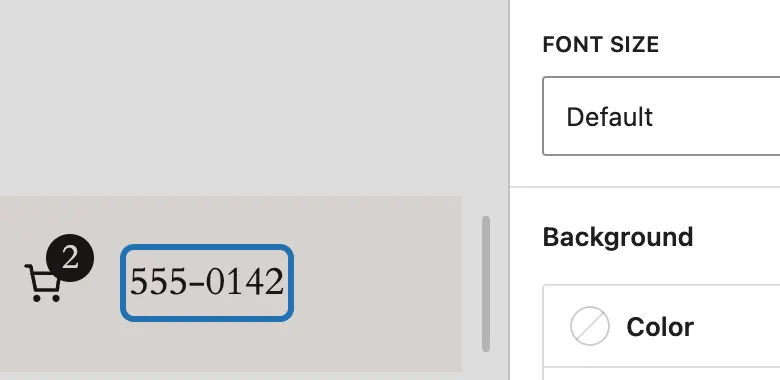
6. Type your number there. It starts at the normal text size. For smaller text, pick a size under Font size on the right.
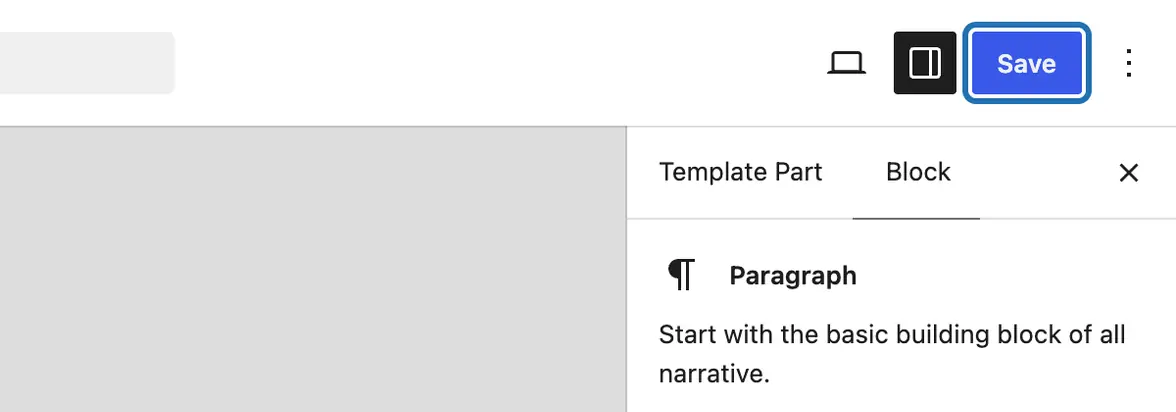
7. Press the blue Save button in the top right corner. Nothing reaches your site until you do.
8. Open two of your pages in a new tab. Each header should now end with your number. Ours is below, in the small size.



Older (classic) themes build the header from their own files, with no Editor screen. Change the name and logo in Appearance › Customize › Site Identity, and the links in Menus (some themes add a Header panel there too). CMSHands can’t add to a classic theme’s header yet.
Headers fill up fast. On a phone, ours took 1 row before the number and 2 rows after: the name on top, then the menu button, the icons and the number. So check the phone view before you save.
What it won't do here
Older (classic) themes
The links in your menu
A new logo
Headers made with a page builder
Tracking codes
Why it won't wreck your site
Nothing changes until you press the button.
You see it first.
One click undoes it.
Free to start
| No account | With your email | Paid plan | |
|---|---|---|---|
| Changes | 3 to try it | 10 every month | Coming. Nothing costs money until you choose it. |
| Questions | 30 a day | 100 a day | |
| If it breaks | Daily check and crash rescue | The same, plus email alerts |
Undo a change within 24 hours and it doesn't count. If you haven't added an email after 30 days, only crash rescue stays on until you add one. A change is one card you approve. A job that touches several pages or plugins is several changes.
Questions
Where is the header in WordPress?
In a block theme it’s under Appearance › Editor › Patterns › Header, where it opens on its own, away from your pages. A classic theme has no such screen: change the name and logo in Appearance › Customize › Site Identity, and the links in Menus. Either way, one header serves the whole site.
Will changing the header change it on every page?
Yes, on every page whose template includes it. On our test site that’s every page except the checkout, which the shop plugin gives a header of its own. Before you press, the CMSHands card says how far the change reaches; ours read “shows on every page”.
How do I remove the header in WordPress?
Delete it from the template your pages use. On a block theme, go to Appearance › Editor › Templates and open that template. Click the header, choose Delete from its ⋮ menu, then press Save. Pages using that template lose their header. We haven’t tested removing a header with CMSHands yet.
What is the header in WordPress?
It’s the band across the top of your pages: usually the site name or logo, the menu, and sometimes search, account or cart icons. In a block theme it’s the header template part, the piece every page shares at the top. Your edits are stored apart from the theme’s own copy, so that copy is still there if you want it back.
Can I undo a header change?
Yes, with one press of Undo on the card. In our test run it took 555-0142 back out, then read the header again to check. The card showed what it had put back, with the number’s lines in red.
Is it free?
To start, yes: 3 changes with no account, then 10 a month once you add your email. Questions are free, up to 30 a day.
Written by CMSHands team.
Try it on your own header
Needs WP 6.3 to 7.1, PHP 8.0 or newer, and an administrator login. One site per install.
The download is a plugin. Turning it on connects your site to cmshands.com and adds 3 small rescue files. Deleting the plugin removes them and everything it stored. What we send
Download the plugin.
It's free: 3 changes to try it. No account, no card.
Upload and activate it.
In your dashboard: Plugins › Add Plugin › Upload Plugin (Add New Plugin on older WP). Choose the file, press Install Now, then Activate Plugin.
Press Turn on.
Press Turn on CMSHands. No account, no key, no password.