
Write and publish a blog post in WP
A free plugin adds a chat to your WP dashboard. Give it your notes. It writes the post and adds it when you press the button. Undo removes it.
Goes live when you press the button. To read it first, ask for a draft. What it won't do
- Nothing changes without your OK
- Undo in one click, or a warning first
- No account, no password to share
Needs WP 6.3 to 7.1, PHP 8.0 or newer, and an administrator login. One site per install.
The download is a plugin. Turning it on connects your site to cmshands.com and adds 3 small rescue files. Deleting the plugin removes them and everything it stored. What we send

Watch it do this on a real site

You ask
You paste your notes into the chat and say what you want. The chat sits in your WP dashboard, next to your posts.
Write a short post announcing our autumn workshop from these notes, and publish it: Sat Nov 7, 10am–1pm, $55, six places, book by emailing hello@quillmoor.example.

It asks first
It checks for a post about this, reads one of your posts, and then shows a card, a box in the chat that names the change: Add a post. The card doesn't show the words yet. Nothing is on your site until you press Add the post.
There was no post about this yet, and this one goes live as soon as you approve it. It isn't linked from your menu or the Workshops page — say the word if you want a link adding.
- 4 secondsLooking for what you meant
- Reading one of your posts
- 7 secondsPreparing the change for your OK

You press the button
Only now does it add the post. It reads it back to check, and the card turns green with an Undo link.
- 14 secondsAdding a post
- 15 secondsChecking the change

It's on the site
The new post on the test site right after, as a visitor sees it. The day, time, places, price and booking email all come from the notes. It went into Uncategorized, the site's default.
Done. I checked afterwards, and the change is in place.

Undo, if you want
One press of Undo took the post off the site again. It checked before it said so.
Undone. I checked afterwards, and it's back the way it was.
- 23 secondsReverting the change
- Checking the change
A real run on our test site, Quillmoor Pottery (WP 7.1.3, Twenty Twenty-Four), Oct 10, 2026. From asking to done, it took 20 seconds.
That's the whole job. The plugin is free: 3 changes to try it, no account. Nothing changes until you press the button.
Needs WP 6.3 to 7.1, PHP 8.0 or newer, and an administrator login. One site per install.
The download is a plugin. Turning it on connects your site to cmshands.com and adds 3 small rescue files. Deleting the plugin removes them and everything it stored. What we send
How to make a blog post in WordPress yourself
Checked on WP 7.1, Oct 11, 2026
1. Log in to your dashboard (yoursite.com/wp-admin) and go to Posts › Add Post. The Add Post button above your list of posts does the same.
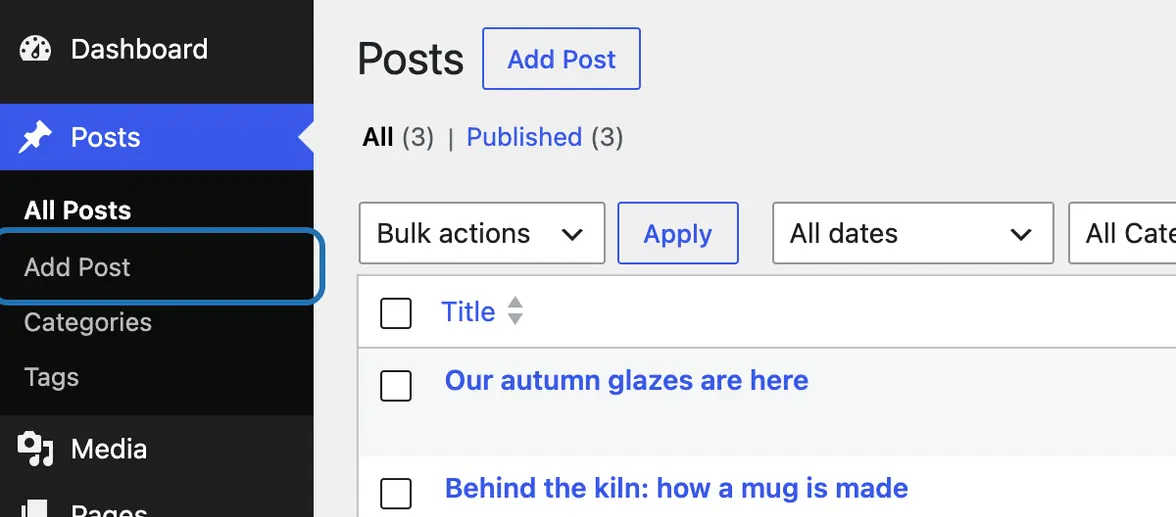
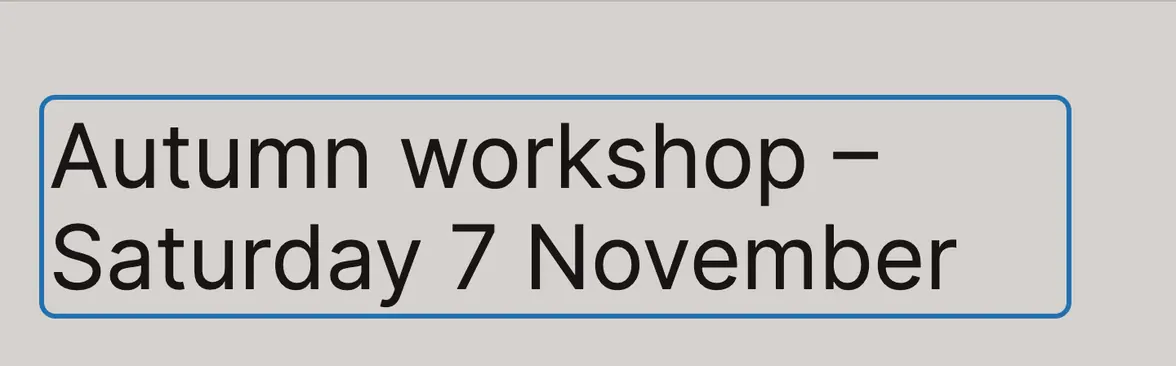
2. Click Add title and type the post's title. WP also makes the post's web address from it.
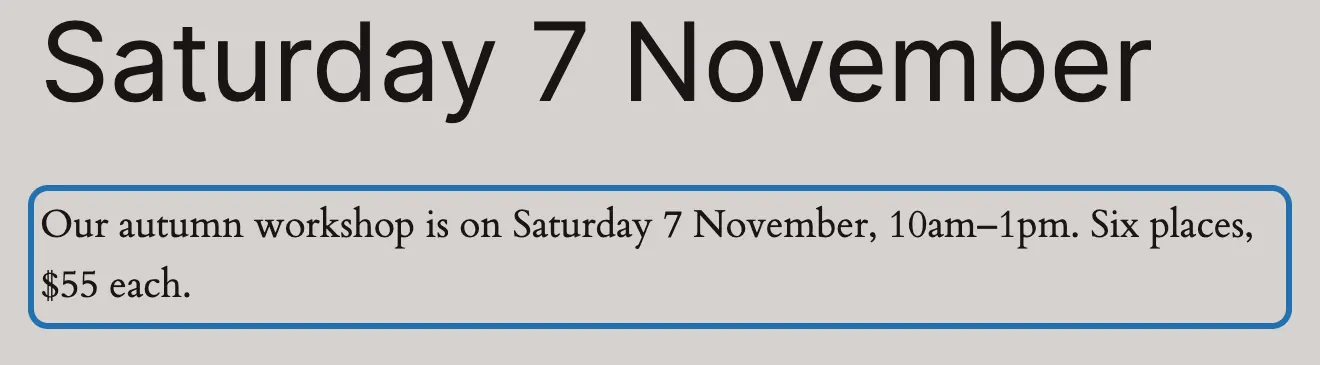
3. Press Enter and type your post. Each paragraph is its own block: press Enter again to start the next one.
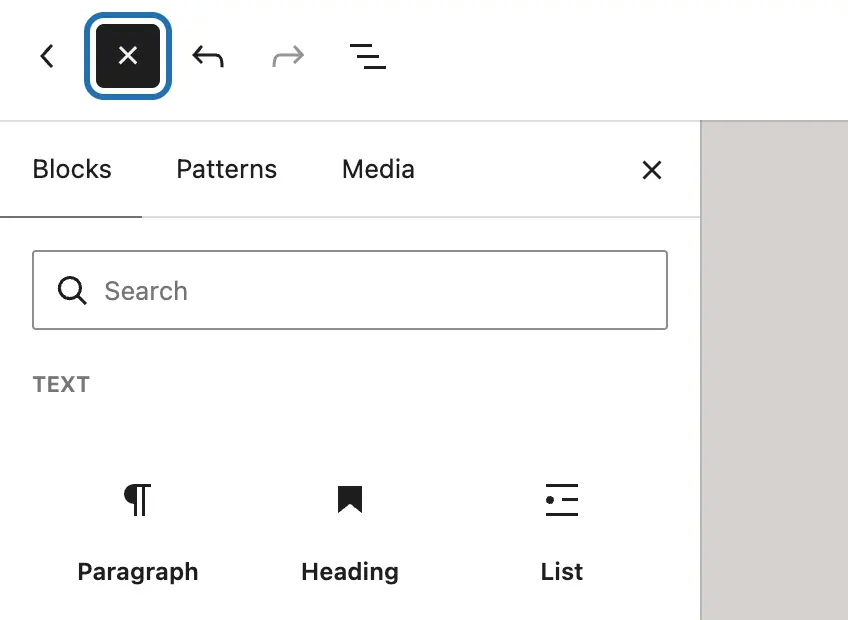
4. For a heading, picture or list, press + (top left; it turns into ×) and pick a block. Or type / on an empty line.
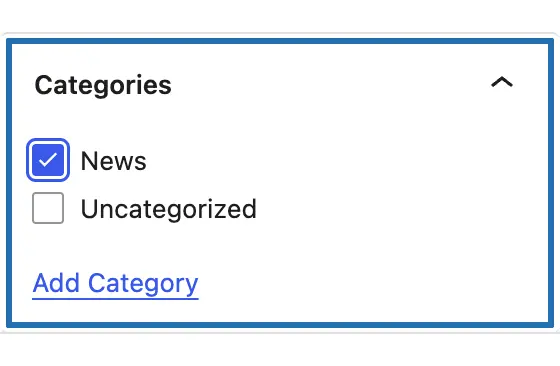
5. In the Post panel on the right, open Categories and tick one, like News. If you tick none, WP files it under Uncategorized.
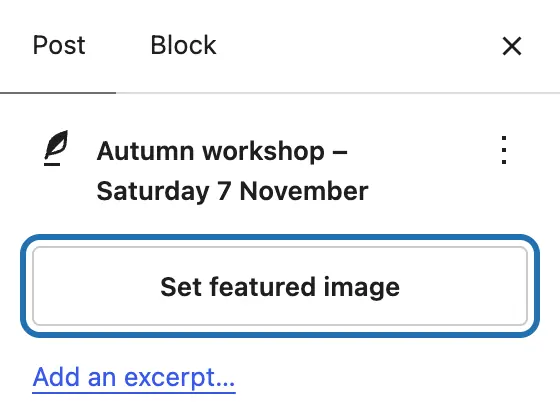
6. Press Set featured image in the same panel to pick the picture many themes show with the post and in post lists.
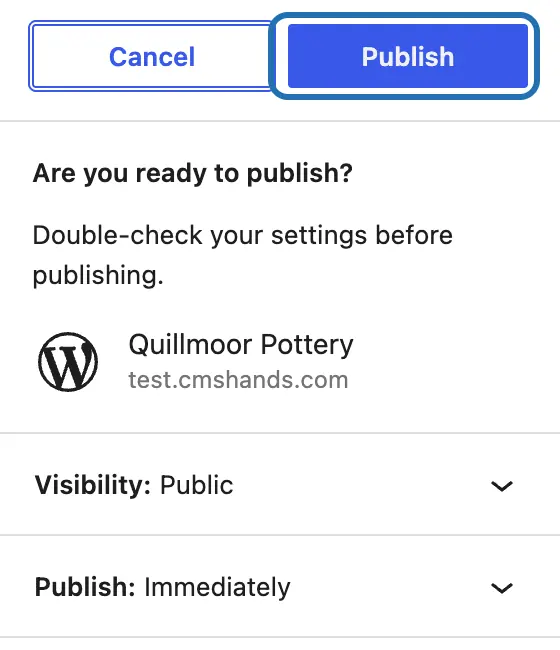
7. Press Publish at the top right, check the panel, then press Publish again. To post it later, set a date under Publish: Immediately first.


If your site has the Classic Editor plugin, the post opens as one big text box. Type the title at the top and the post below, tick a category on the right, and press Publish.
Not ready yet? Save draft, next to Publish, keeps the post hidden until you come back to it. To change a post that's already live, open it from Posts › All Posts, edit it and press Save. Posts show newest first on your blog page; if you don't have one, see how to make a Blog page.
What it won't do here
Reading the words before you press
Pictures and featured images
Choosing a category
Adding the post to your menu
SEO plugin boxes
Why it won't wreck your site
Nothing changes until you press the button.
One click undoes it.
Free to start
| No account | With your email | Paid plan | |
|---|---|---|---|
| Changes | 3 to try it | 10 every month | Coming. Nothing costs money until you choose it. |
| Questions | 30 a day | 100 a day | |
| If it breaks | Daily check and crash rescue | The same, plus email alerts |
Undo a change within 24 hours and it doesn't count. If you haven't added an email after 30 days, only crash rescue stays on until you add one. A change is one card you approve. A job that touches several pages or plugins is several changes.
Questions
Where do my blog posts show up on my site?
On your posts page. Settings › Reading decides where that is: either your home page shows your latest posts, or a page you pick does. If your home page is a fixed page and no posts page is chosen, there may be no page that lists them, so make a Blog page first. Each post also gets its own web address.
What's the difference between a post and a page?
Posts are dated news and updates. They show newest first on your blog page, in your feed and under their categories. Pages are for things that stay, like About or Contact, and have no date or category. A workshop announcement is a post; your Workshops page is a page. To add a page instead, see how to add a new page.
How do I add a table of contents to a WordPress blog post?
WP 7.1 has no table of contents block of its own. A plugin from the WP plugin directory adds one: the free plugins at wordpress.org, the ones Plugins › Add Plugin searches (Add New Plugin on older WP). Search “table of contents” there, or ask CMSHands to pick and install one. Without a plugin, give each heading an anchor under Advanced › HTML anchor, then link to them from a list at the top.
Can an AI assistant write a WordPress blog post for me?
Yes. Give CMSHands your notes in the chat. It writes the post and adds it when you press the button. In our test run it turned the notes into a title and 3 short lines, and published them as asked. The card doesn't show the words first. To read it before visitors do, ask for a draft: in a second run it saved one and the site didn't change. Open it from Posts › All Posts and press Publish.
How do I unpublish or delete a blog post?
Go to Posts › All Posts, hover over the post and click Trash. It leaves your site at once, and WP keeps it in the trash for 30 days. To hide it but keep it, open the post and change Status to Draft in the Post panel. With CMSHands, Undo on the card took the post off the site in our test run.
Is it free?
To start, yes: 3 changes with no account, then 10 a month once you add your email. Questions are free, up to 30 a day.
Written by CMSHands team.
Try it on your next blog post
Needs WP 6.3 to 7.1, PHP 8.0 or newer, and an administrator login. One site per install.
The download is a plugin. Turning it on connects your site to cmshands.com and adds 3 small rescue files. Deleting the plugin removes them and everything it stored. What we send
Download the plugin.
It's free: 3 changes to try it. No account, no card.
Upload and activate it.
In your dashboard: Plugins › Add Plugin › Upload Plugin (Add New Plugin on older WP). Choose the file, press Install Now, then Activate Plugin.
Press Turn on.
Press Turn on CMSHands. No account, no key, no password.