Add coupons in bulk from a CSV
CMSHands, a free WordPress plugin, adds a chat to your dashboard. On the paid plan, attach your coupon file: “Create the coupons in this file.” Nothing changes until you press.
Imports are part of the paid Keeper plan, opening soon. Free today: make one coupon by asking; that one can't be undone yet.
Needs WP 6.3 to 7.1 and PHP 8.0 or newer. What it installs
Needs WP 6.3 to 7.1, PHP 8.0 or newer, and an administrator login. One site per install.
The download is a plugin. Turning it on connects your site to cmshands.com and adds 3 small rescue files. Deleting the plugin removes them and everything it stored. What we send
Plugins are installed from a computer. Get the plugin here instead
Free to start: 3 changes with no account, then 10 a month with your email. Questions free, 30 a day. No card.
- Nothing changes without your OK
- Undo in one click, or a warning first
- No account, no password to share
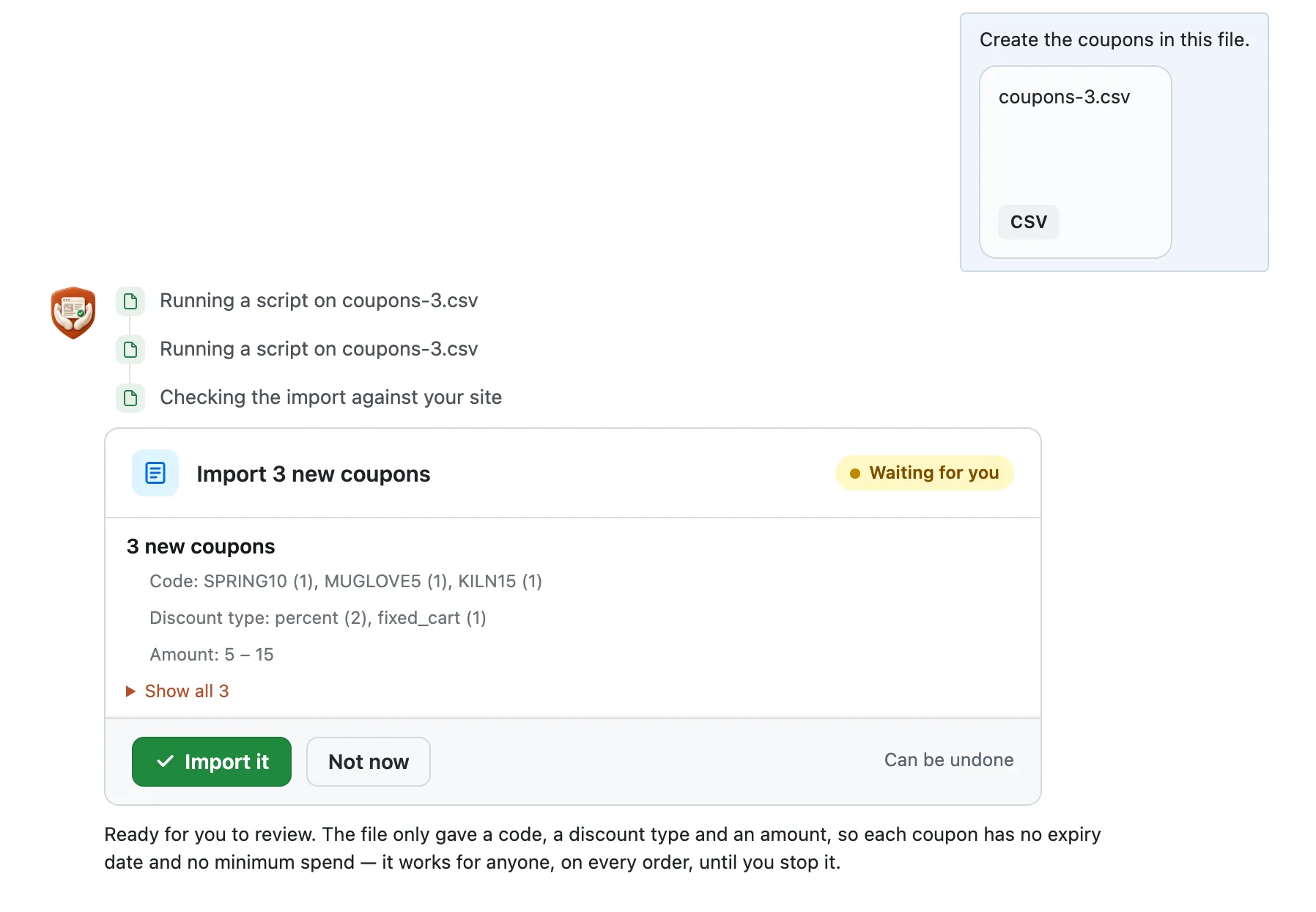
Create the coupons in this file.

3 new coupons
Code: SPRING10 (1), MUGLOVE5 (1), KILN15 (1)
Discount type: percent (2), fixed_cart (1)
Amount: 5 – 15
Show all 3
Ready for you to review. The file only gave a code, a discount type and an amount, so each coupon has no expiry date and no minimum spend — it works for anyone, on every order, until you stop it.
A real run on our test site, . From asking to done, it took 49 seconds. Go through it step by step
Watch it do this on a real site
You see it first
Quillmoor Pottery, WP 7.1.3, Twenty Twenty-Four. Imports are part of the paid Keeper plan, opening soon. Step times count from the moment the request was sent.
- It reads your file and checks it against your store. Then it shows one card, a box in the chat that shows exactly what would change: every new code, its type and amount.
- It says what your file left out. Ours had no end dates, so it warned that each code works on every order until you stop it.
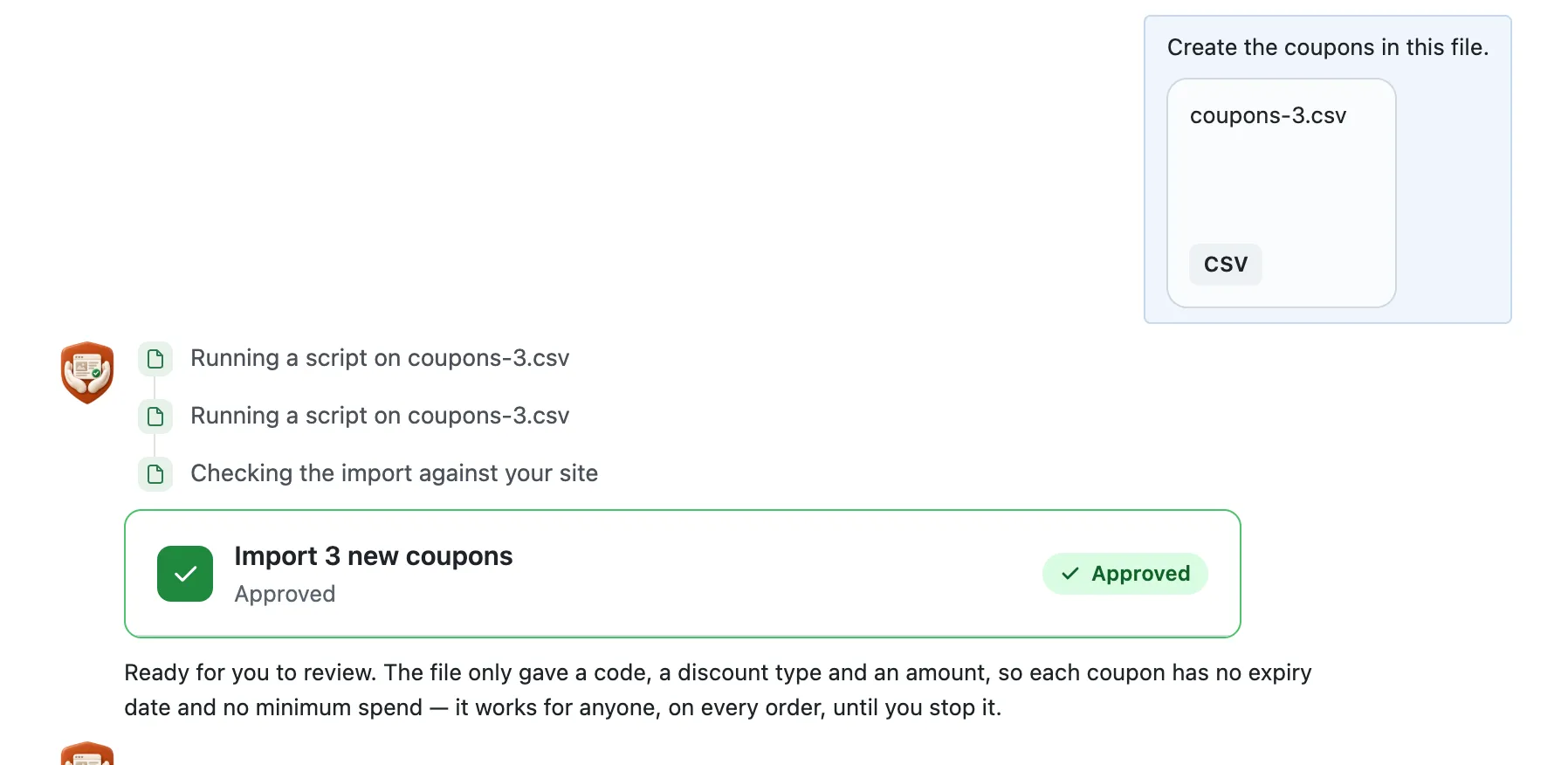
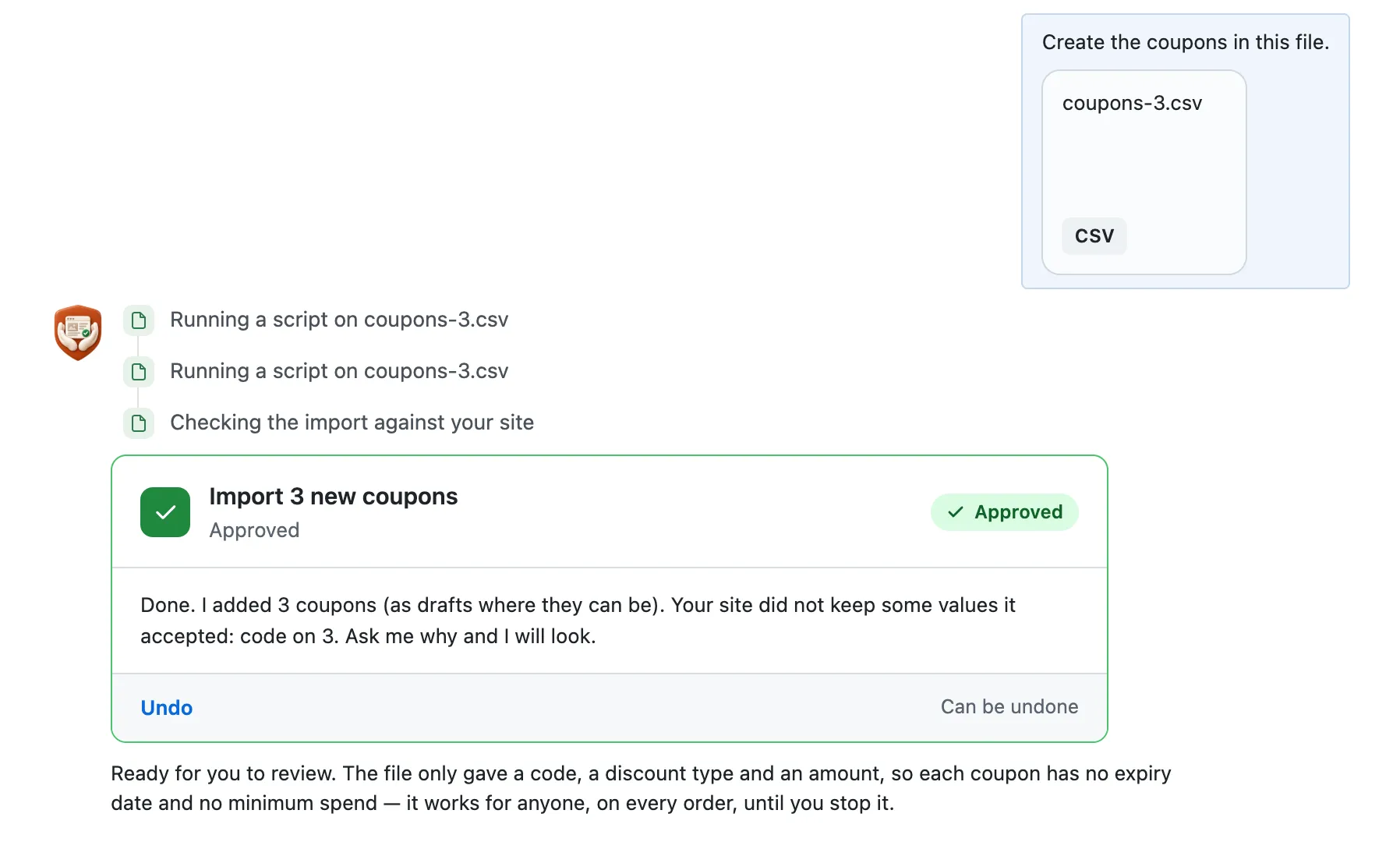
- One press adds them all, live, not as drafts. Its last message may wrongly say your store didn't keep the codes. It did.
More it does here (1)
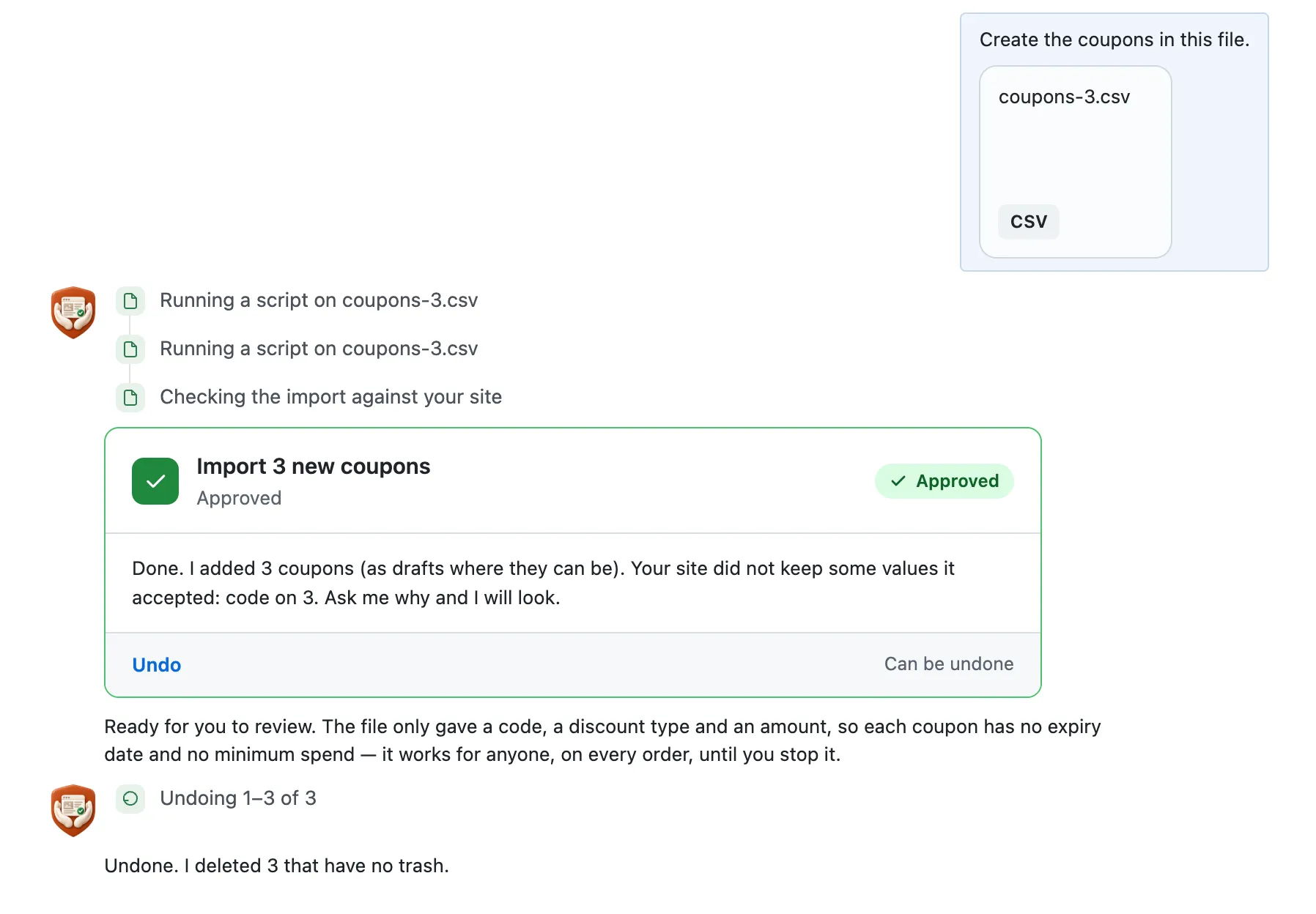
- Undo on the same card deletes them all again. Coupons have no trash, so undone codes are gone for good.
How to add store coupons in WordPress yourself
In WordPress, go to Marketing › Coupons, press Add coupon, type the code, discount type and amount, then press Publish, once for each code.
Checked on WP 7.1,
1. In your dashboard, go to Marketing › Coupons. Your store can't import coupons, so you add one code at a time.
2. Press Add coupon at the top of the list.
3. Type the code in the Coupon code box at the top, for example SPRING10.
4. On the General tab below, set Discount type to Percentage discount and type 10 in Coupon amount.
5. Pick a date in Coupon expiry date. The code stops working at midnight as that day starts, so pick the day after its last day.
6. Open the Usage limits tab and type how many times the code can be used in Usage limit per coupon.
7. Press Publish. Then go back to Marketing › Coupons and repeat these steps for the next code in your sheet.
WooCommerce saves every code in small letters, so SPRING10 shows as spring10 in your coupon list. Shoppers can type it either way at checkout. That's also why the chat's last message can wrongly say a code wasn't kept. WooCommerce is a trademark of Automattic Inc.
Or ask for it in the chat
“Create the coupons in this file.”
Why it won't wreck your site
- Nothing changes until you press the button. Every change comes as a card that names it. Nothing happens until you press the button or Not now.
- One click undoes it. When something can't be undone, like deleting a page or a plugin, the card says so before you press.
What it won't do here
- Imports wait for the paid planThe paid plan isn't open yet. Until it is, use the steps above, or ask the chat for one coupon at a time. That one can't be undone yet.
- Coupon settings we haven't triedOur test file gave a code, a discount type and an amount. We haven't tried end dates, use limits, minimum spend or product limits yet.
- Removing coupons from a fileIt adds the codes a file lists. It can't remove the coupons a file lists.
- Writing coupons out to a CSVIt can't export your coupons to a sheet.
More it can do
- Your shop:
Change a price by asking
“Change the price of the Speckled oat mug to $34.”
It took 15 seconds on our test site.
- Your shop:
Restock and mark sold out
“I just got 20 more Rust brown mugs in, so set its stock to 29. And the Small dipping bowl is sold out, mark it out of…”
It took 18 seconds on our test site.
- Your shop:
Mark orders done
“Lena Fischer's order #2185 has been delivered. Please mark it as completed.”
It took 14 seconds on our test site.
- Your shop:
Approve now, done on Friday Coming soon
Press OK today and the change happens when you say, like Friday at 8.
Questions
Can WooCommerce import coupons from a CSV?
No, not on its own. WooCommerce's built-in importer handles products only. Coupons go in one at a time under Marketing › Coupons, or through a separate plugin. In the CMSHands chat you attach the file and check one card that lists every code. That's on the paid plan, which isn't open yet. WooCommerce is a trademark of Automattic Inc.
What columns does a coupon CSV need?
One row per coupon, with at least the code. Our test file had 3 columns: code, discount_type and amount. Its types were percent and fixed_cart, a set amount off the whole order. The card showed each code with its type and amount. We haven't tried other columns, like an end date, yet.
Is there a plugin to import coupons from a CSV?
Yes. Since your store can't import coupons itself, you need a plugin for it, or you add them by hand. CMSHands is one: you attach the file in a chat, check one card that lists every code, then press once. Imports are on its paid plan, which isn't open yet.
Can I undo a coupon import?
Yes. Press Undo on the card. In our test run it deleted all 3 codes again and said: “Undone. I deleted 3 that have no trash.” So undone coupons don't wait in the trash; they're gone. We checked: no coupons were left in the shop.
Written by the CMSHands team. First published .
Try the free plugin on your own store
- Nothing changes without your OK
- Undo in one click, or a warning first
- No account, no password to share
Free to start: 3 changes with no account, then 10 a month with your email. Questions free, 30 a day. No card.